Control Your Scoreboard with Stream Deck
Control scoreboards with Elgato Stream Deck. One-touch score updates and timer control for basketball, football, hockey, soccer, volleyball and more.
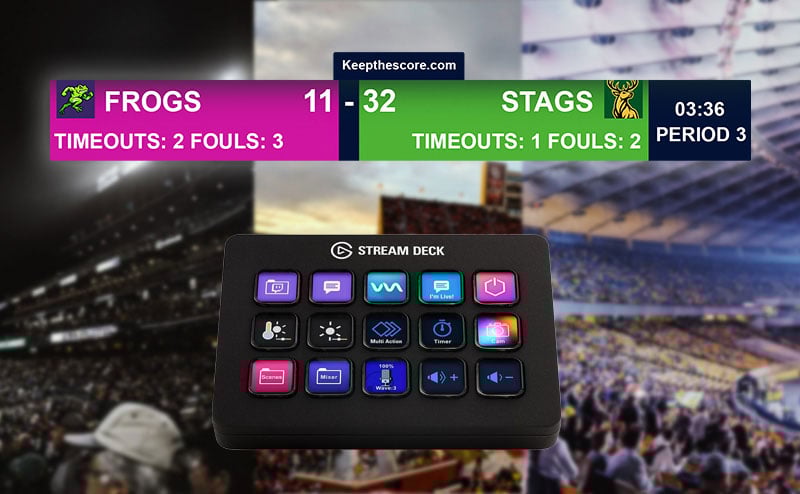
Control your Keep The Score sports scoreboards with physical buttons using the Elgato Stream Deck. Perfect for streamers, scorekeepers, and anyone who wants tactile control of their scoreboard during live events.
What You'll Need
- An Elgato Stream Deck device (any model, or the free Stream Deck Mobile app)
- Stream Deck software (version 6.9 or later)
- A Keepthescore.com sports scoreboard (Basketball, Baseball, Softball, Football, Hockey, Soccer, Volleyball, Pickleball, Badminton, Squash, or Universal)
- Your board token (one click to copy, explained below)
Which Stream Deck Should I Buy?
Any model works. Pick by how many buttons you want in front of you during a game:
- Stream Deck Neo (8 keys) — enough for both teams' scores, the game clock and one spare. The cheapest way in.
- Stream Deck MK.2 (15 keys) — the most popular choice. Room for scores, fouls, timeouts, period and both clocks on one page.
- Stream Deck XL (32 keys) — for broadcast operators who also switch scenes and play replays from the same device.
- Stream Deck + (8 keys and 4 dials) — the keys run the scoreboard; the dials suit audio and camera control in your streaming software.
Already streaming with a phone? Try the free Stream Deck Mobile app first, before you buy hardware.
Installing the Plugin
You have two options to install the Keepthescore.com Stream Deck plugin:
Option 1: Install from Elgato Marketplace (Recommended)
- Visit the Keepthescore.com plugin on the Elgato Marketplace
- Click Get on the product page
- The plugin will automatically open in your Stream Deck software
Option 2: Direct Download
If you prefer to install manually or are having issues with the marketplace:
- Download the plugin file: com.keepthescore.stream-deck-plugin.streamDeckPlugin
- Double-click the downloaded
.streamDeckPluginfile - The Stream Deck software will open and install the plugin automatically
The plugin will appear in your actions list within a few seconds.
Getting Your Board Token
The token is a 13-character code that connects the plugin to one specific scoreboard.
- Open your scoreboard's control panel (the page you use to change the score).
- Click More, then Stream Deck & API.
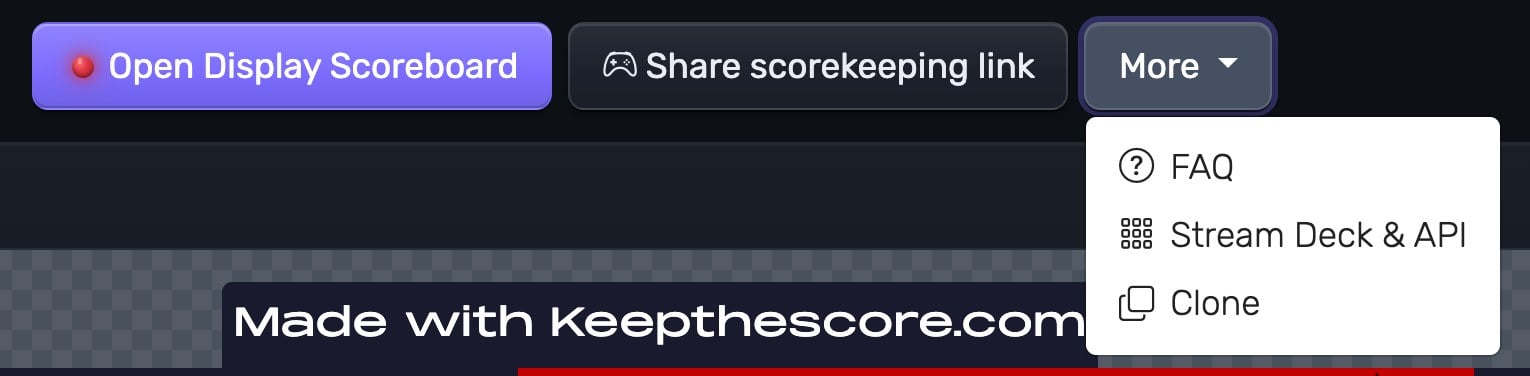
- Click Copy next to the board token.
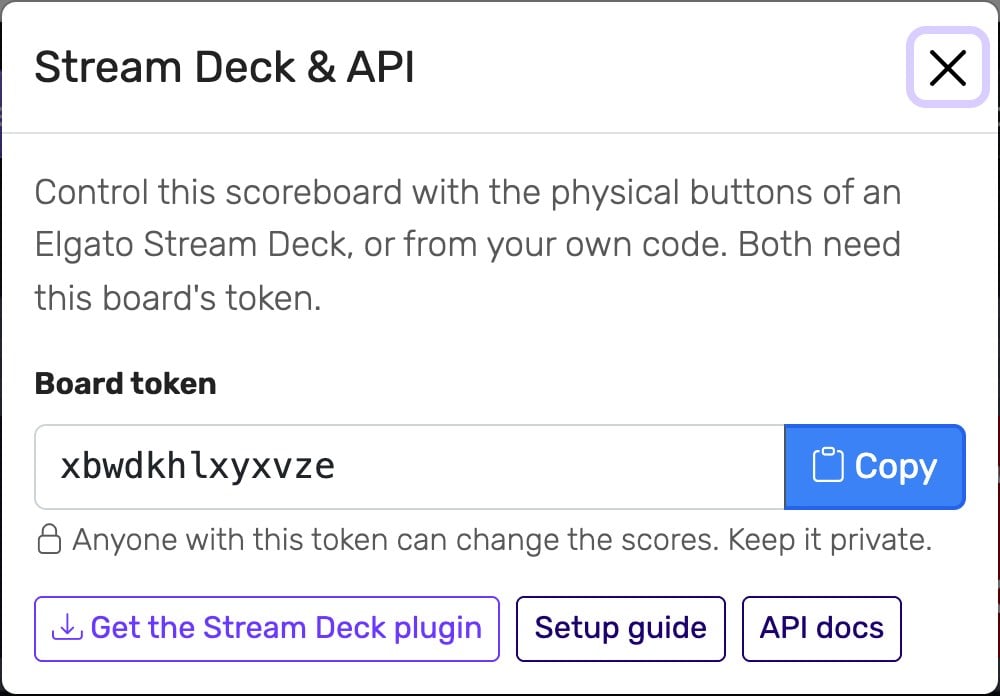 The Stream Deck & API window shows your board token and links to the plugin
Keep the token private. Anyone who has it can change your scores.
The token is also the 13 letters after /board/ in your admin URL, for example abcdefghijklm in https://keepthescore.com/board/abcdefghijklm/. Only the board owner sees the Stream Deck & API menu item.
Setting Up the Plugin
Step 1: Drag Actions to Your Stream Deck
The plugin provides action types for each supported sport:
- Basketball Controls - Score increments, fouls, periods
- Baseball & Softball Controls - Runs, outs, innings, base runners for Baseball and Softball
- Football Controls - Touchdowns, field goals, downs, foul flag, one-touch "1st & 10" reset
- Hockey Controls - Goals, periods, shots, penalties, empty net
- Soccer Controls - Goals, halves, possession, FINAL
- Volleyball Controls - Points, sets, serve toggle
- Racket Sports Controls - Points, sets, serve / side-out and reset for Pickleball, Badminton and Squash (the sport is detected automatically from your token)
- Universal Controls - Score, fouls, timeouts, periods, possession
- Game Clock - Start/stop/reset the main timer
- Shot Clock - Control shot / play clock, including a short reset for the FIBA 14-second rule
Step 2: Configure the Token
- Click on the button you just added to your Stream Deck
- In the property inspector (the settings area below the buttons), paste your board token
- Wait for validation (the action dropdown will enable when the token is valid)
- Select the specific action you want (e.g., "Home +2", "Away Foul +1")
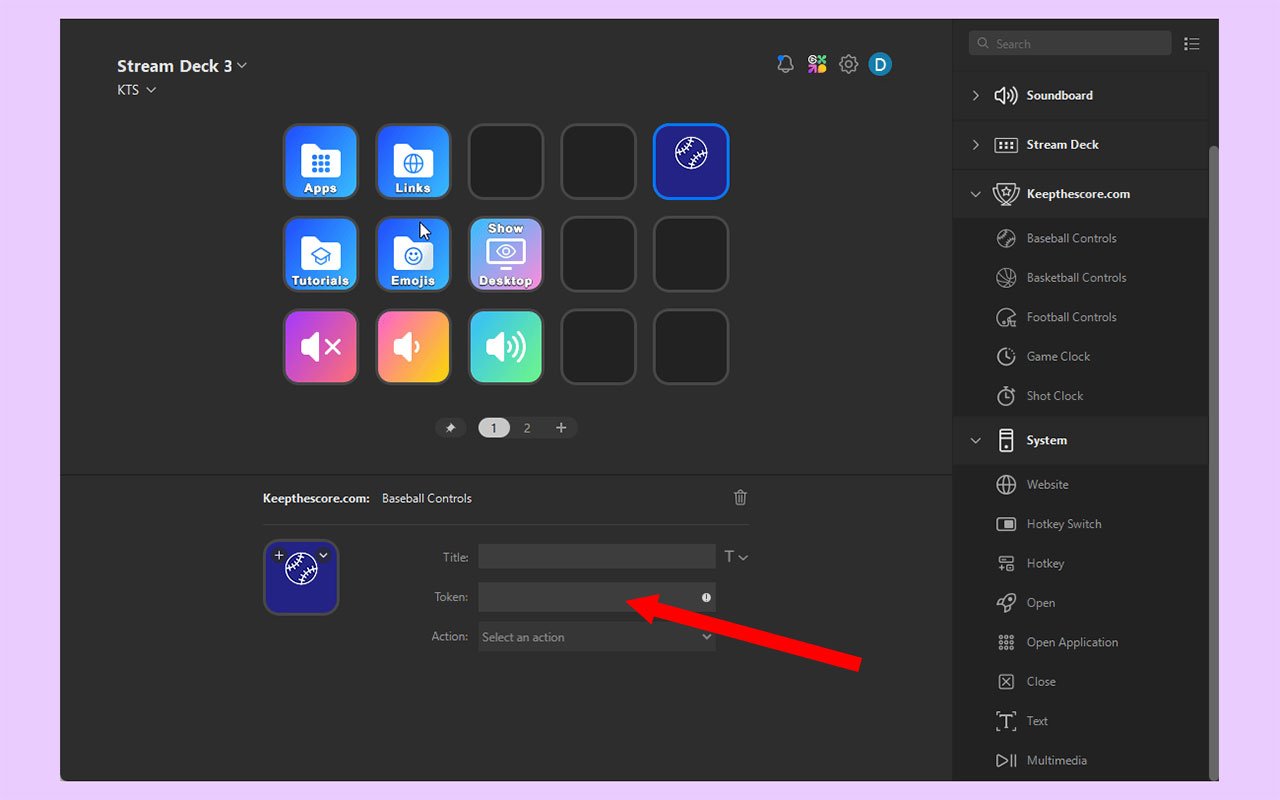 Configure each button with your token and choose the specific action
Step 3: Test Your Setup
Press the button on your Stream Deck - your scoreboard should update immediately!
The button will briefly show a success indicator, then return to its normal state.
Troubleshooting
"Invalid token" error
- Copy the token again from More → Stream Deck & API in the control panel
- Check that the token is 13 lowercase letters (no numbers or special characters)
- Ensure there are no extra spaces before or after the token
Button doesn't update scoreboard
- Confirm you have internet connectivity
- Check that the token hasn't changed (this happens if you created a new board)
- Verify you selected an action from the dropdown menu
- Try refreshing the Stream Deck software
Action dropdown won't enable
- Token must be exactly 13 lowercase letters
- Token must match the correct sport type (basketball token only works with basketball controls)
- Wait a few seconds for validation to complete - the plugin needs to verify the token with the server
Button shows "API Error"
- Check that your board still exists (you didn't delete it)
- Verify your internet connection is stable
- Make sure you copied the token from More → Stream Deck & API, not from the public display link
Common Questions
Can I use one Stream Deck for multiple scoreboards?
Yes! Configure different buttons with different tokens to control multiple boards simultaneously. This is perfect for tournament setups or managing multiple games.
Do I need a paid Keep The Score account?
No, the Stream Deck plugin works on the free plan. Some scoreboard features — custom logos, for example — do need a paid plan.
What if my sport isn't supported?
Currently, we support Basketball, Baseball, Softball, Football, Hockey, Soccer, Volleyball, Pickleball, Badminton, Squash, and Universal scoreboards. The Universal scoreboard works for any sport with score, fouls, timeouts, periods, and possession. More sports may be added based on user demand. Email us at [email protected] to request your sport.
Can I use this while streaming?
Absolutely! Stream Deck is perfect for streamers. You can control your scoreboard with physical buttons while simultaneously managing your streaming software (OBS, vMix, etc.) on the same device.
What Stream Deck models are supported?
All Elgato Stream Deck models are supported, including: - Stream Deck Mini - Stream Deck (standard 15-key) - Stream Deck XL - Stream Deck + - Stream Deck Mobile (app)
Get Started
Ready to set up physical button control for your scoreboard?
- Create a sports scoreboard (Basketball, Baseball, Softball, Football, Hockey, Soccer, Volleyball, Pickleball, Badminton, Squash, or Universal)
- Install the Keepthescore.com plugin from the Elgato Marketplace
- Copy your board token from More → Stream Deck & API
- Configure your buttons with the token
- Start controlling your scoreboard with physical buttons!
Need help? Email [email protected]
Advanced Integration
Want to build your own custom integrations beyond Stream Deck?
The Stream Deck plugin uses our Sports API under the hood. You can use the same API to:
- Build custom control interfaces
- Integrate with other hardware or software
- Automate scoreboard updates from external data sources
- Create multi-board tournament management systems
Learn more in our API Documentation - the same powerful API that powers Stream Deck is available for your custom projects.
Related Guides
- How to create a remote controlled scoreboard: the full remote setup, with the display on one screen, the control panel on your phone, and scorekeeper links for helpers. Stream Deck is one way to drive it.
- Add your scoreboard to streaming software: put the scoreboard into OBS, vMix or Streamlabs, then run it from your Stream Deck.
NOTE: As an Amazon Associate, we earn from qualifying purchases. The Stream Deck links above are affiliate links.