Football Scoreboard Guide
Run the score, game clock, play clock, downs and distance on the KeepTheScore football scoreboard, then put it on a TV, a stream, or a screen of its own.
Run the scoreboard for your Friday night game, youth league or flag football season without a press box or a dedicated operator. The KeepTheScore football scoreboard is a free, online scoreboard you control from any phone, tablet or laptop: tap the points, run the game clock and play clock, and track downs, distance, timeouts and quarters. Show it big on a TV at the field, share a link, or drop it straight into your live stream. This guide walks through how it works.
The control panel vs the display scoreboard
Your football board has two sides, and it helps to know which is which.
The control panel is where you keep score. You reach it by opening your board's admin link — the private link you got when you created the board. It has the scoring buttons, the game clock and play clock, and the quarter, down, distance and timeout controls. Keep this link to yourself, or share it only with people you trust to run the game.
The display scoreboard is what everyone else sees: the clean, big-screen view with no buttons. You share it with the presentation link — a view-only link anyone can open to watch the score. Put it on a TV at the field, send it to spectators, or use it as a browser source in your streaming software. Whatever you tap on the control panel updates the display scoreboard live, on every screen at once.
There's also a scorekeeper link if you want a helper to run the score and the clock without handing over full control of the board. It opens the control panel — the scoring, clocks and game buttons — but not the Setup panel, so your team names, colours, layout and other settings stay tied to the admin link.
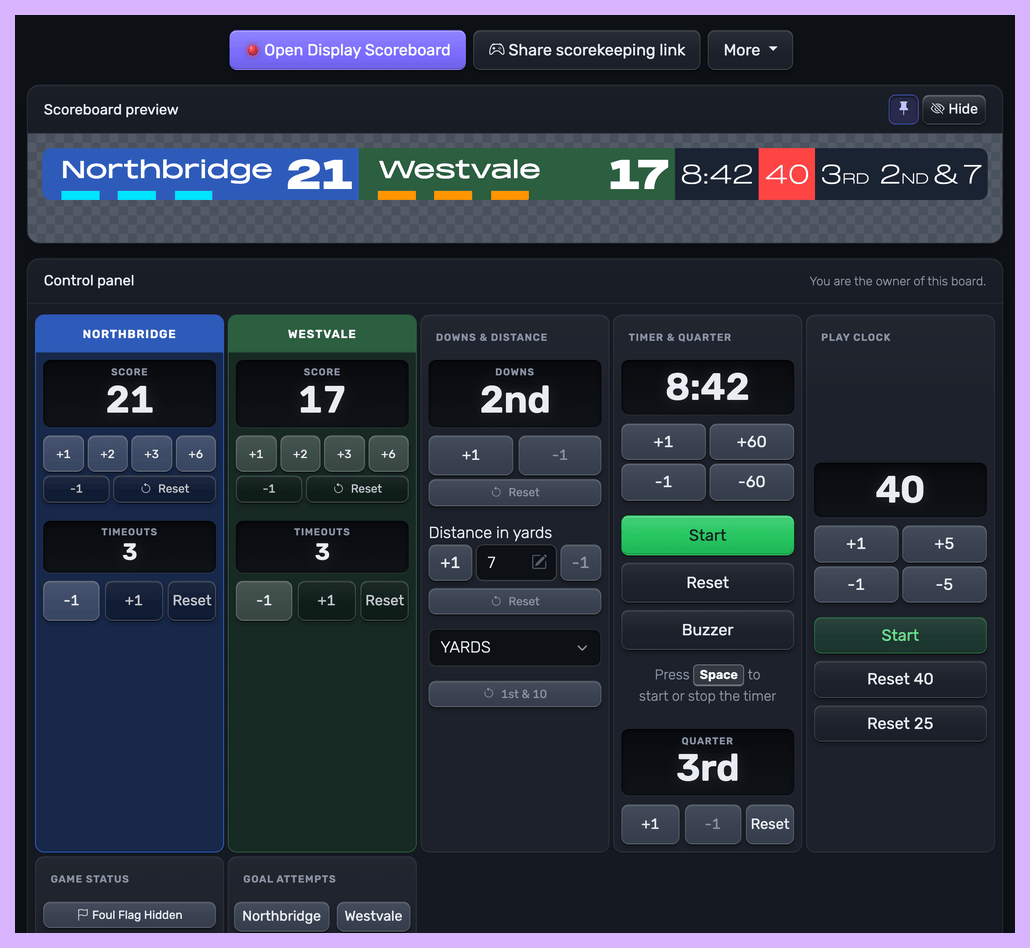 The control panel — score, clocks, downs and distance all from one screen
Tip: always think in terms of links, not files or apps. Copy the link you need and share it — that's all there is to it.
The layouts
Football comes with two kinds of display, and several variations of each. Switch between them any time in the Setup panel under the layout option — the change shows up instantly on every screen.
Scoreboard
The big, everything-at-a-glance view, sized to fill a screen. It shows both teams, the score, the game clock, the quarter and the down and distance. Pick Teams stacked, or the Classic stadium full-screen version. Use it for:
- A TV or projector at the field or in the clubhouse
- A link you send to spectators who aren't there
- Any screen where you want the full picture, readable from a distance
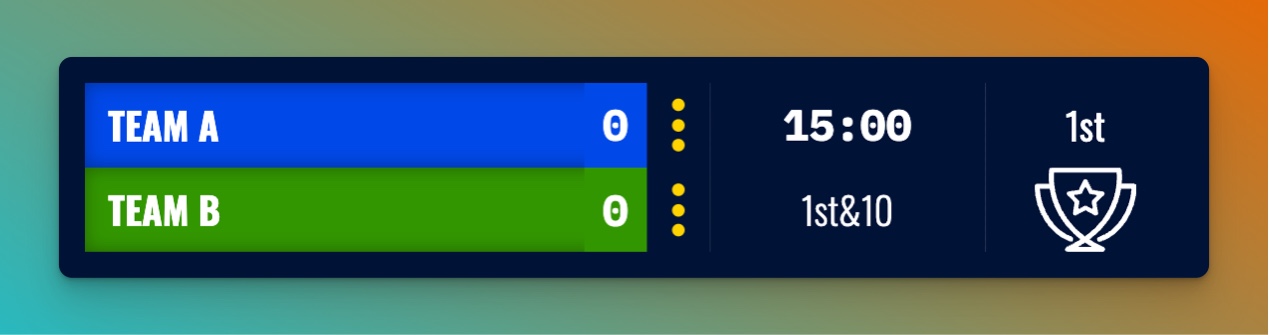 The teams stacked layout, sized for a TV or a shared page
Scorebug
A slim broadcast-style bar that sits over your video without covering the action — the kind of score strip you see on TV. It shows the teams, the scores, the clock, the quarter and the down and distance, and comes in narrow, wide and centered variations. Use it for:
- Streaming to YouTube, Facebook Live, Twitch or anywhere else
- Adding the score as an OBS/Streamlabs browser source over your camera feed
The scorebug has a transparent background, so in your streaming software it drops cleanly over whatever you're filming.
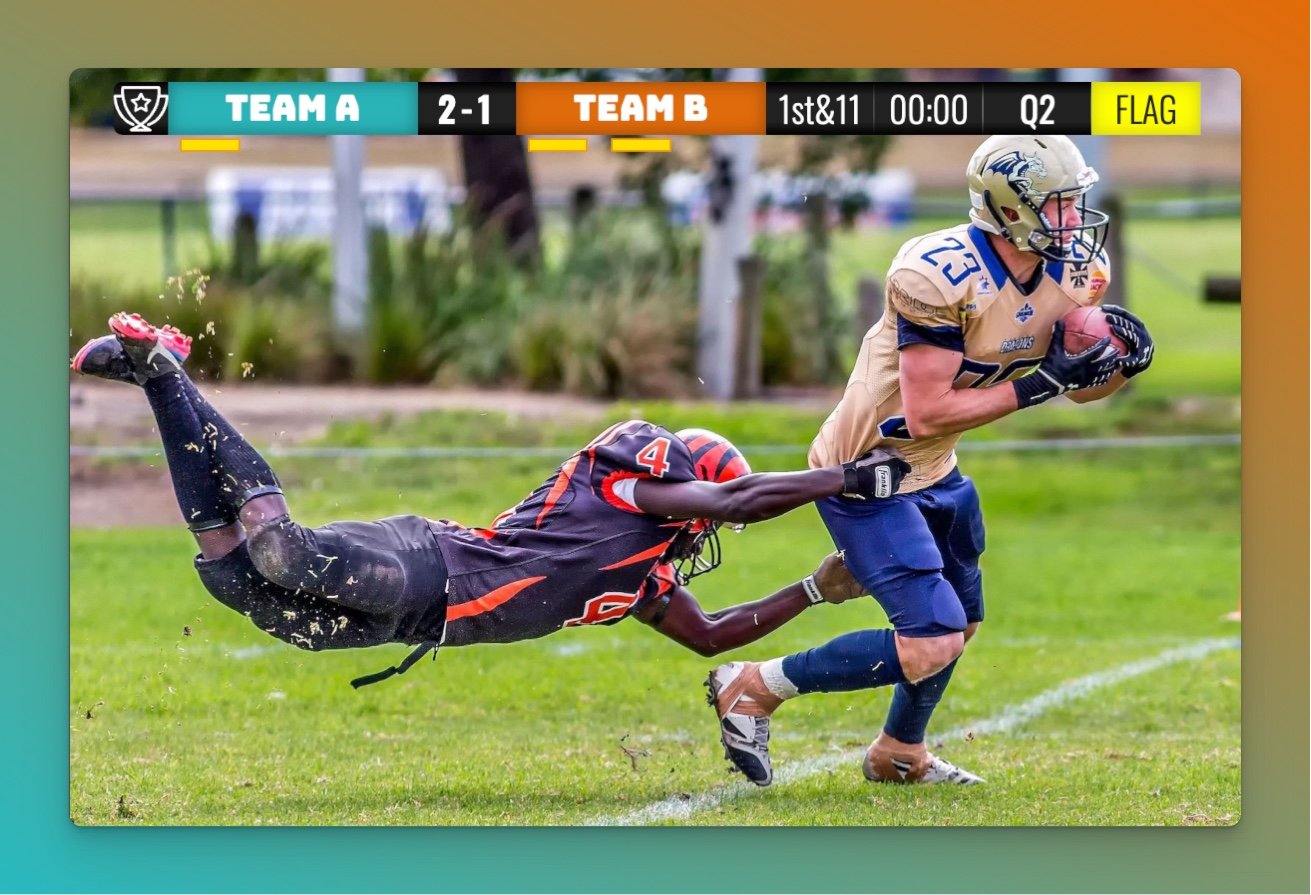 The scorebug layout, built to sit over a live stream
The most important features
Scoring
Each team has its own set of point buttons — +6 for a touchdown, +3 for a field goal, +2 and +1 — so each kind of score adds the right amount with one tap. A -1 button and a Reset are there for when you need to correct a score.
The game clock
The game clock counts the quarter down and sounds a buzzer when time expires. Start and stop it from the control panel, and nudge it by a minute or a second when you need to set it. You can show or hide it, and set its length, in the Setup panel under Timer settings.
The play clock
The play clock runs alongside the game clock, counting down the time to snap. It has its own duration setting, plus a shorter reset for the situations that call for one, and it can keep running while the game clock is stopped.
If you want it on a screen of its own — mounted at one or both ends of the field, or as a separate source in your stream — open the display dialog and click "Want the play clock on a screen of its own?". That gives you a link showing nothing but the play clock, full screen. Open the same link on as many screens as you like: every one of them shows the same count, in step with each other and with the board, so there is nothing to start, stop or sync by hand. They behave exactly as the play clock on your scoreboard does, dead-ball rules included — it is the same clock, just on its own screen.
Downs, distance and quarters
The down and quarter each have +1, -1 and Reset buttons, and the distance is set in yards — type it in or step it up and down. The display shows them the way you'd read them on a stadium board, as 1st & 10.
Timeouts, the flag and goal attempts
Each team has a timeout count with +1 and -1 buttons, shown on the display as markers under the team. A foul flag indicator can be shown or hidden from the control panel as the play calls for it, and a play can be marked under review, with or without a flag on the field. Goal attempts can be marked for either team. Don't use one of these in your game? Hide it in the Setup panel.
Touchdown and field goal animations
Switch the animations on and a touchdown or a field goal triggers a quick effect on the display scoreboard. It's an easy way to make youth, school and rec games feel a little more broadcast.
Starting a new game
Tap Reset to clear the scores and put the game back to the start. Your team names, colours and logos are kept, so you're ready for the next game in a second.
Setting up your game
Open the Setup panel to shape the board before or during a game:
- Team names, colours and logos
- Which details to show — timeouts, down and distance, possession, quarter and team records
- The game clock and play clock lengths, and the buzzer sound
- The board title, fonts and colours, and your layout choice
Putting it on a stream
Both kinds of layout work as a browser source in OBS, Streamlabs, vMix and similar tools — paste the presentation link and the score updates itself, with no plugins to install. The scorebug is purpose-built for this. For step-by-step setup, see the streaming software guide.
Sharing your scoreboard
Share the right link for the job: the presentation link for spectators and screens, the scorekeeper link for a helper running the clock and score, the play clock only link for a dedicated clock screen, and the admin link for a co-organiser who needs full control.
Related guides
- Customizing your scoreboard — colours, logos, layouts and fonts
- Scoreboards on a TV — display on venue screens
- Streaming software — OBS, Streamlabs, vMix and more
- Stream Deck integration — control the board from a Stream Deck
- All scoreboard types — every sport we support
Ready to run your next game?