Rugby Scoreboard Guide
Score tries, conversions, penalties and drop goals on the KeepTheScore rugby scoreboard — Union or League values — with a count-up match clock.
Run the score for your club fixture, schools match, or streamed game with the four rugby scoring events — try, conversion, penalty, drop goal — each worth the correct points for your code. KeepTheScore has two rugby boards: Rugby Union and Rugby League. They look and work identically; the only difference is the point values behind the buttons:
| Event | Rugby Union | Rugby League |
|---|---|---|
| Try | 5 | 4 |
| Conversion | 2 | 2 |
| Penalty goal | 3 | 2 |
| Drop goal (field goal) | 3 | 1 |
Pick the board for your code when you create it, and the arithmetic is always right. The match clock counts up through two halves and runs into stoppage time, just like the referee's watch. Show the board on a clubhouse TV or pitch-side LED panel, share a link, or drop it into your live stream. This guide walks through how it works.
The control panel vs the display scoreboard
Your rugby board has two sides, and it helps to know which is which.
The control panel is where you keep score. You reach it by opening your board's admin link — the private link you got when you created the board. It shows the four scoring buttons for both teams, the match phase and stoppage-time controls, and the clock. Keep this link to yourself, or share it only with people you trust to run the match.
The display scoreboard is what everyone else sees: the clean, big-screen view with no buttons. You share it with the presentation link — a view-only link anyone can open to watch the score. Put it on a TV in the clubhouse, send it to supporters, or use it as a browser source in your streaming software. Whatever you tap on the control panel updates the display scoreboard live, on every screen at once.
There's also a scorekeeper link if you want a helper to enter the score without being able to change your settings or reset the match.
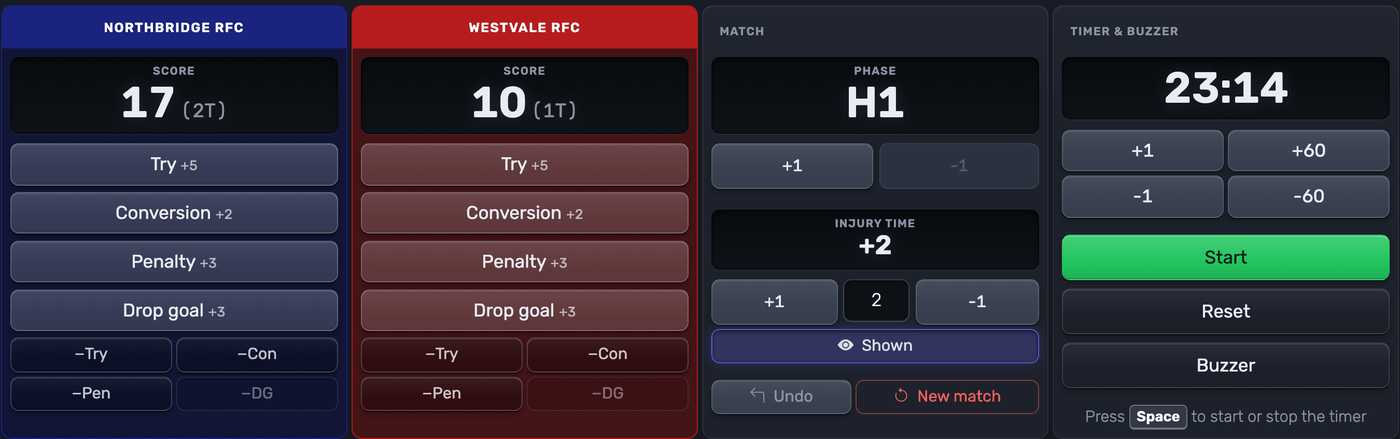 The control panel — one tap per score, with corrections and undo
Tip: always think in terms of links, not files or apps. Copy the link you need and share it — that's all there is to it.
The two layouts
Both rugby boards come with two display layouts. Switch between them any time in the Setup panel — the change shows up instantly on every screen.
Streaming scorebug
A compact broadcast-style bar with both team panels, the scores, and a centre clock block with the half indicator. It has a transparent background, so in OBS, Streamlabs or vMix it sits cleanly over your camera feed — the kind of score strip you see on a televised match. Use it for:
- Streaming to YouTube, Facebook Live, Twitch or anywhere else
- Adding the score as an OBS/Streamlabs browser source over your match footage
 The streaming scorebug, built to sit over a live stream
LED panel
A high-contrast layout that fills a 2:1 screen edge-to-edge: huge scores in each club's colours and a black clock strip along the bottom, readable from the far stand. On a screen with a different shape it centres itself without distorting. Use it for:
- Pitch-side LED panels and venue screens
- A clubhouse TV or projector where you want the score readable from a distance
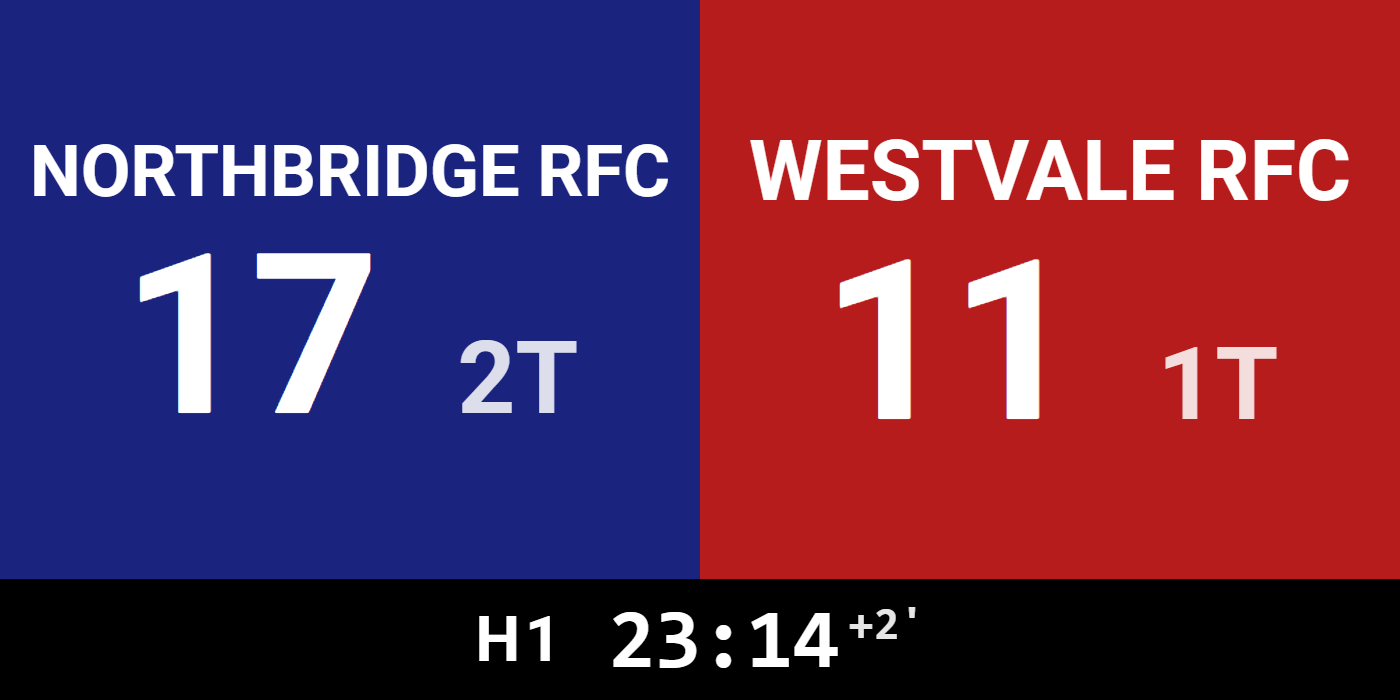 The LED panel layout — big scores, team colours, clock strip
The most important features
Scoring a match
Each team has four buttons, one per scoring event, labelled with the points your code awards — Try +5, Conversion +2, Penalty +3, Drop goal +3 on a Union board (League shows +4/+2/+2/+1). Tap the event that happened; the board keeps the tallies and does the arithmetic.
You can also show each team's try count beside the total, broadcast-style — like 27 (3T) — with a toggle in Setup. Handy when bonus points are on the line.
A penalty try isn't a separate button: score it as a try plus a conversion (Union's 7 points) or use the correction buttons to set the exact total.
Fixing mistakes
Mis-taps happen. Two ways to put things right:
- Undo reverses your last scoring action, exactly.
- The −Try / −Con / −Pen / −DG buttons nudge one tally down when you just need to correct a single number.
The match clock and stoppage time
The clock counts up, like the referee's watch: 0:00 to 40:00 in the first half, 40:00 to 80:00 in the second — or shorter halves if you pick a different length in Setup. At the end of a half the clock keeps running into stoppage time, and you can show a stoppage-time indicator (like +2') next to the clock: set the number of added minutes on the control panel and toggle it visible.
Half-time and full-time
The match phase — H1 → HT → H2 → FT — is one tap on the control panel. Moving to a new half re-seats the clock at the right starting time automatically. At full-time the board shows FT with the final score.
Try, penalty and drop goal celebrations
When you tap Try, Penalty or Drop goal, the display plays a big TRY, PENALTY or DROP GOAL across the board in the scoring team's colours — great on a stream or a venue screen. Conversions don't get one, so a try and its kick never fire two in a row.
Each celebration has its own switch in Setup, under Celebrations. Once it's on you can pick its style, whether the team logo takes part, and, with Enable Audio on Public View switched on, its sound. ▶ Preview plays it on your screen only. New boards start with all three on; on a board you created before, switch them on in Setup.
Starting a new match
Tap New match to clear the score, clock and match phase. Your club names, colours and settings are kept, so you're ready for the next game in a second.
Setting up your board
Open the Setup panel to shape the board before kick-off:
- Club names and colours for both teams
- Half length — 40 minutes is the standard in both codes; shorter presets suit school, junior and sevens-style formats
- Which details to show — the try count, the match clock, the half indicator
- Which scores play a celebration — try, penalty, drop goal — and how each one looks and sounds
- The board title, fonts and colours, and your layout choice
- Enable Audio on Public View if you want the buzzer and the celebration sounds heard on shared screens
Union or League?
Pick the board for your code on the choose-scoreboard page: the Union board values tries at 5 and both penalties and drop goals at 3; the League board values tries at 4, penalties at 2, and drop goals (field goals) at 1. Everything else — layouts, clock, controls — is identical. There's no tackle counter or sin-bin timer; the board focuses on the score, clock, and match phases.
Putting it on a stream
Both layouts work as a browser source in OBS, Streamlabs, vMix and similar tools — paste the presentation link and the score updates itself, with no plugins to install. The streaming scorebug is purpose-built for this. For step-by-step setup, see the streaming software guide.
Sharing your scoreboard
Share the right link for the job: the presentation link for supporters and screens, the scorekeeper link for a helper entering the score, and the admin link for a co-organiser who needs full control.
Related guides
- Customizing your scoreboard — colours, layouts and fonts
- Scoreboards on a TV — display on venue screens
- Streaming software — OBS, Streamlabs, vMix and more
- All scoreboard types — every sport we support
- How rugby scoring works — try, conversion, penalty and drop goal values in both codes
Ready for kick-off?