Stream Ticker Guide
Run a scrolling lower-third news ticker over your live stream — update the messages from any device and show it in OBS as a transparent browser source.
The Stream Ticker is a lower-third scrolling text bar for live streams: results, announcements, sponsor credits — whatever you want cycling along the bottom (or top) of your video. You update the messages from any device and every viewer sees the change within a second. It's built to be dropped into OBS, Streamlabs, or vMix as a transparent browser source. This guide walks through how it works.
The control panel vs the public display
Your ticker has two sides, and it helps to know which is which.
The control panel is where you run the ticker. You reach it by opening your board's admin link — the private link you got when you created the ticker. It shows a live preview of the bar, the message editor, and the master on/off switch. Keep this link to yourself, or share it only with people you trust to put text on your stream.
The public display is what your viewers see: just the bar, on a fully transparent page, anchored to the bottom or top of the frame. You share it with the presentation link — a view-only link that you paste into your streaming software as a browser source. Whatever you save on the control panel updates the public display live, on every screen and stream at once.
There's also a scorekeeper link if you want a helper to update the messages without being able to change your settings. It opens the message editor and the on/off switch, but nothing else.
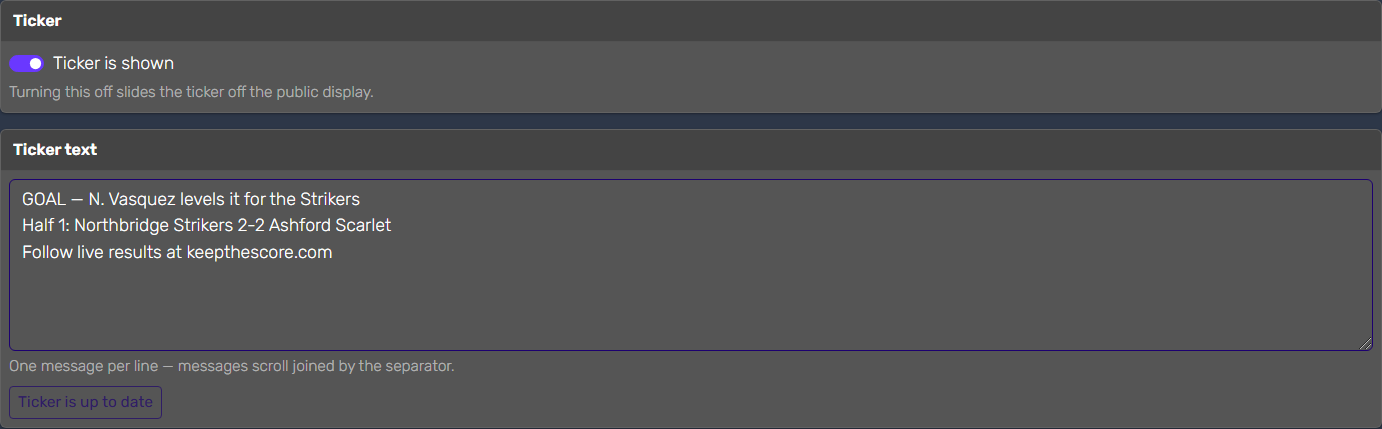 The control panel — the master switch and the message editor
Tip: always think in terms of links, not files or apps. Copy the link you need and share it — that's all there is to it.
The most important features
Writing your messages
Each line in the editor is one message. The ticker scrolls through them in order, joined by a separator (the default is a dot — you can change it in the Setup panel). Write as many as you like:
GOAL — N. Vasquez levels it for the Strikers
Half 1: Northbridge Strikers 2-2 Ashford Scarlet
Follow live results at keepthescore.com
Edits are not published as you type — press Update ticker when you're happy with the text. That way a half-finished sentence never scrolls across your stream. When the button reads "Ticker is up to date", what you see in the editor is what's on air.
 The bar on the public display — a pinned title box, then your messages on a loop
Showing and hiding the ticker
The master switch at the top of the control panel takes the ticker on and off air. Turn it off and the bar slides smoothly out of frame on the public display — your text is kept, and the preview shows a ghost of the bar so you don't lose track of it. Turn it back on and it slides back in. Use it for breaks, replays, or any segment that needs a clean frame.
The title box
The title box is the pinned label at the left end of the bar — "LIVE", your event name, or a sponsor credit. It stays put while the messages scroll past it. In the Setup panel you can change its text, restyle it, or switch it off entirely.
Setting up the look
Open the Setup panel to shape the bar:
- Colors — the bar's gradient (top and bottom), the scrolling text, and the title box. Custom colors preview in your admin view, and show on the public display with a paid plan.
- Bar height — small, medium, or large.
- Position — anchored to the bottom of the frame (the classic lower third) or the top.
- Scroll speed — from a slow crawl to a brisk news-desk pace.
- Separator — the characters shown between messages as they scroll.
Custom bar artwork
Want the bar to carry your own design? Upload a PNG background in the Setup panel and it stretches across the full bar — a wide strip (for example 1920×96) works best. If your artwork has its own title zone baked in on the left, use the scroll area offset slider so the text starts after it. Like custom colors, it previews in your control panel on any plan, and reaches the public display on a paid plan.
Putting it on a stream
The public display is transparent, so it drops cleanly over whatever you're broadcasting:
- Copy the presentation link from your board.
- In OBS / Streamlabs / vMix, add a browser source with that link, sized to your canvas (e.g. 1920×1080).
- That's it — the bar sits in its corner of the frame and everything else stays see-through.
For step-by-step setup, see the streaming software guide.
Related guides
- Streaming software — OBS, Streamlabs, vMix and more
- Customizing your scoreboard — colours, logos, and fonts
- All scoreboard types — every board we support
Ready to put a ticker on your stream?