How to Create a Remote Controlled Scoreboard
Create a professional scoreboard you can control from any device. No apps or hardware needed - just use your browser! Setup in under 60 seconds.
Article Contents
Create a professional scoreboard on Keepthescore.com that you control from any device with a browser — no hardware, no install, no app.
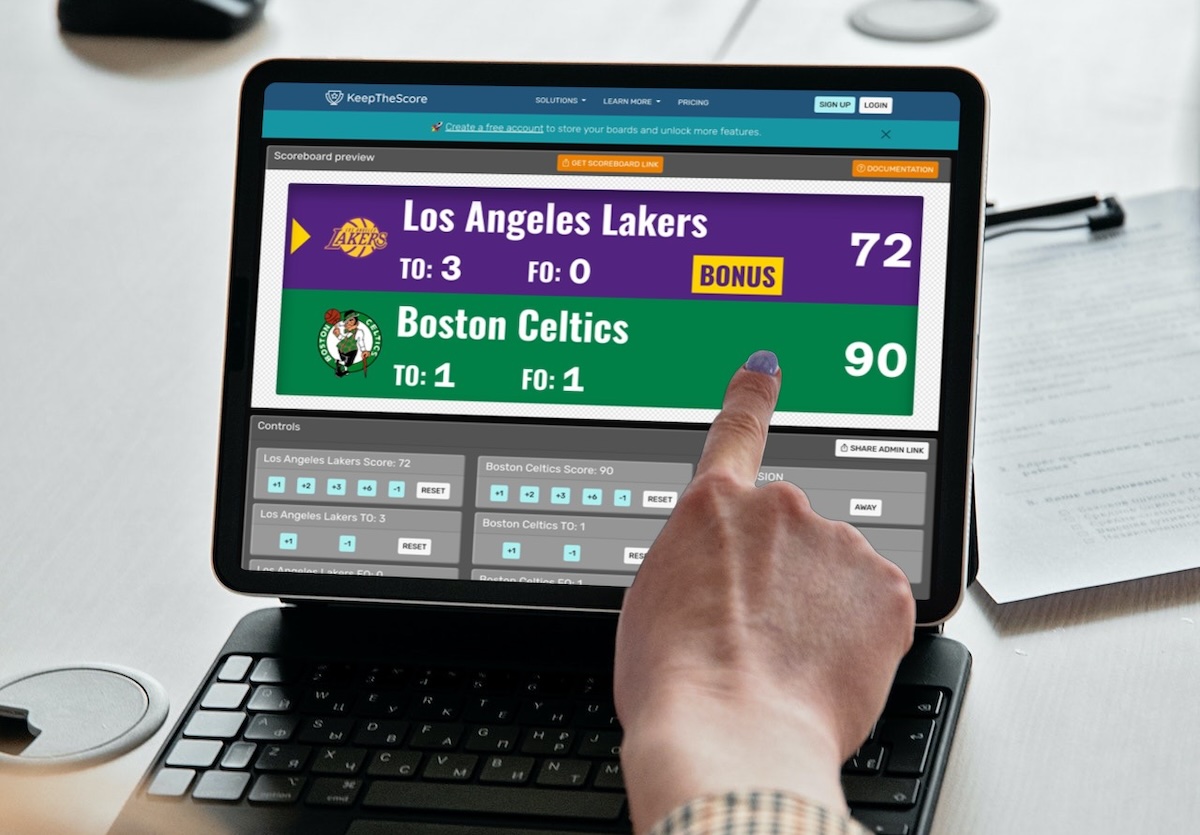 A scoreboard being controlled via a tablet
What you get
Control from anywhere, real-time updates across every display, share control with multiple scorekeepers via QR code, works with existing TVs and projectors, slots straight into streaming software, and supports the Elgato Stream Deck if you want physical buttons.
Step 1: Set Up Your Scoreboard
In this step we create and customize a scoreboard.
We have dedicated scoreboards for the following sports: football, baseball, basketball, hockey, soccer, tennis, volleyball and more! To begin, click the button below 👇 and choose your sport.
You should then see the following. This is your "control panel".
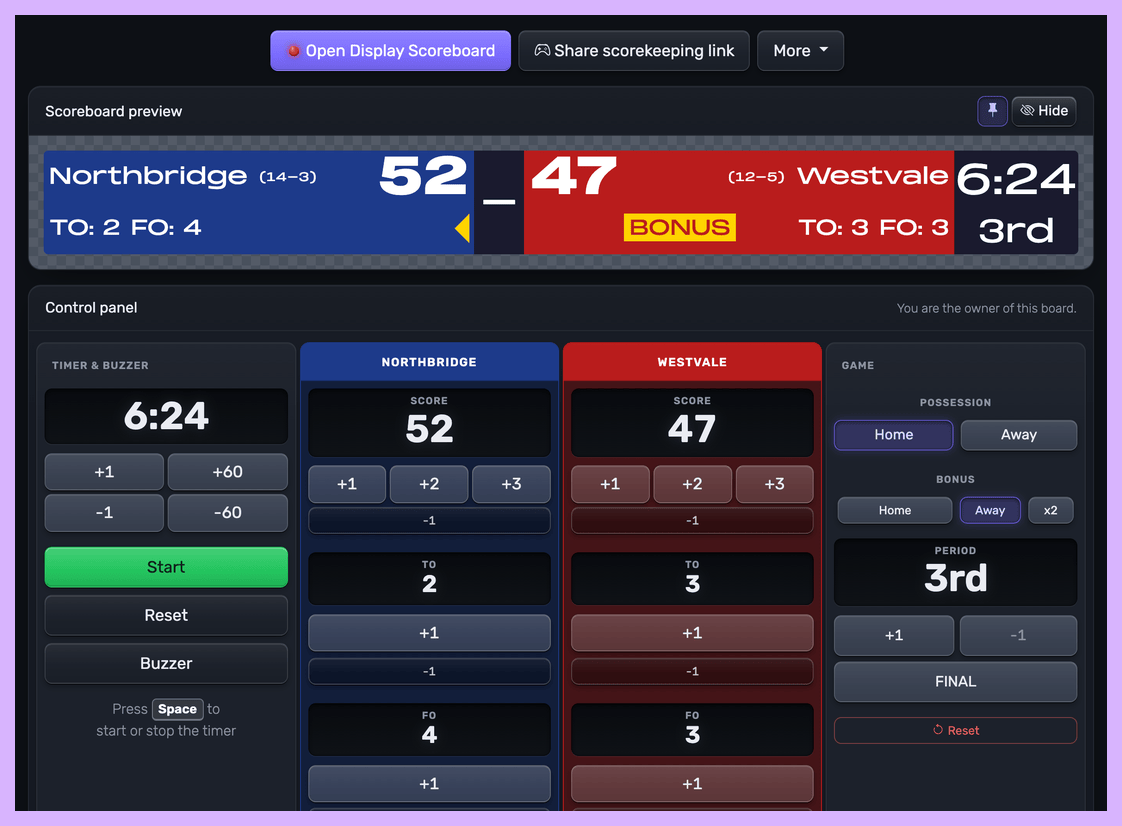 Control panel for an online scoreboard
You will use this control panel to control the scores. For detailed customization options (team names, colors, logos, layouts), see our scoreboard customization guide.
💡 You can share the URL of the control panel to give someone else the ability to change scores. Click the "Share scorekeeping link" button to copy the link or generate a QR code for easy sharing.
Next, we will get hold of the public scoreboard URL.
Click on the "Open Display Scoreboard" button at the top of the control panel. See below:
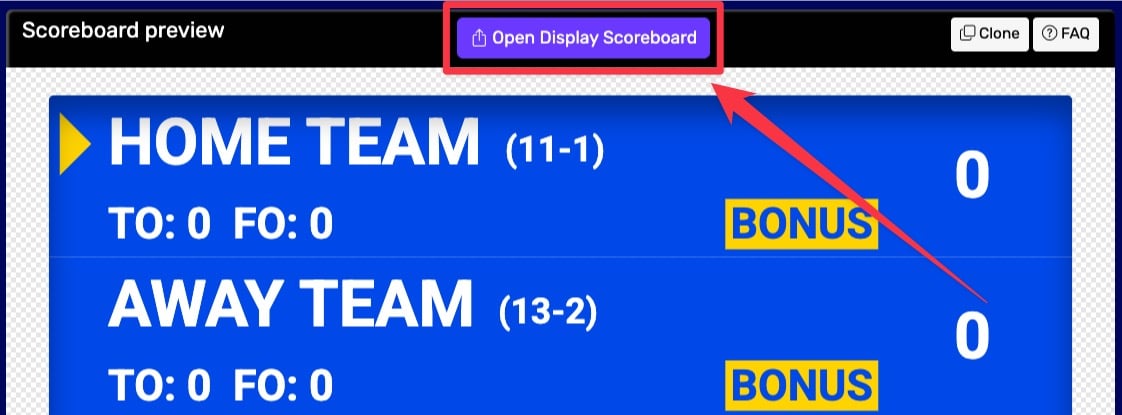 1. Getting the scoreboard link
You have several options in the dialog that appears:
- Click "COPY" to copy the URL to your clipboard
- Click "VIEW" to preview the scoreboard
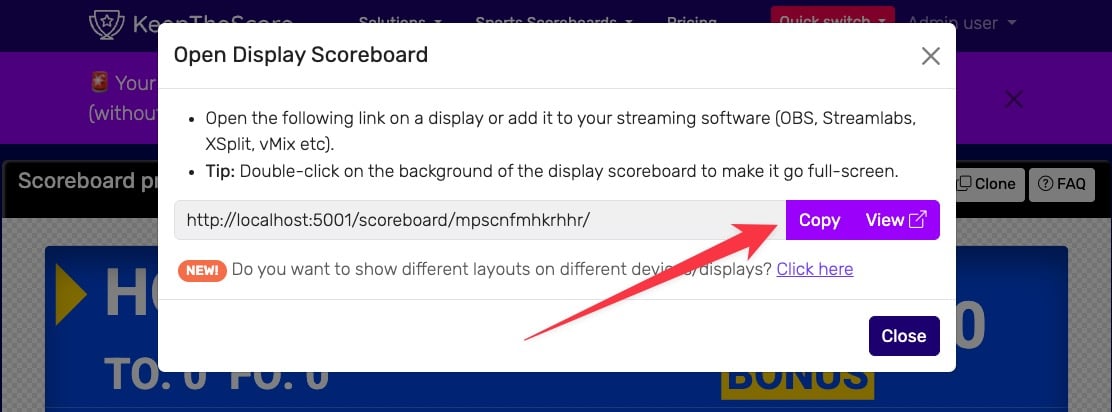 2. Getting the scoreboard link
💡 Layout Options: Many sports (including Universal, Basketball, Hockey, and all set-based sports like Tennis, Volleyball, Badminton, Squash, and Pickleball) support multiple layouts. You can:
- Use different layouts on different devices simultaneously
- Lock specific layouts using URL parameters (e.g.,
?layout=simpleBug)- Show a scorebug overlay in your stream while displaying a full scoreboard on a TV
Click "Click here" in the share dialog to see all available layout options for your sport.
Step 2: Display Setup
The whole idea of a remote-controlled scoreboard rests on two separate browser windows:
- Public Scoreboard: the clean view your audience sees on the TV, projector, or display
- Control Panel: the buttons and inputs you use to update scores, opened from any device
That split is the magic. One person taps a phone, the audience sees only the scoreboard, and the two never get tangled up.
Display Options
Single Device Setup works when you only have one computer to spare. Run HDMI from the laptop to the TV, open the public scoreboard URL in one browser window on the TV side, then open the control panel in another window on your laptop screen. Updates from the laptop, clean display on TV. Done.
Dual Device Setup is more flexible. Open the public scoreboard URL on a computer connected to your TV or projector, then open the control panel on your phone, tablet, or a second laptop. This is the setup for referees, officials, or anyone who needs to walk around freely instead of being tethered to a screen.
Chromecast/Wireless Display kills the HDMI cable. Plug a Chromecast or Apple TV into the TV, cast the public scoreboard URL from any browser, then run the control panel from your phone or tablet. Great for venues where running cables isn't an option.
Projector Setup is the same idea, scaled up for bigger rooms. Connect your computer to the projector with HDMI or VGA, display the public scoreboard URL in fullscreen, control from the same laptop or from a separate device. Built for gyms, auditoriums, and outdoor events.
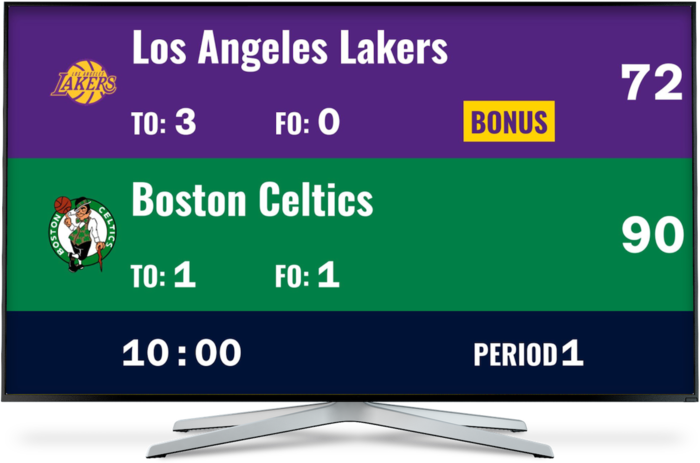
For the deeper version of all of this, see our documentation on how to get your scoreboard onto a TV.
Sharing Control with Multiple Scorekeepers
One of the more useful features in our scoreboard: more than one person can control it. Useful for tournaments, events with multiple officials, or anywhere you need a backup scorekeeper.
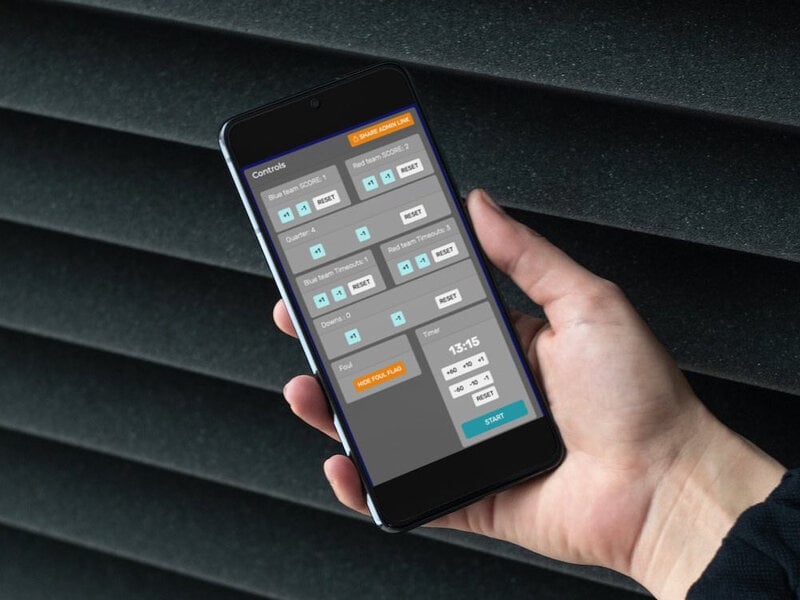 Controlling a scoreboard from a mobile phone using a scoreboard app
Dedicated Scorekeeper Links
Every scoreboard comes with a "scorekeeper link" you can share with other people. It gives them:
- Score and game-time updates in real time
- Game flow control — start/stop timer, periods, etc.
- Instant score adjustments
Important: The scorekeeper link is only for score control. It doesn't open up setup, customization, or board management. Your configuration stays safe while other people help with the scoring.
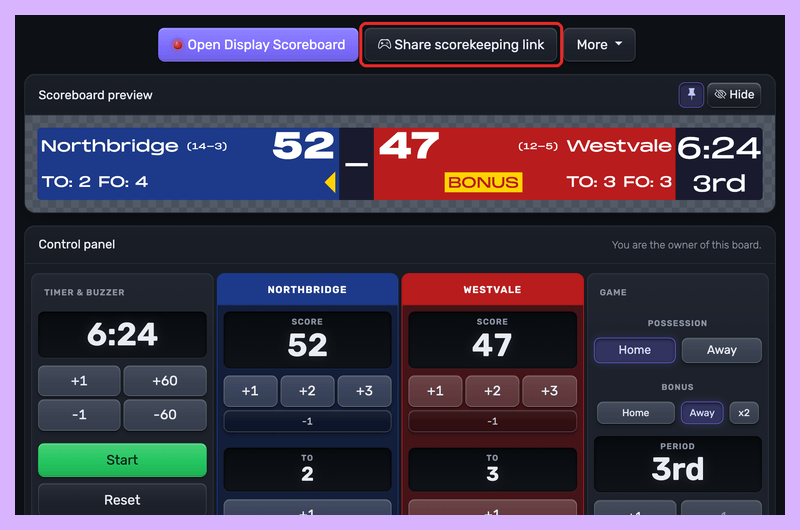 Where to find the scorekeeper link
QR Code Integration
Sharing gets easier with a QR code for your scorekeeper link. Click the "QR Code" button when viewing the link, and anyone can scan it with their phone to land straight in the scorekeeper controls — no URL typing.
You can also download and save the QR as an image to print on scorecards, programs, or signage. We've had operators put printed QR codes around their venue so officials can pull up controls in seconds.
Hardware Control with Elgato Stream Deck
If you want the full tactile experience, plug in an Elgato Stream Deck and control the scoreboard from physical buttons. Streamers love it, professional scorekeepers love it, anyone working a live event with high stakes loves it.
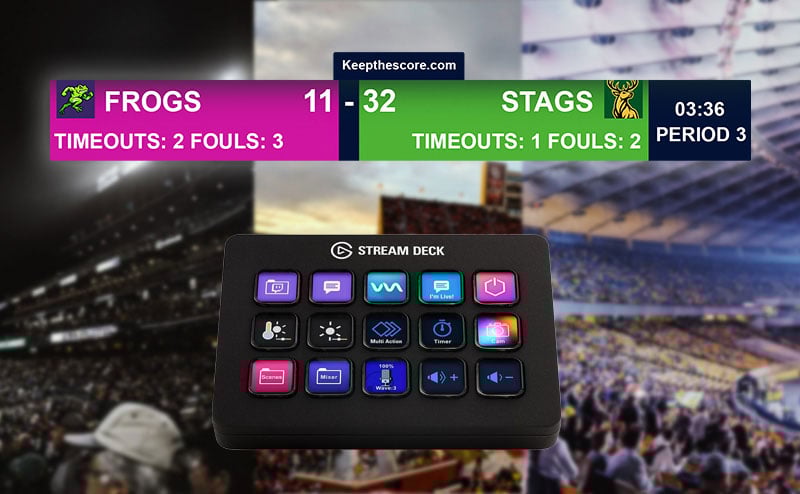 Control your scoreboard with physical buttons using Elgato Stream Deck
Why Use Stream Deck?
- Tactile feedback — no more fumbling with a touchscreen in a tense moment
- One-touch updates — dedicated buttons for score increments, fouls, periods, the lot
- Multi-sport support — works with Basketball, Baseball, Softball, Football, Hockey, Soccer, Volleyball, Pickleball, Badminton, Squash, and Universal scoreboards
- Made for streaming — control the scoreboard with one hand, OBS or vMix with the other
Setting it up
Setup takes about five minutes: install the Keepthescore.com plugin from the Elgato Marketplace, copy your board token from the control panel, and paste it into each button. Our Stream Deck setup guide walks through every step, lists what each sport's buttons can do, and helps you choose a Stream Deck model if you don't have one yet.
Best Practices for Using Your Remote Controlled Scoreboard
Test everything — public scoreboard and control panel — before a live event. The five minutes you spend doing it saves you from the kind of surprise that makes a scorekeeper sweat. Make sure both devices have a reliable internet connection; connectivity issues will derail an event faster than anything else.
Double-click the public scoreboard to enable fullscreen on TVs and projectors — that's the right look for an audience. Keep the control device charged. Have a second device prepped with the scorekeeper link as backup; if your phone dies mid-game you'll want one.
And keep the main control panel restricted to people you trust. The scorekeeper link is the right way to bring in officials and helpers without handing over the keys.
Troubleshooting Common Issues
Public Scoreboard Not Updating: First, check the internet connection on both devices. Refresh the public scoreboard browser window and confirm you're editing in the right control panel (it's easy to have two boards open and update the wrong one). Both windows have to be connected to the same scoreboard.
Display Issues: Try a different browser on the public scoreboard side, or clear the cache and reload. Check your TV or projector's resolution settings. Most importantly: make sure the screen actually shows the public scoreboard URL — not the control panel by mistake.
Control Problems: Check that whoever can't access the controls is using the right control panel or scorekeeper link. Verify their internet. If the QR code won't open, try the link directly in a browser. And confirm they're not on the public scoreboard URL trying to score from there.
A remote-controlled scoreboard should make your life easier, not harder. Set up this way, you get a professional-looking display that anyone with a phone can run — perfect for sports events, tournaments, or any competitive setting.
Related Posts
- Stream Deck Integration Guide
- How to Add a Scoreboard to Your Live Stream
- Basketball Scoreboard Overlay for OBS
- Digital Scoreboard Guide
NOTE: As an Amazon Associate, I earn from qualifying purchases. Unrelated but also mine: a free Amazon link shortener, for when a product URL won't fit in a message.

Written by Caspar von Wrede
Founder of KeepTheScore. Building tools that help teams track scores and celebrate wins.