Cricket Scoreboard Guide
Keep runs, wickets and overs by tapping on the KeepTheScore cricket scoreboard, then show a full scoreboard on a TV or a scorebug overlay on your stream.
Run the score for your club match, T20 friendly, two-innings Test, or backyard game without a paper book in sight. The KeepTheScore cricket scoreboard is a free, online scoreboard you update by tapping — runs, wickets and overs — while it works out the run rate, the target and the chase for you. Show it big on a TV at the ground, share a link, or drop it straight into your live stream. This guide walks through how it works.
The control panel vs the display scoreboard
Your cricket board has two sides, and it helps to know which is which.
The control panel is where you keep score. You reach it by opening your board's admin link — the private link you got when you created the board. It shows the scoring buttons (runs, wicket, extras) and a small status line so the scorer can see what's going on. Keep this link to yourself, or share it only with people you trust to run the match.
The display scoreboard is what everyone else sees: the clean, big-screen view with no buttons. You share it with the presentation link — a view-only link anyone can open to watch the score. Put it on a TV at the ground, send it to spectators, or use it as a browser source in your streaming software. Whatever you tap on the control panel updates the display scoreboard live, on every screen at once.
There's also a scorekeeper link if you want a helper to enter the score without being able to change your settings or reset the match. It opens the control panel, but score entry only.
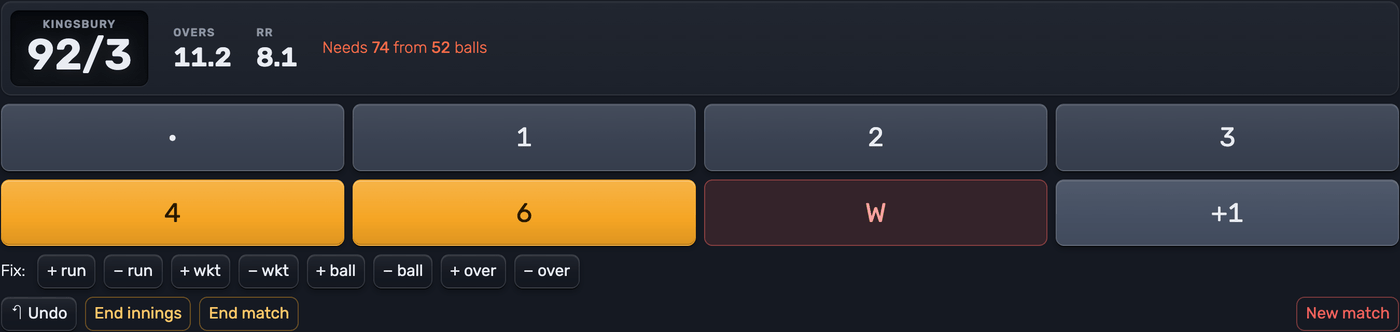 The control panel — tap the runs off each ball and the board does the rest
Tip: always think in terms of links, not files or apps. Copy the link you need and share it — that's all there is to it.
The two layouts
Cricket comes with two display layouts. Switch between them any time in the Setup panel under the layout option — the change shows up instantly on every screen.
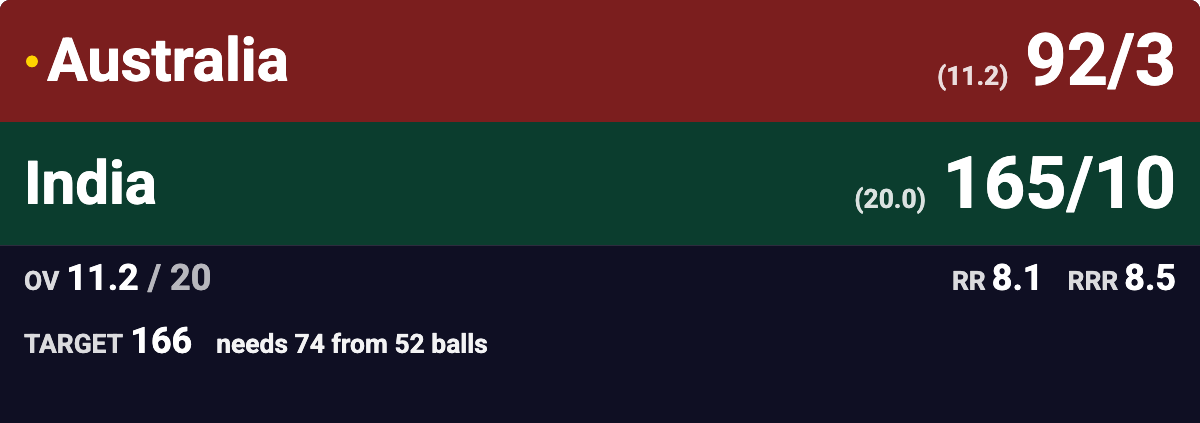 The Full scoreboard layout, sized for a TV or a shared page
Full scoreboard
The big, everything-at-a-glance view. It shows both teams, the batting side's score as runs/wickets, the overs bowled, the current run rate, and — once a chase is on — the target and what's needed. Use it for:
- A TV or projector at the ground or in the clubhouse
- A link you send to spectators who aren't there
- Any screen where you want the full picture, readable from a distance
Scorebug
A slim broadcast-style bar that sits over your video without covering the action — the kind of score strip you see on TV. It shows the batting team, the score, the overs and the run rate (plus the chase line once a target is set). Use it for:
- Streaming to YouTube, Facebook Live, Twitch or anywhere else
- Adding the score as an OBS/Streamlabs browser source over your camera feed
The scorebug has a transparent background, so in your streaming software it drops cleanly over whatever you're filming.
The most important features
Scoring a match
Scoring is built around the delivery. Each tap is one ball:
- The run buttons — • (dot), 1, 2, 3, 4 and 6 — add those runs and move the over on by a ball.
- W records a wicket and counts the ball.
- +1 adds a single extra (a wide or no-ball): one run, no ball counted.
The over rolls over for you automatically. After the sixth legal ball, 0.5 becomes 1.0 and the next over begins — no need to track the count yourself.
Four, six and wicket celebrations
Hit the 4 or 6 button and the display plays a big FOUR or SIX across the board in the batting side's colours; W plays WICKET in the bowling side's. They follow those three buttons only: an extra, a correction or an undo never sets one off. A boundary scored as byes or leg byes on the 4 button celebrates as a FOUR too. If you'd rather it didn't, tap • for the ball, then the + run fix button four times to add the runs.
Each celebration has its own switch in Setup, under Celebrations, with its style, the team logo and, once Enable Audio on Public View is on, its sound. ▶ Preview plays it on your screen only. New boards start with all three on; on a board you created before, switch them on in Setup.
Fixing mistakes
Cricket moves fast and so do mis-taps. Two ways to put things right:
- Undo reverses your last action, exactly.
- The fix buttons nudge a single number when you just need to correct one thing. Runs, wickets and balls all move both ways, and + over / − over step a whole over at a time.
Joining a match that has already started
You don't have to replay an innings ball by ball to get the board in sync. Put the runs on with the 6 and 4 buttons, add the wickets with + wkt, then use + over to wind the overs forward to where the match actually is — the runs stay put while you do it. Say you arrive at 50 for 3 after eleven overs: eight taps of 6 and one of 2 gets you to 50, three of + wkt gets the wickets, and + over takes care of the rest. Then carry on scoring each delivery as normal.
Innings and the chase
Once the toss is done, set who opens the batting with the Batting first buttons at the bottom of the control panel — you can change your pick until the first ball is bowled. The batting side is marked with a dot on the scoreboard, and the team order on the display stays fixed, so your top team stays on top for the whole match.
When an innings ends — all out, overs up, or you tap End innings — the board shows an innings break. At the break before the last innings of the match it sets the target automatically (the runs needed to win, plus one). Tap Start next innings and the batting team switches over to the chase.
From then on the board does the chase maths for you and shows it live:
- The target and how many runs are needed
- The balls remaining (in limited-overs matches)
- The required run rate alongside the current run rate, so everyone can see whether the chase is on track
You'll see it read like a broadcast: "needs 74 from 78 balls". When the batting side passes the target — or runs out of balls or wickets — the board declares the result, for example "Australia won by 7 wickets".
Test and multi-day matches
Playing a proper two-innings-a-side game? Choose 2 innings each in the Setup panel. The board switches to unlimited overs automatically and runs the full four-innings sequence.
- A side that has batted twice shows both innings the standard way, for example 250 & 180/4 (an all-out first innings collapses to just its runs).
- To declare, tap End innings — the closed innings keeps its wickets on the board, like 250/6 & 180/4.
- Enforce the follow-on: once both sides have batted once, if the team that batted first leads, the control panel offers a follow-on button that sends the trailing side straight back in to bat. Take it, or tap Continue to bat in the normal order.
- The final-innings target is worked out from the overall lead across both innings.
- If a side is all out (or declares) in its second innings still behind, the match ends right there with an innings victory — for example "India won by an innings and 20 runs" — and no fourth innings is played.
- A tie (scores exactly level when the last side is bowled out) is declared automatically. If play stops before a result — close of the final day, say — tap End match and the board records a draw.
Starting a new match
Tap New match to clear the runs, wickets and overs and start fresh. Your team names, colours, logos and match format are kept, so you're ready for the next game in a second.
Setting up your match
Open the Setup panel to shape the board before or during a game:
- Team names, colours and logos
- How many innings each side bats — 1 innings each for limited-overs cricket, or 2 innings each for a Test / multi-day match
- The overs limit (5, 6, 8, 10, 12, 20, 25, 50, or unlimited — 2-innings-each matches always play unlimited)
- How the score reads — International (247/3, runs first) or Australian (3/247, wickets first)
- Which details to show — run rate, required run rate, overs, target and team logos
- Which moments play a celebration — four, six, wicket — and how each one looks and sounds
- The board title, fonts and colours, and your layout choice
Putting it on a stream
Both layouts work as a browser source in OBS, Streamlabs, vMix and similar tools — paste the presentation link and the score updates itself, with no plugins to install. The scorebug is purpose-built for this. For step-by-step setup, see the streaming software guide.
Sharing your scoreboard
Share the right link for the job: the presentation link for spectators and screens, the scorekeeper link for a helper entering the score, and the admin link for a co-organiser who needs full control.
 The Scorebug layout, built to sit over a live stream
Related guides
- Customizing your scoreboard — colours, logos, layouts and fonts
- Scoreboards on a TV — display on venue screens
- Streaming software — OBS, Streamlabs, vMix and more
- All scoreboard types — every sport we support
- How cricket scoring works — runs, wickets, overs and the rules behind the numbers
Ready to run your next match?