Basketball Scoreboard Guide
Control points, game clock, shot clock, fouls and timeouts from your phone on the KeepTheScore basketball scoreboard, then display it on a TV or stream.
Run the points and the clock for your league game, school match, or pickup run — without a courtside console or a dedicated operator. The KeepTheScore basketball scoreboard is a free, online scoreboard you control from any phone, tablet or laptop: tap the points, run the game clock and shot clock, and track fouls, timeouts and possession. Show it big on a TV at the gym, share a link, or drop it straight into your live stream. This guide walks through how it works.
The control panel vs the display scoreboard
Your basketball board has two sides, and it helps to know which is which.
The control panel is where you keep score. You reach it by opening your board's admin link — the private link you got when you created the board. It has the scoring buttons, the game clock and shot clock, and the foul, timeout and possession controls. Keep this link to yourself, or share it only with people you trust to run the game.
The display scoreboard is what everyone else sees: the clean, big-screen view with no buttons. You share it with the presentation link — a view-only link anyone can open to watch the score. Put it on a TV at the gym, send it to spectators, or use it as a browser source in your streaming software. Whatever you tap on the control panel updates the display scoreboard live, on every screen at once.
There's also a scorekeeper link if you want a helper to run the score and the clock without handing over full control of the board. It opens the control panel — the scoring, clocks and game buttons — but not the Setup panel, so your team names, colours, layout and other settings stay tied to the admin link.
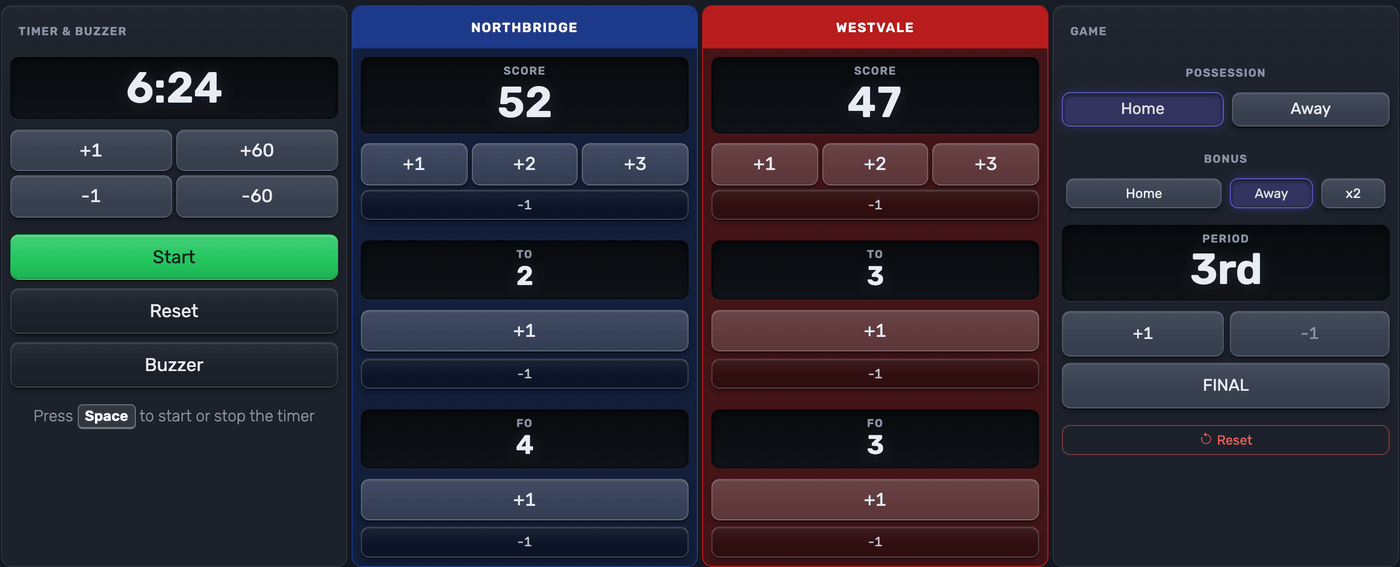 The control panel — points, clock, fouls and timeouts all from one screen
Tip: always think in terms of links, not files or apps. Copy the link you need and share it — that's all there is to it.
The layouts
Basketball comes with two kinds of display, and a few variations of each. Switch between them any time in the Setup panel under the layout option — the change shows up instantly on every screen. There's also a shot-clock-only display for a screen above the basket, covered further down.
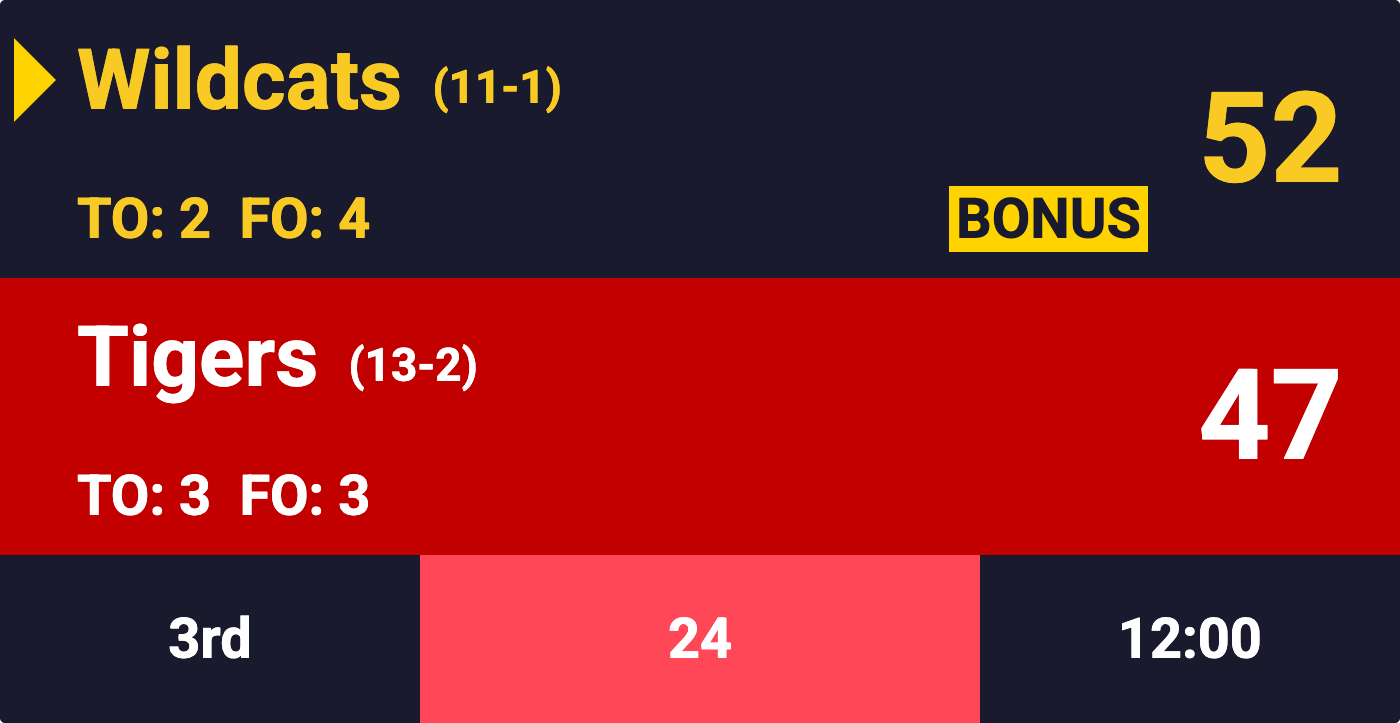 The full scoreboard layout, sized for a TV or a shared page
Full scoreboard
The big, everything-at-a-glance view. It shows both teams, the score, the game clock and shot clock, the period, and the fouls, timeouts and possession arrow. Pick the version with the teams stacked, or the one with the timer in the middle. Use it for:
- A TV or projector at the gym or in the hall
- A link you send to spectators who aren't there
- Any screen where you want the full picture, readable from a distance
Scorebug
A slim broadcast-style bar that sits over your video without covering the action — the kind of score strip you see on TV. It shows the teams, the scores, the clock and the period, and comes in narrow, wide and broadcast-style variations. Use it for:
- Streaming to YouTube, Facebook Live, Twitch or anywhere else
- Adding the score as an OBS/Streamlabs browser source over your camera feed
The scorebug has a transparent background, so in your streaming software it drops cleanly over whatever you're filming.
The most important features
Scoring
Each team has its own set of point buttons — +1, +2 and +3 — so a free throw, a field goal or a three add the right amount with one tap. A -1 button is there for when you need to take a point back. Turn on the 3-point animation (see below) and every made three gets a little celebration on the display scoreboard.
The game clock and shot clock
The game clock counts the period down and sounds a buzzer when time expires. Start and stop it from the control panel, and nudge the minutes and seconds when you need to set it. The separate shot clock runs alongside it for leagues that use one, starting, stopping and resetting with the game clock so it cannot drift. You can show or hide either clock, and set their lengths, in the Setup panel under Timer settings — the shot clock is not fixed at 24 seconds, so a 30- or 35-second league count works just as well.
A screen for the shot clock alone
If your league wants the shot clock readable above each basket, you don't have to put a whole scoreboard up there. Open the display dialog and click "Want the shot clock on a screen of its own?" — that gives you a link showing nothing but the shot clock, full screen, with no teams or scores on it.
Open the same link on each screen. Every one of them shows the same count, in step with each other and with the board, so there is nothing to start, stop or sync by hand — you run the clock from the control panel exactly as before, and it starts and stops with the game clock the way it always has. Double-click a display to put it full screen.
It works as a browser source in your streaming software too, when you want the clock as a separate element in the scene rather than part of the scorebug.
Fouls, bonus and timeouts
Each team has a running foul count and a timeout count, with +1 and -1 buttons for each. When a team reaches the penalty, flag the bonus (and double bonus, if you show it) so the display makes it clear. Don't use these in your sport? Hide fouls, timeouts or the bonus in the Setup panel, and rename the labels to whatever your league calls them.
Possession
A possession arrow shows which way the ball goes next. Tap Home or Away on the control panel to switch it, and choose the arrow colour in the Setup panel.
Periods, overtime and the final
The period control steps through the game — 1st, 2nd, half, 3rd, 4th, and into overtime as many times as you need. Use +1 and -1 to move between them, and tap FINAL when the game is over so the display shows the result.
Showing a made three
Switch on the 3-pointer animation and every made three triggers a quick effect on the display scoreboard — choose a scale or a slide style in the Setup panel. It's an easy way to make youth, school and rec games feel a little more broadcast.
Starting a new game
Tap Reset to clear the scores, fouls, timeouts and period and start fresh. Your team names, colours and logos are kept, so you're ready for the next game in a second.
Setting up your game
Open the Setup panel to shape the board before or during a game:
- Team names, colours and logos
- Which details to show — fouls, timeouts, possession, bonus, period and team records
- The game clock and shot clock lengths, and the buzzer sound
- The labels for timeouts, fouls and bonus
- The board title, fonts and colours, and your layout choice
Putting it on a stream
Both kinds of layout work as a browser source in OBS, Streamlabs, vMix and similar tools — paste the presentation link and the score updates itself, with no plugins to install. The scorebug is purpose-built for this. For step-by-step setup, see the streaming software guide.
Sharing your scoreboard
Share the right link for the job: the presentation link for spectators and screens, the scorekeeper link for a helper running the clock and score, the shot clock only link for a dedicated clock screen above the basket, and the admin link for a co-organiser who needs full control.
 The scorebug layout, built to sit over a live stream
Related guides
- Customizing your scoreboard — colours, logos, layouts and fonts
- Scoreboards on a TV — display on venue screens
- Streaming software — OBS, Streamlabs, vMix and more
- Stream Deck integration — control the board from a Stream Deck
- All scoreboard types — every sport we support
- How basketball scoring works — points, fouls, the shot clock and the rules behind the numbers
Ready to run your next game?