Add a Live Scoreboard to ProPresenter, EasyWorship, MediaShout, or Proclaim
Drop a live KeepTheScore scoreboard into any church presentation app. Works with ProPresenter, EasyWorship, MediaShout, Proclaim via a web slide.
Article Contents
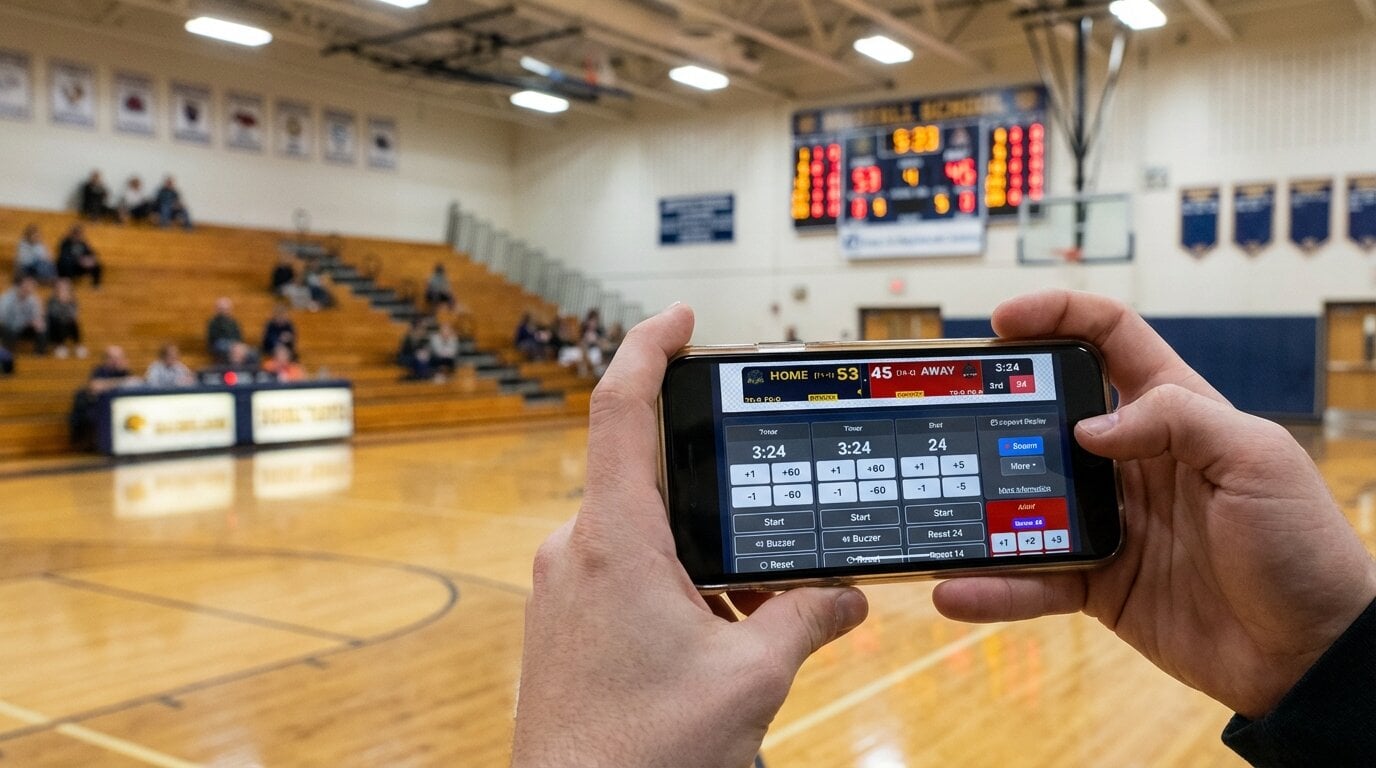
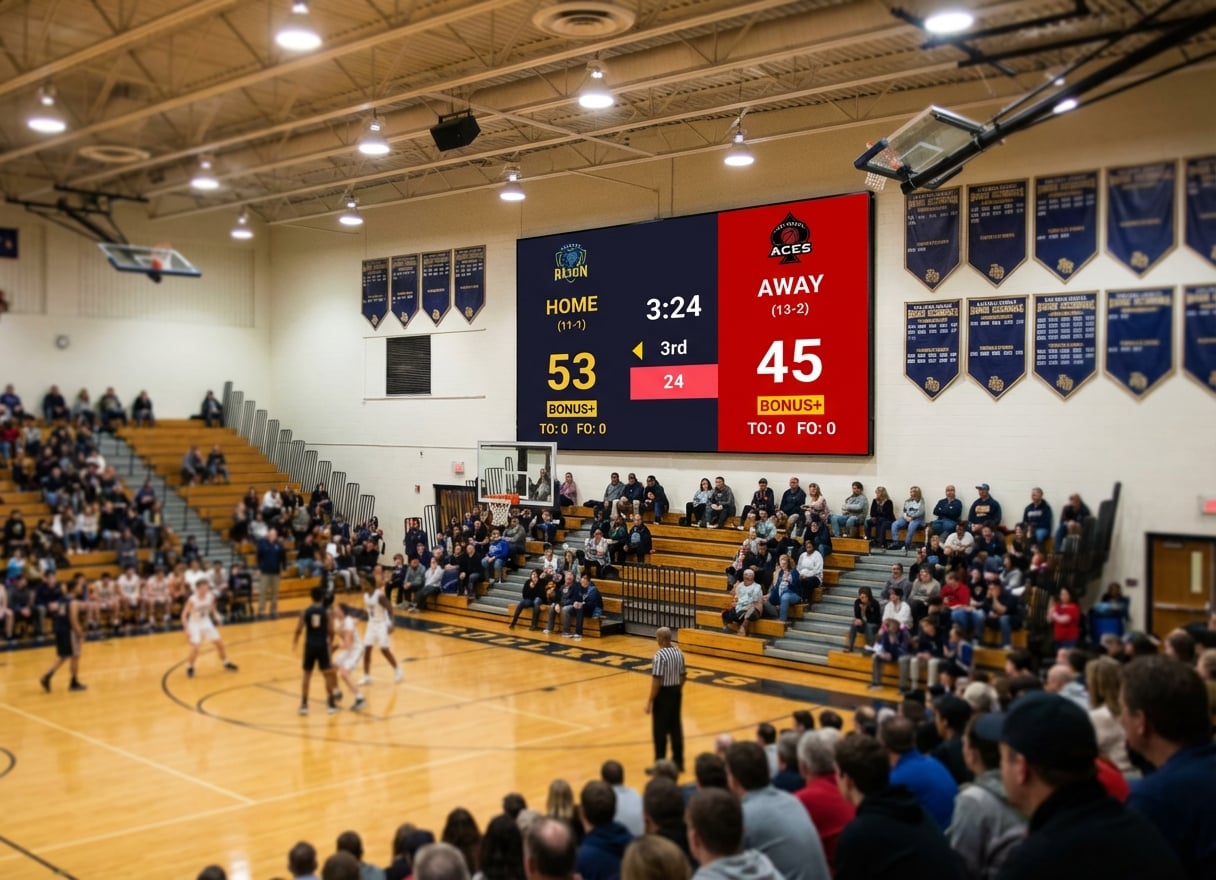
Your projection PC already runs the slides for Sunday morning. Now there's a basketball game in the gym and you want the score on the same screen. You don't want to alt-tab to a browser. You don't want a separate $2,500 piece of software just for game nights.
Every major church presentation app has the same fix sitting one menu away: a web slide (sometimes called a Web URL slide, Web Page action, or Web View). Drop a KeepTheScore public URL into it and you've got a live scoreboard inside your service set list. Same software you already run, same projector, same operator. The score updates automatically.
This guide shows how to do it in the four apps people actually use: ProPresenter, EasyWorship, MediaShout, and Proclaim. The KeepTheScore part is identical for all of them.
The setup, in plain terms
Three things have to be true:
- Your scoreboard has a public URL — KeepTheScore gives you one as soon as you create a board.
- Your presentation app supports adding a web URL as a slide.
- The projection PC has internet during the game.
That's it. No plugins. No NDI hardware. No $2,500/year SKU.
The flow on game day:
- Scorekeeper updates scores from their phone or tablet.
- Web slide (already loaded in your presentation app) shows the live scoreboard on the screen.
- Operator advances back to the announcements or worship slide whenever the game pauses.
If you've ever embedded a YouTube video or a giving page in a service slide, this is the same workflow.
Step 1: Create the scoreboard
Pick your sport — basketball, volleyball, soccer, pickleball, hockey, and so on. Set team names. Optional: upload team logos and pick colors (paid plan).
You'll get two links:
- An admin link — for the scorekeeper. Open it on a phone or tablet at the scorer's table.
- A presentation link — the public, view-only URL. This is the one that goes into the web slide.
Copy the presentation link. That URL is what every presentation app below is going to load.
Step 2: Drop it into your presentation app
The mechanics are slightly different in each app, but the concept is identical: add a slide that holds a web URL, paste your KeepTheScore presentation link, and resize.
ProPresenter (Mac)
ProPresenter has supported web views for years. In ProPresenter 7, the feature is called a Web Action or Web View.
- In your presentation, click the + to add a new slide.
- Open the slide editor and add a Web Action. Some workflows prefer adding a dedicated Web View layer through the slide's actions panel.
- Paste your KeepTheScore presentation link.
- In the action's options, enable the web view to show on the audience output. Resize it to cover the full slide (or leave a margin if you want a worship background behind it).
- Save the slide into the set list, between Announcements and Halftime Worship or wherever the game lives.
Renewed Vision's documentation lives at renewedvision.com/propresenter — search for "Web View" in their support docs. If you already use ProPresenter for Sunday slides, this is a five-minute add.
This is also the workflow that one of our customers, Christian Family Chapel, runs on game nights — a worship-grade ProPresenter rig with a KeepTheScore web view inside it. They never bought ProScoreboard. They just used the web slide that ProPresenter already had.
EasyWorship (Windows)
EasyWorship has a built-in Web Page schedule item.
- In your schedule, click Add to Schedule → Web Page (the exact path varies between EasyWorship 6 and 7 — look for the globe icon).
- Paste your KeepTheScore presentation link.
- Set the title (e.g. "Live Scoreboard"). EasyWorship loads the page on demand when the slide goes live.
- Drag the new item to the right place in your schedule.
EasyWorship's docs are at easyworship.com/support. Their Web Page item is one of the older features, so it works reliably across most recent versions.
MediaShout (Windows / Mac)
MediaShout calls it a Web Cue (also referred to as a Web Page Cue depending on the version).
- Open your script. Add a new cue and pick Web Cue from the cue list.
- Paste your KeepTheScore presentation link into the URL field.
- Configure the cue to fill the output area.
- Save into the script where the game appears.
MediaShout's support is at mediashout.com/support. If you don't see a Web Cue option, you're likely on an older version that pre-dates web cues — upgrading is usually the fix.
Proclaim (Windows / Mac)
Proclaim — the worship presentation product from Faithlife — has a Web Page content type.
- In your service plan, click Add Content → Web Page.
- Paste your KeepTheScore presentation link.
- Save the item to your plan. It refreshes the page on each presentation.
Proclaim's docs live at proclaim.help.logos.com. Faithlife also makes Proclaim's web rendering work consistently across both their Mac and Windows builds, so the experience is the same regardless of which projection PC the church runs.
A few things that might trip you up
The slide briefly shows a loading spinner the first time. Pre-load the web slide once before the game starts — most apps cache it after that.
The default size is too small. All four apps ship the web slide in a frame by default. You usually want it covering the whole output. Look for "fill output", "size to slide", or a stretch option in the slide's settings.
Scrollbars peek through. The KeepTheScore presentation view is designed to fill the screen without scrollbars, but if your slide window is sized awkwardly, you might see them. Resize the web slide window to match the projector's resolution.
The scorekeeper hasn't pressed start. The scoreboard URL works the moment the board is created, but the game clock has to be started by the scorekeeper. If the screen looks "stuck on 0:00," that's the clock waiting to be started, not a bug.
Two operators, one job. The presentation operator runs slides. The scorekeeper runs scores. Don't try to do both from the projection booth — give the admin link to a parent, coach, or volunteer at the scorer's table.
What this is not
This isn't ProScoreboard. ProScoreboard is a $2,500/year Mac scoreboard with player profiles, NDI output, and live data feeds from Statcrew and Genius Sports. If your church or school has a Mac-based AV booth, a broadcast feed going out, and player headshots on every play, ProScoreboard is the right tool.
This is the other 95% of churches and schools: you have a projector, a presentation app you already paid for, and a kid's basketball game happening Wednesday night. You don't need a broadcast scoreboard. You need a clean live scoreboard inside the slides you already run.
If you're on the fence between the two, the KeepTheScore vs ProScoreboard comparison lays out which features actually matter for which kind of venue.
What about the streaming side?
If you also stream the game on Facebook Live or YouTube, the same scoreboard URL drops into OBS, Streamlabs, or vMix as a browser source. One scoreboard, three audiences (in-room, livestream, remote families with the link). See the full guides:
The whole thing in one paragraph
Create a scoreboard at KeepTheScore. Copy the public URL. Open ProPresenter, EasyWorship, MediaShout, or Proclaim. Add a web slide pointed at that URL. Save it into your service plan. Hand the admin link to whoever is keeping score. Run the game.
That's the whole guide. Everything above is just the menu paths.
Common Questions
"Why not just use the scoreboard built into the presentation app?"
ProPresenter has ProScoreboard ($2,500/year, Mac only). The other three don't have a built-in live scoreboard at all. A web slide pointed at KeepTheScore gives you a real scoreboard inside the worship flow without paying for a separate scoreboard product or switching software.
"Will the scoreboard update without me touching the presentation app?"
Yes. Once the web slide is on screen, KeepTheScore updates the score in real time. The scorekeeper changes scores on their phone or laptop; the projection screen reflects the change within a second. The presentation operator doesn't have to advance slides for every basket.
"Does this work in the middle of a worship set?"
Yes — you build the scoreboard slide into your set list like any other web URL slide. Most churches put it after the announcements slide and before halftime worship, then come back to it after the third quarter. ProPresenter, EasyWorship, MediaShout, and Proclaim all let you sandwich web slides between regular slides.
"What if the internet drops mid-game?"
Once the scoreboard page is loaded, it keeps showing the last known score. The scorekeeper can keep tapping updates from their phone — they'll sync as soon as connectivity returns. For unreliable venues, a phone hotspot is enough.
"How much does the KeepTheScore side cost?"
Free for the basic scoreboard with a small KeepTheScore branding. The paid plan ($14/month billed annually) removes branding, adds team logos, and adds custom themes. There's no separate fee for the embed — it's just a public URL.
"Can I do this on a Windows PC?"
Yes. EasyWorship, MediaShout, and Proclaim all run on Windows. ProPresenter runs on Mac. KeepTheScore runs in any browser, so your projection PC's OS doesn't matter — only the presentation software's OS does.

Written by Caspar von Wrede
Founder of KeepTheScore. Building tools that help teams track scores and celebrate wins.