How to add a scoreboard overlay to Wirecast
Follow these step-by-step instructions to integrate a scoreboard overlay into your live stream using Wirecast.
Article Contents
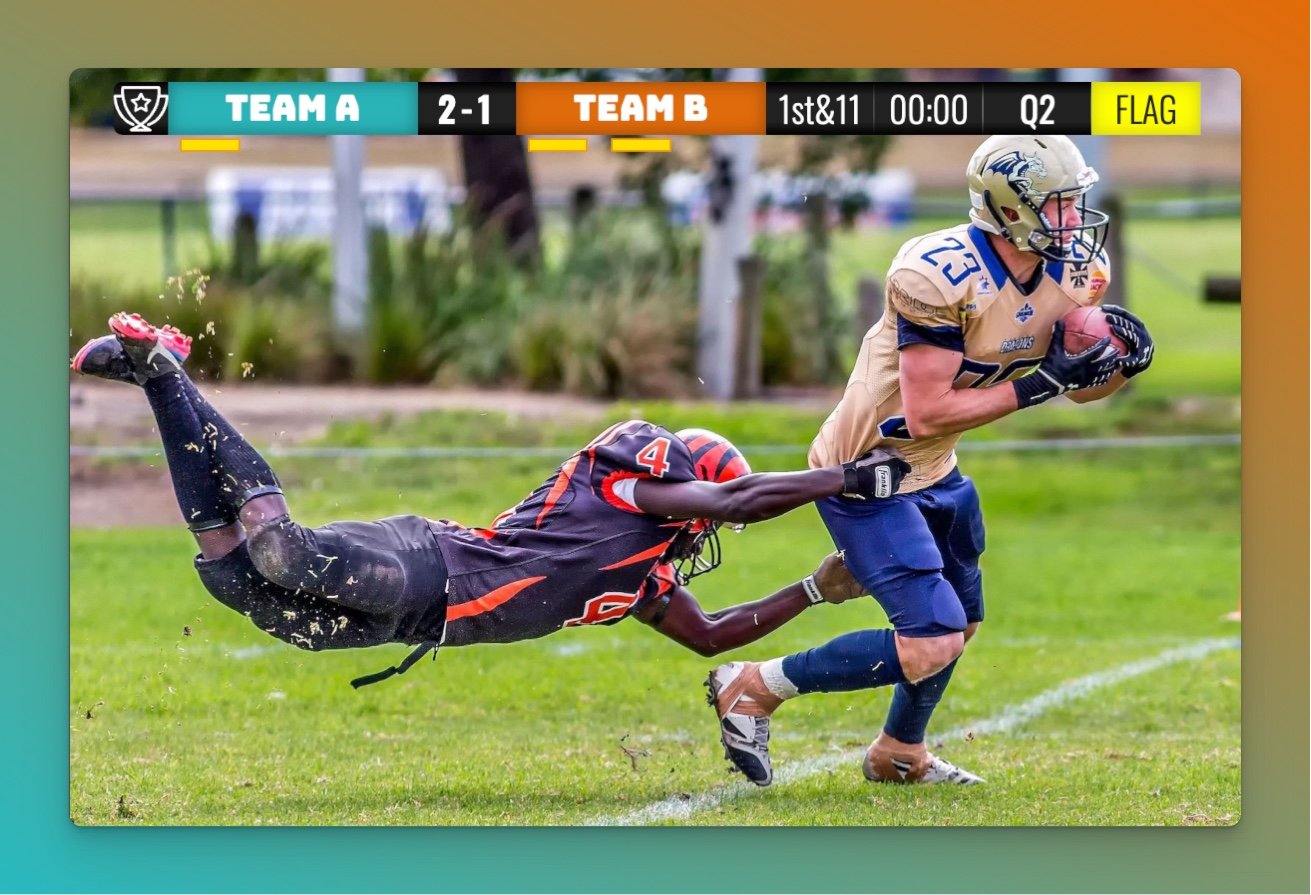
Wirecast is professional live video production software used by broadcasters, schools, and sports organizations for multi-camera streaming. Adding a scoreboard overlay — also called a score bug — gives viewers real-time game information without interrupting your broadcast. This guide shows how to integrate a web-based scoreboard into Wirecast.
How It Works
Wirecast runs on both Windows and Mac and supports multiple input types: cameras, video files, images, and web page sources. Web page sources are what make this work. You add a live scoreboard as a transparent overlay, and it updates the moment scores change — no manual graphic swaps.
The setup is two steps: configure your scoreboard and grab its overlay URL, then paste that URL as a web page source in Wirecast.
Step 1: Set Up Your Scoreboard
In this step we create and customize a scoreboard.
We have dedicated scoreboards for the following sports: football, baseball, basketball, hockey, soccer, tennis, volleyball and more! To begin, click the button below 👇 and choose your sport.
You should then see the following. This is your "control panel".
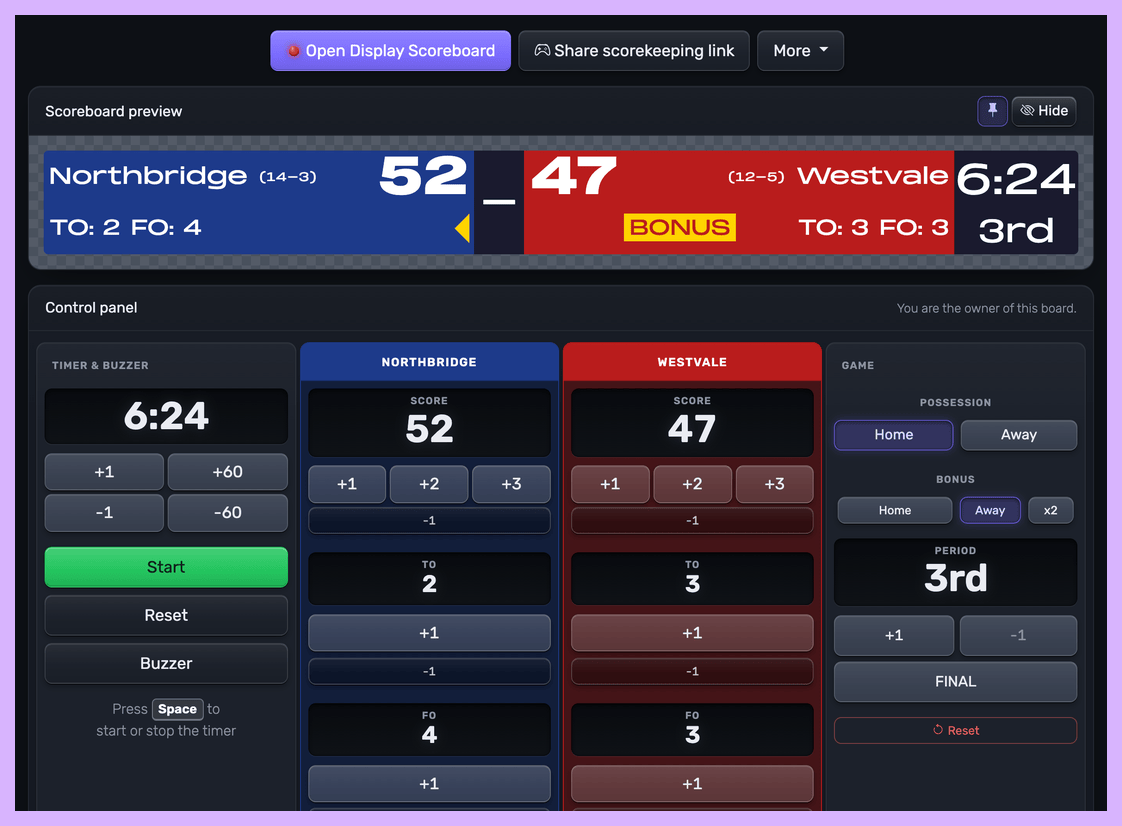 Control panel for an online scoreboard
You will use this control panel to control the scores. For detailed customization options (team names, colors, logos, layouts), see our scoreboard customization guide.
💡 You can share the URL of the control panel to give someone else the ability to change scores. Click the "Share scorekeeping link" button to copy the link or generate a QR code for easy sharing.
Next, we will get hold of the public scoreboard URL.
Click on the "Open Display Scoreboard" button at the top of the control panel. See below:
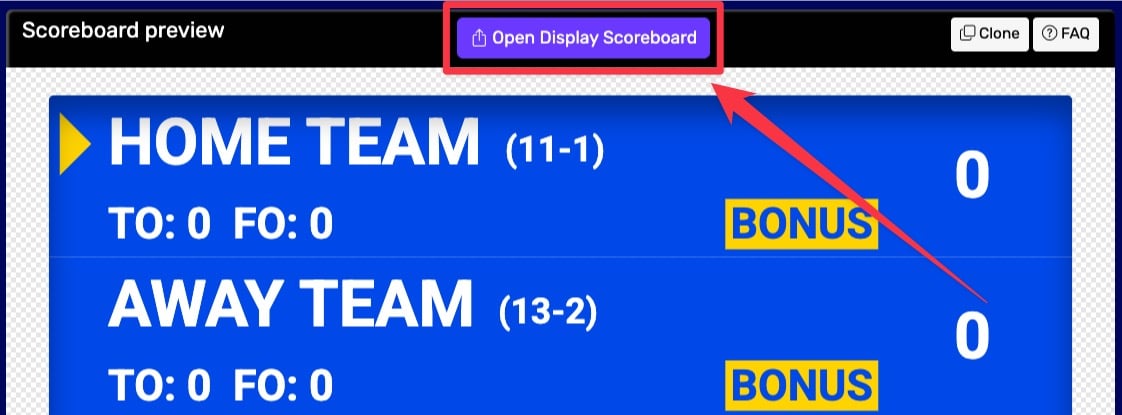 1. Getting the scoreboard link
You have several options in the dialog that appears:
- Click "COPY" to copy the URL to your clipboard
- Click "VIEW" to preview the scoreboard
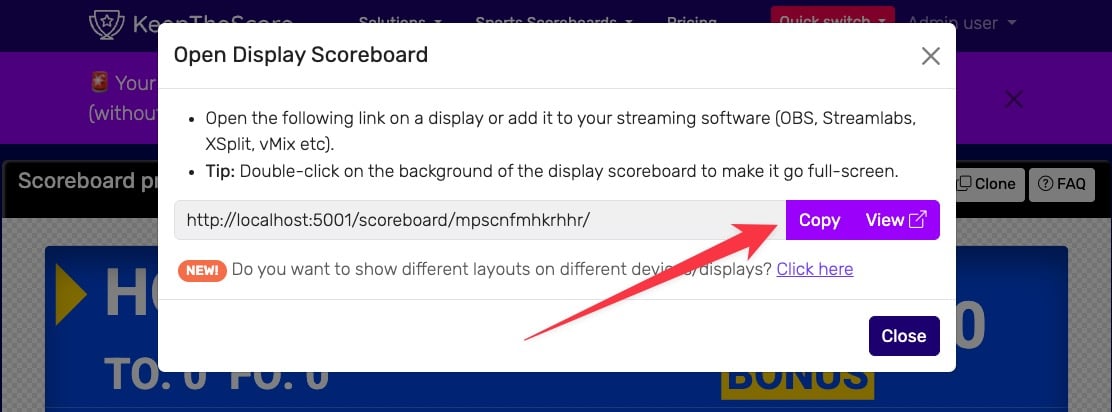 2. Getting the scoreboard link
💡 Layout Options: Many sports (including Universal, Basketball, Hockey, and all set-based sports like Tennis, Volleyball, Badminton, Squash, and Pickleball) support multiple layouts. You can:
- Use different layouts on different devices simultaneously
- Lock specific layouts using URL parameters (e.g.,
?layout=simpleBug)- Show a scorebug overlay in your stream while displaying a full scoreboard on a TV
Click "Click here" in the share dialog to see all available layout options for your sport.
Step 2: Adding the Overlay to Wirecast
Creating a Web Page Shot
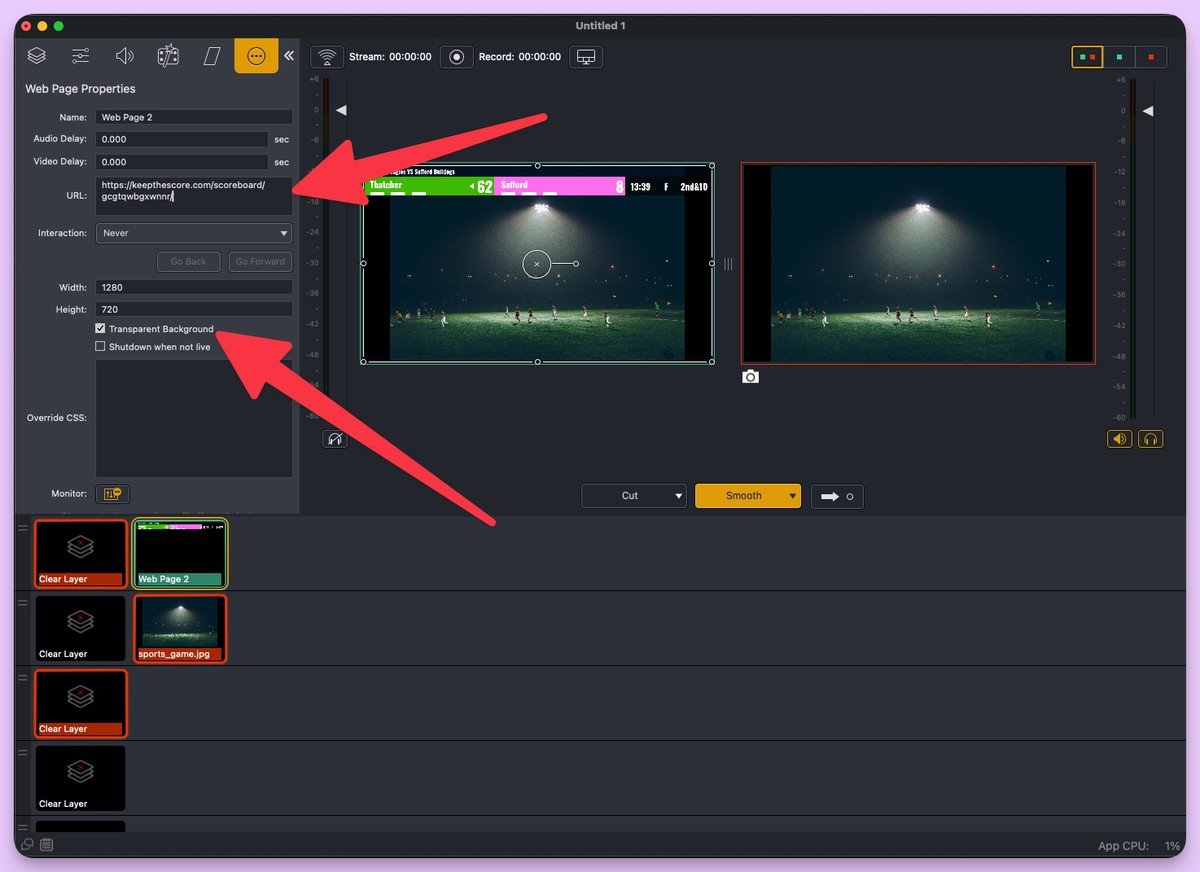
Open Wirecast and go to the main production window. In the shot layers panel, click the + button on an empty layer to add a new source. Select "Backgrounds" and then "Web Page."
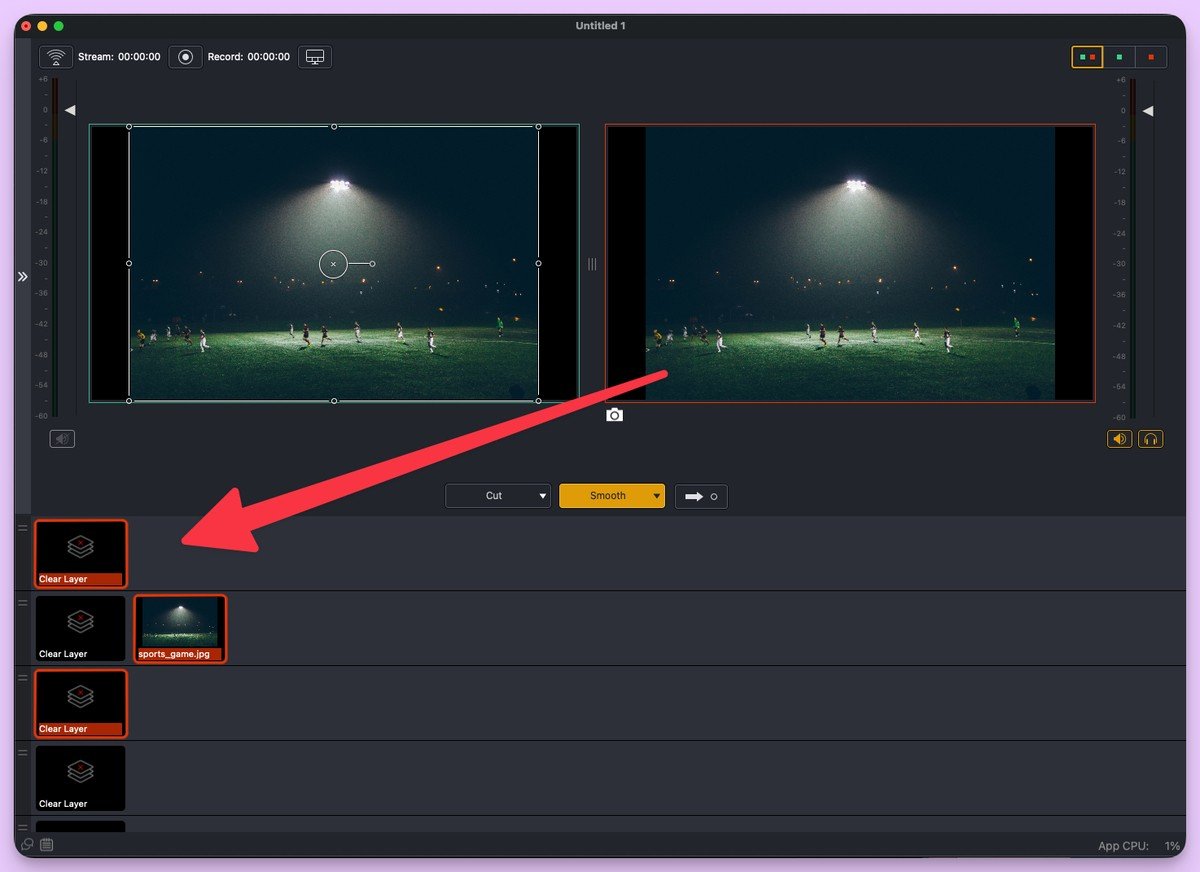
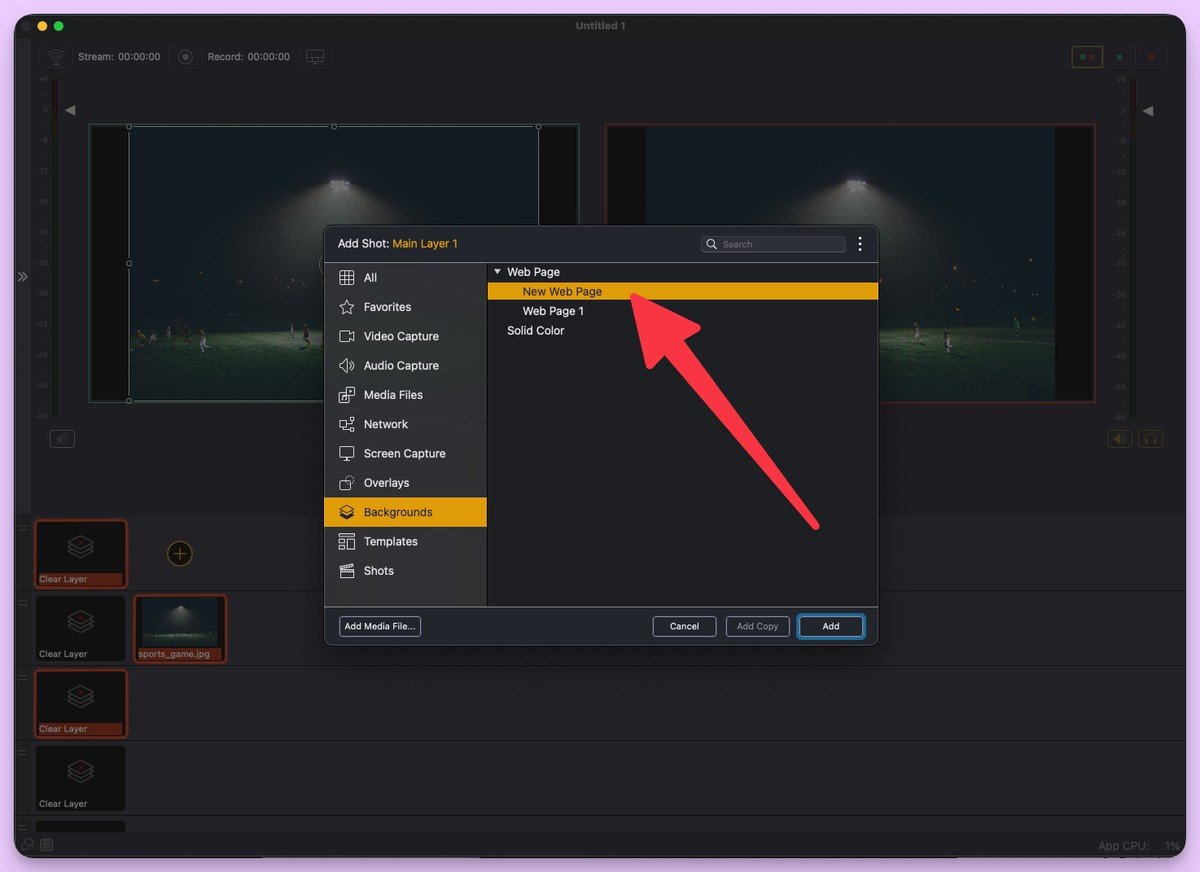
Configuring the Web Page Source
In the Web Page settings dialog, paste your KeepTheScore overlay URL into the Address field and configure:
- Address: Your KeepTheScore overlay URL
- Width: Match your canvas width (typically 1920)
- Height: Match your canvas height (typically 1080)
- Transparent Background: Check this box
Click OK to create the source.
Positioning the Overlay
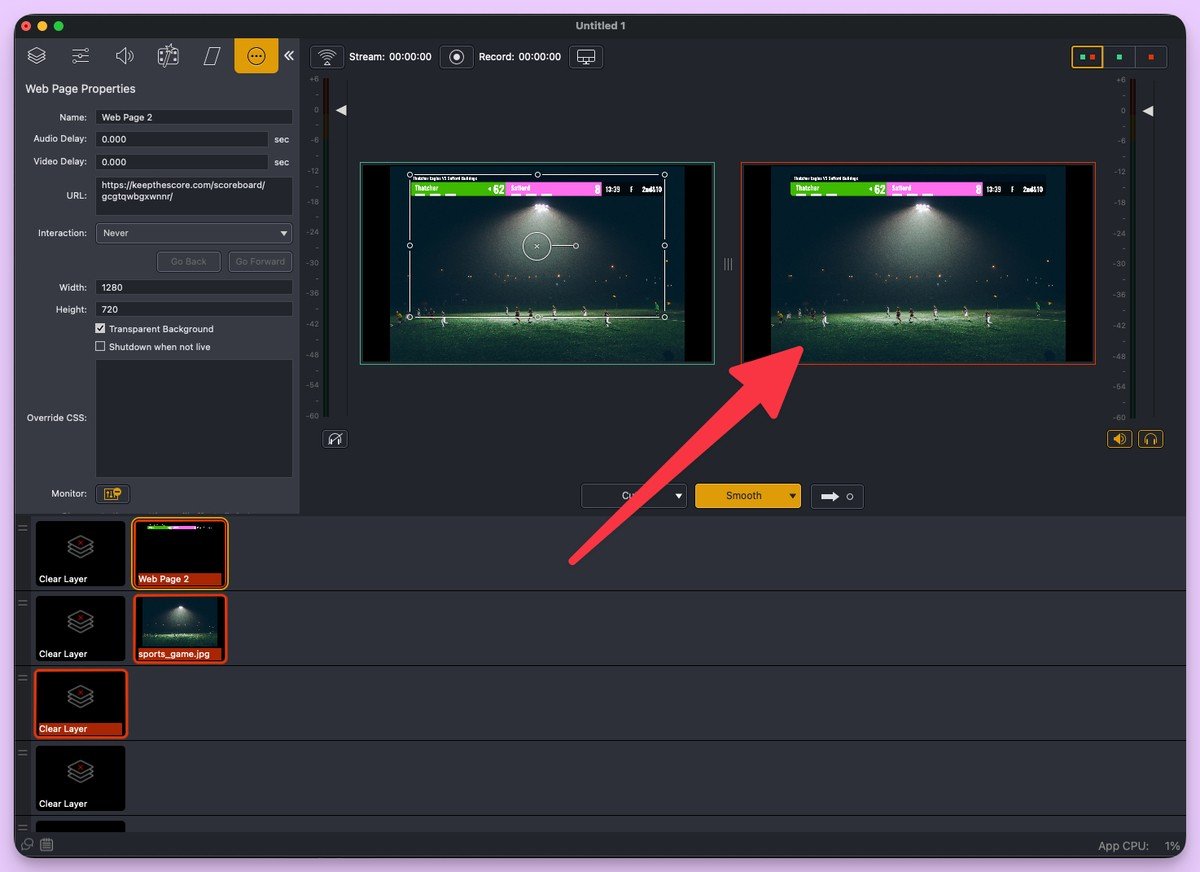
Click the scoreboard shot to activate it in preview or program output. Drag to position, and use the corner handles to resize. The web page layer needs to sit above your camera layers in the shot layers panel — otherwise your cameras will cover the scoreboard.
Managing Scores During Broadcast
Once it's configured, scores update automatically in Wirecast whenever you change them on KeepTheScore. The person updating scores can work from a phone, a separate laptop, or anywhere with internet — they don't need to touch the production computer at all. The video operator doesn't need to do anything either. That's the main practical advantage here: the two jobs stay separate.
Troubleshooting
Scoreboard not appearing
Check that the URL is copied correctly, including any parameters at the end. Also confirm that Wirecast has internet access through your firewall — on some school and venue networks, outbound web requests are blocked by default. Restart Wirecast if the web page source still won't load.
Transparency issues
Make sure "Transparent Background" is checked in the web page source settings. You also need to use the overlay URL specifically, not the regular display URL (they look similar, but only the overlay URL has a transparent background). If it still looks wrong, try updating Wirecast — older versions have rendering bugs with transparent web sources.
Scoreboard not updating
Check your internet connection on the production machine. Right-click the web page source and select "Reload Page." Also confirm you're editing the right scoreboard in your control panel — it's easy to have two boards open and update the wrong one.
Performance issues
Switch to wired ethernet if you're on WiFi. Close any unused applications. If you're still seeing lag, drop the web page source resolution. Wirecast's recommended system requirements are worth checking too — web page sources are more CPU-intensive than static images.
A Few Tips Before You Go Live
Save your configured scoreboard overlay as a preset so you can reuse it next match without rebuilding from scratch. If you want to switch between a full scoreboard and a compact bug mid-broadcast, create two separate web page sources with different overlay URLs — then you can cut between them just like any other shot.
Always run a test recording before going live. It takes five minutes and saves a lot of embarrassment.

Written by Caspar von Wrede
Founder of KeepTheScore. Building tools that help teams track scores and celebrate wins.