How to add a countdown timer to OBS
Add a countdown timer to OBS as a browser source — a synced starting-soon, halftime, or break timer you control from your phone mid-broadcast.
Article Contents
A "Starting soon" screen with no clock is a promise with no deadline. Viewers give it about thirty seconds before they tab away — and the ones who'd come back at kickoff never find out when kickoff is.
OBS doesn't ship a countdown timer. The usual workarounds are a Lua script that writes to a text source (fiddly, breaks on updates) or a third-party desktop tool that only you can see and only works on the streaming PC. There's a simpler route: a browser-source timer.
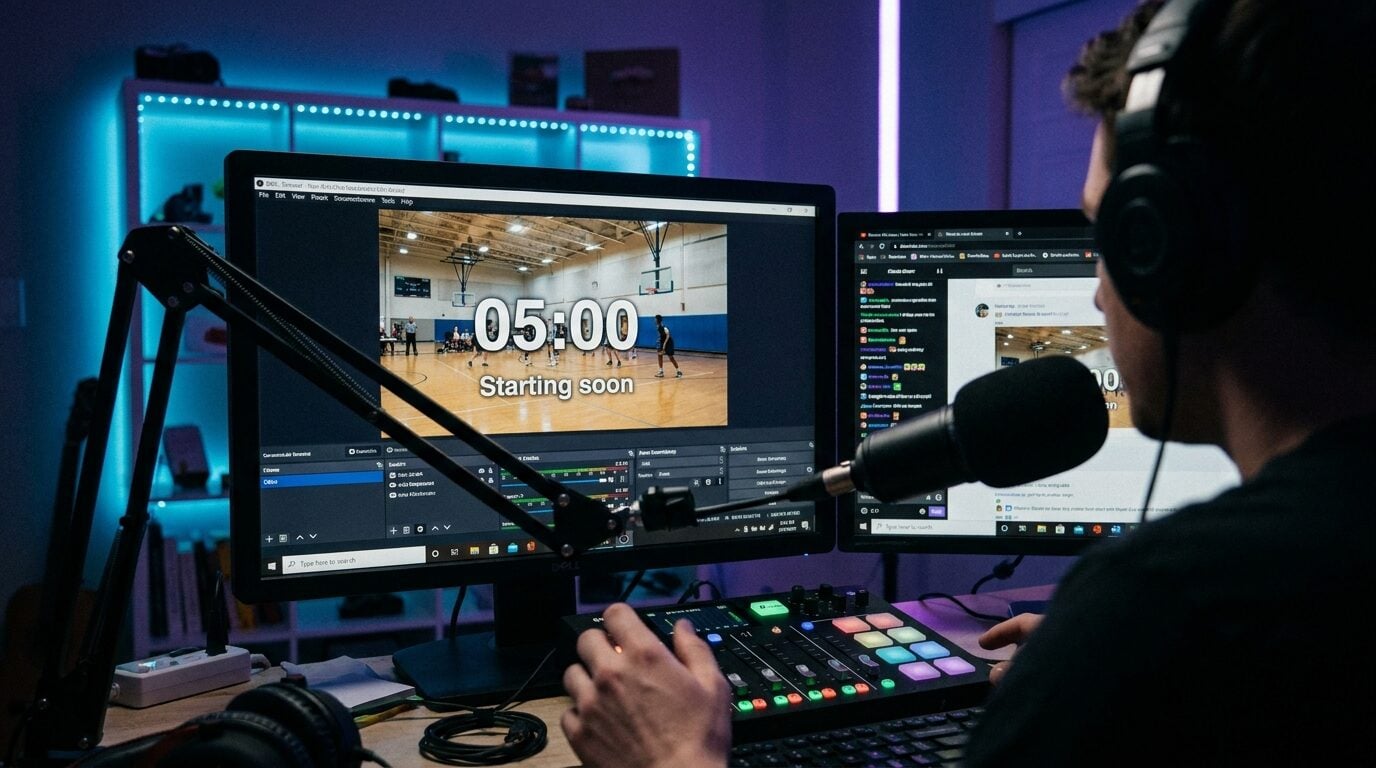 The countdown lives in the scene, and the controls live on your phone.
Why a browser source beats a timer script
KeepTheScore's online timer is a countdown that runs at a URL. Drop that URL into OBS as a browser source and the timer renders inside your scene — but the part that makes it genuinely better than a script is the sync: the same timer, open on any device, shows the same time at the same instant.
That means you control the on-stream countdown from your phone, mid-broadcast, without alt-tabbing out of OBS or touching the streaming PC. Pause it when the ref adds stoppage time. Add five minutes when the previous match runs long. The overlay updates live, because the overlay and your phone are the same timer. The clock is anchored to a server-side end time, not to the browser's frame counter, so an OBS source that's been sitting in a hidden scene for an hour is still accurate to the second when you switch to it.
Step 1: create and style the timer
Create a timer on the online timer page (free account). Set the duration, then start it at the moment your pre-show screen goes live.
One limit to know about: the timer counts down a duration, not to a clock time. There's no "stream starts at 19:00" mode yet, so you set 10:00 and press start at 18:50. Not elegant, but because you start it from your phone, it's one tap.
Then make it look like your stream: custom background and progress-bar colors, your choice of font, four text sizes, and a circular bar, horizontal bar, or no bar at all. A title ("Back after the break") and an end message ("We're live!") complete the screen. Match the background color to your scene's backdrop and the overlay looks designed rather than embedded.
Step 2: add it to OBS as a browser source
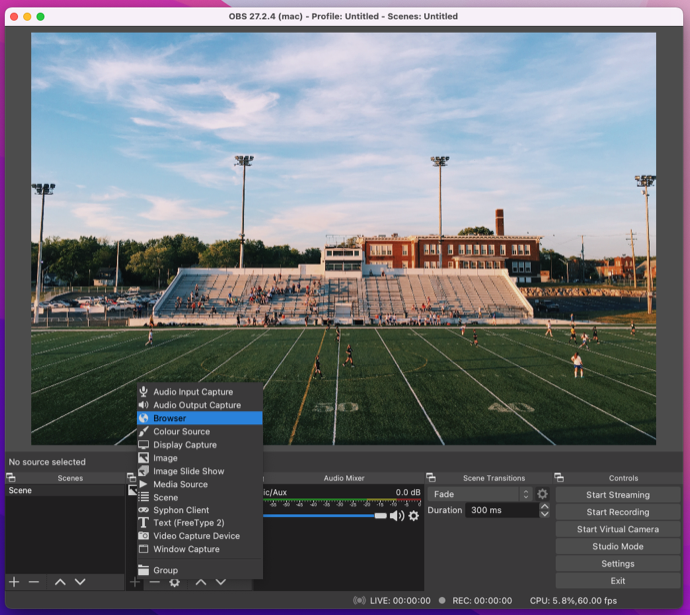
In OBS, click the + in the Sources panel and pick Browser.
Name it something you'll recognize later ("Countdown timer"), paste your timer's display link as the URL, and set the size — 1280×720 fills a "starting soon" scene nicely; shrink and corner-pin it if the countdown shares the scene with a camera.
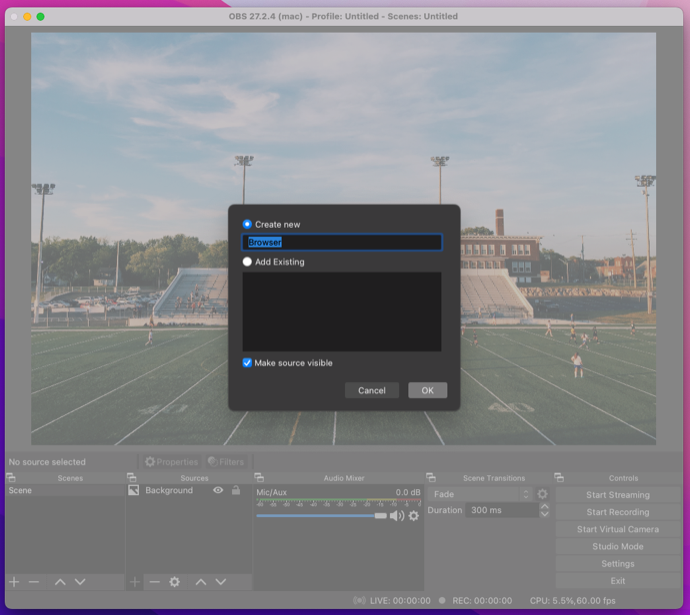
Click OK and the countdown is in your scene. That's the whole integration — the same trick we use for a scoreboard overlay in OBS (full walkthrough here), and it works identically in Streamlabs, vMix, and anything else with a browser source.
Two practical notes. First, the buzzer. A browser source's audio doesn't reach your stream mix unless you tick Control audio via OBS on the source. Tick it if you want viewers to hear the buzzer. Leave it off if you'd rather let the end message do the work. Second, set the source size once. Match the source's width and height to the area it fills instead of scaling a huge source down, and the text stays crisp (OBS defaults a new browser source to 800×600). The OBS browser source docs cover the remaining knobs.
Where a synced countdown earns its place
- Starting-soon screens — set the duration so it hits zero at your published start time.
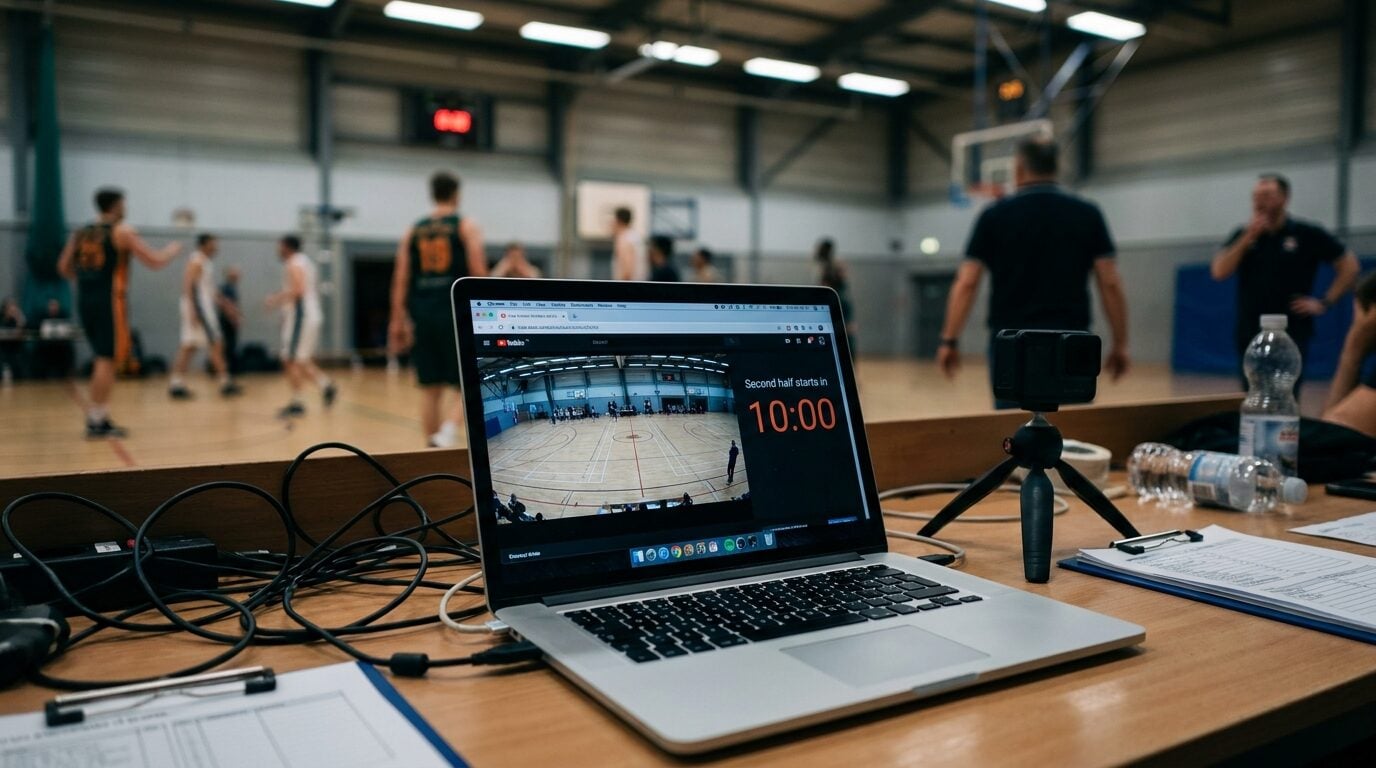
- Halftime and timeouts — the scorer's table starts the break clock, the stream overlay and the venue TV show the same countdown. We've written up the full scene setup in the halftime countdown overlay guide.
- Between matches — tournament streams with a "next match in 10:00" screen keep viewers parked instead of churning. Pair it with your stream scoreboard overlay so the context never leaves the screen.
- BRB screens — even a three-minute technical break holds more viewers when there's a number on it.
The common thread: the person who knows when the break ends (you, courtside, on a phone) is rarely the person sitting at the streaming PC. A synced timer removes that gap.

Written by Caspar von Wrede
Founder of KeepTheScore. Building tools that help teams track scores and celebrate wins.