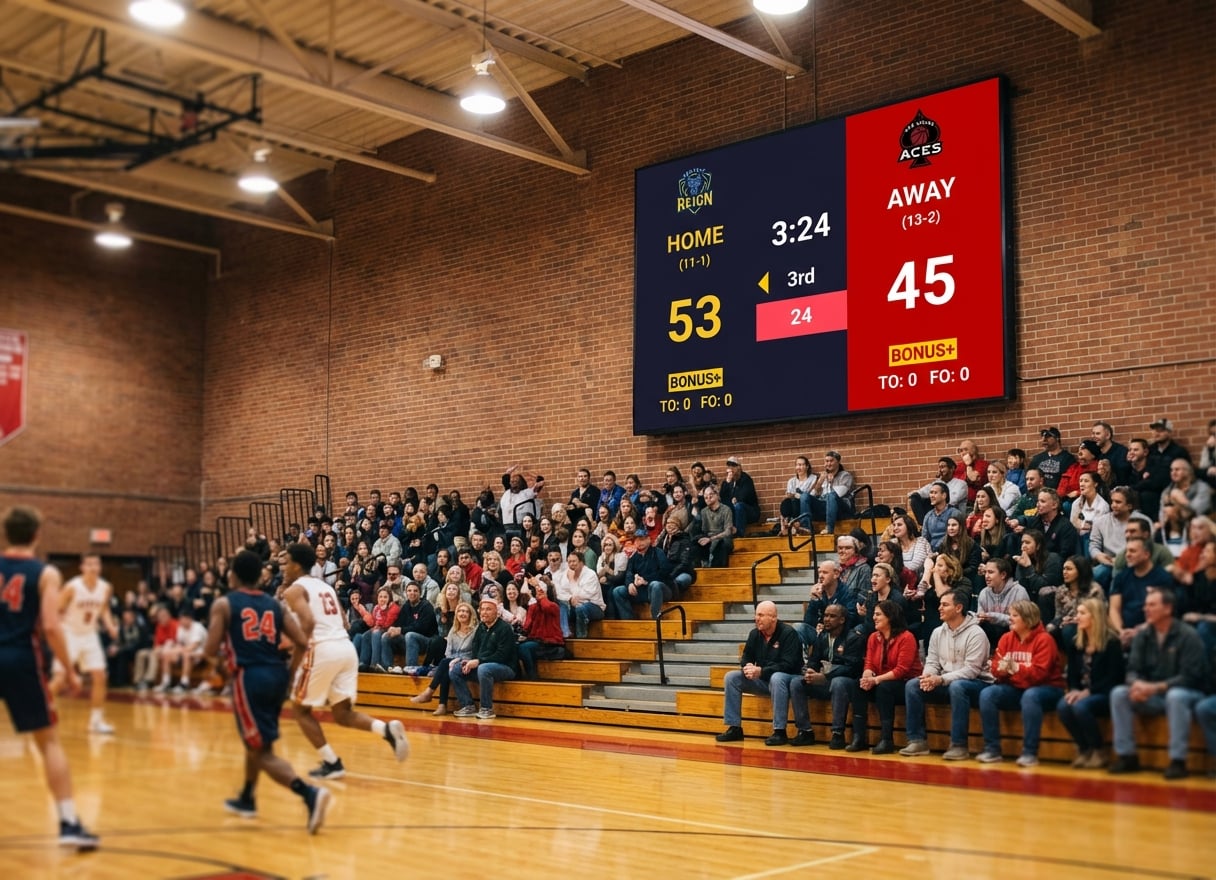
How to Display a Live Scoreboard on a TV or Projector
Put a live scoreboard on a gym TV or projector with just a browser. Three setups, projector tips, and fixes for the screen going dark mid-game.
Article Contents
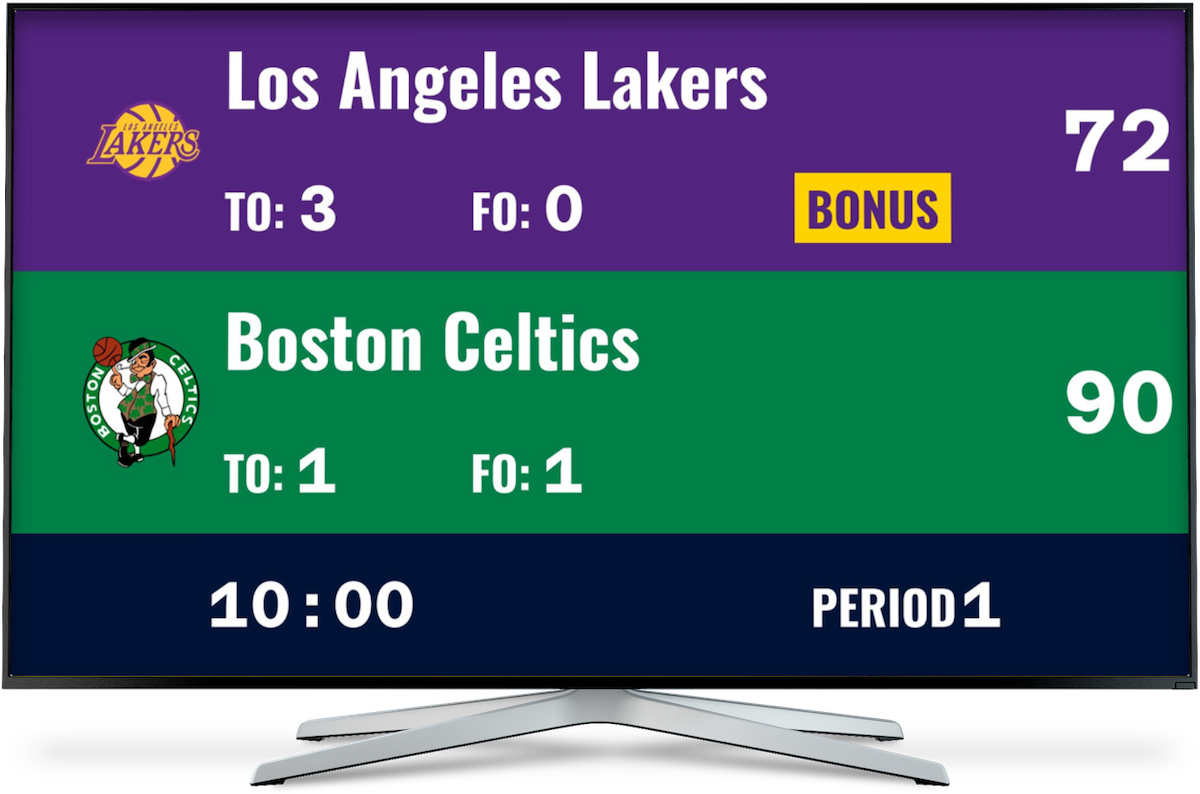
You've got a TV in the gym. Or a projector for assemblies. Or a clubhouse screen that mostly shows the news. You'd like it to be the scoreboard on game day, without a five-figure LED unit and a six-week wait for delivery.
It can be. The screen you already own plus a browser is enough. Here are the three setups that work, how to choose between them, and what to do when the screen goes dark in the third quarter.
What you need
- A TV or projector with an HDMI input (or a Chromecast or Apple TV plugged into one).
- A laptop, tablet or phone with a modern browser to run the display.
- A KeepTheScore scoreboard. Free to start.
- Ideally a second device for scoring. The same device can do both, but it's worse.
No proprietary console, no installed software, nothing beyond a standard HDMI cable.
The simplest setup
- Create the scoreboard, pick the sport, enter the team names.
- Click Open Display Scoreboard. A dialog opens with your display link, a Copy button, an Open on this device button and a QR code.
- On the device connected to the TV, open that link. Scan the QR code if it's easier than typing.
- Double-click the scoreboard to go full-screen.
The scoreboard is on the TV. To score, click Share scorekeeping link and open that link on a phone or tablet. The TV updates live. (Creating a scorekeeper link needs you to be logged in.) That phone-to-TV handoff is the whole score keeper workflow.
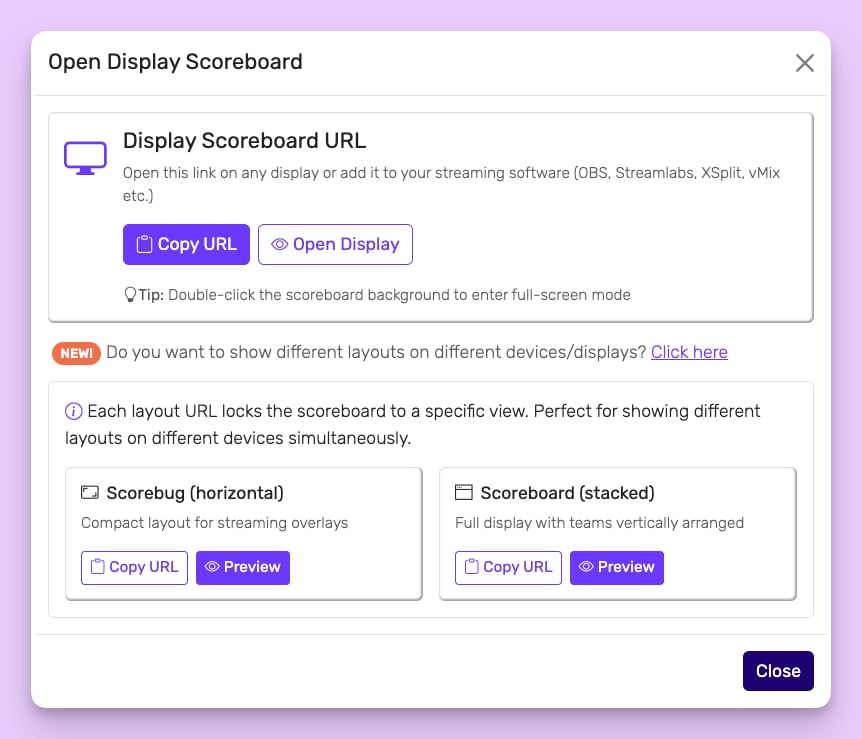
It works because the scoreboard is a web page. Anything that can show a web page can be the display, and you won't install a smart-TV app because there isn't one.
Pick your setup
| Setup | Reliability | Setup time | Best for |
|---|---|---|---|
| HDMI cable from a laptop | High | 2 minutes | Gyms, weekly fixtures, anywhere you control the cable run |
| A dedicated device on the TV | High | 5 minutes | Venues that host games regularly, scorer far from the screen |
| Cast the browser tab | Medium | 5 minutes | Rooms where a cable can't reach |
My recommendation: run the cable. Casting is convenient and it will fail at the worst moment, because it depends on wifi and on the source device staying awake. Fine for a one-off. For anything weekly, use HDMI.
Option 1: HDMI from a laptop
A laptop on a side table, a cable to the TV, the display link open in a browser, full-screen. On most laptops the TV shows up as an extended desktop, so drag the browser window onto it.
Then take the scoring off the laptop. Open the scorekeeper link on your phone and the scorer never touches the cable or the display.
The most common failure is the laptop going to sleep, which blanks the TV. Switch off sleep and the screensaver for the length of the game. Everyone forgets this once.
Option 2: A dedicated display device
Open the display link on whatever is already plugged into the TV: a smart TV's built-in browser, a mini PC, an old laptop, a Chromebook, a Raspberry Pi. Leave it there. Score from a different device.
This is the cleanest setup for a venue with regular games. Once the device is configured, it just works, and nobody lugs a laptop in.
For a screen that stays on a wall unattended, prefer a mini PC or Raspberry Pi with the browser in kiosk mode, sleep turned off in the operating system, and the browser set to open your display link at startup. Streaming sticks such as Chromecast, Fire TV Stick and Roku put themselves to sleep after roughly 20 minutes without a remote press, and you can't switch that off.
Option 3: Cast the browser tab
If a cable can't reach (long room, ceiling-mounted projector), cast the tab.
- Chromecast: in Chrome, open the three-dot menu, choose Cast, pick the device, and cast the tab.
- Apple TV: use screen mirroring on a Mac, or Control Center on an iPhone or iPad.
You're mirroring a browser window, not running a scoreboard app on the TV. If the source device sleeps or loses wifi, the cast stops. Keep the source plugged in and awake.
Projector notes
Projectors follow the same rules as TVs, with a few quirks.
- Match the resolution. Set the source device's output to the projector's native resolution, most often 1920×1080 or 1280×720. A mismatch is what cuts off the edges.
- Check the aspect ratio. Most modern projectors are 16:9. On a 4:3 screen the scoreboard letterboxes: usable, but smaller than the surface could fit.
- Bring adapters. Many laptops lack HDMI. A USB-C-to-HDMI adapter is the kit item most often missing on game day, and borrowing the gym's last working one ten minutes before tip-off is not a plan.
- Fight keystone tilt. Aggressive tilt distorts the score numerals and makes the clock harder to read from a distance.
- Mind the daylight. Projectors lose to direct sun. Evening games are fine; a sun-flooded hall or an outdoor afternoon game needs a TV or LED panel.
Before the game, walk to the furthest seat and read the score. If you squint, switch to a bigger layout.
Pick a layout built for the wall
Each sport has several layouts. In the Setup panel they're grouped under two headings. Scorebug layouts are slim strips designed to sit on top of live video, so they look lost on a 75-inch wall. Scoreboard layouts fill the screen and show the numbers large. For a room full of spectators, use a Scoreboard layout.
To show different layouts on different screens, open the display dialog and expand "Need a different layout on each screen?". Each layout gets its own link. Basketball and football boards can also give you a link that shows only the shot clock (play clock on football), for a screen above each basket.
Layout choice varies by sport, and some layouts hide team logos or extra stats to keep things clean. If something you want isn't on the wall, switch layouts before you blame the screen.
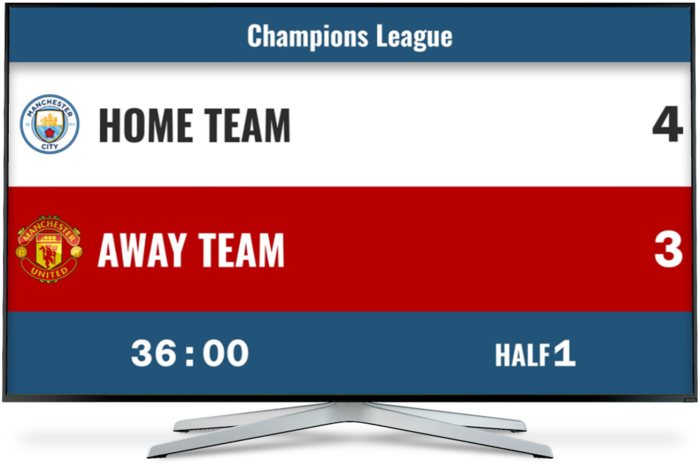
Why a browser scoreboard beats dedicated hardware for small venues
Our gym scoreboard cost guide puts basic LED scoreboards at $3,000 to $8,000, multi-sport units at $5,000 to $15,000 and small video boards at $15,000 to $50,000, with installation adding $2,000 to $10,000. Most run one sport and are bolted to the wall with a proprietary keypad.
The TV in your gym is already paid for. A laptop or Chromecast to drive it costs somewhere between $30 and a few hundred dollars. The software runs every sport and moves between venues, and a repair is "swap the laptop" instead of waiting for a vendor visit.
Stadiums, arenas and venues where the scoreboard is part of the brand still buy hardware. For school gyms, community halls and club venues, TV plus browser covers the job. More on the trade-offs in digital scoreboards and LED scoreboard software.
Troubleshooting
Blank scoreboard or a loading spinner
Refresh the tab on the display device. Still stuck? Open the same link on your phone. If it loads there, the display device lost its internet. If it doesn't, the link was mistyped.
The clock looks wrong
The game clock is synced to our server, so a scorer's phone with the wrong time doesn't change it. If the clock looks off, check three things: someone paused it, the display device dropped off the network (refresh the tab), or the layout isn't showing the clock you expect.
The score isn't updating
Scores push live, so a stale number almost always means the display device lost its connection. Refresh. If it keeps happening, the TV's network is flaky. Switch to a wired connection or a different wifi network. The display holds the last state it received and catches up on reconnect.
Projector image cut off
That's the projector's resolution setting, not the scoreboard. Match the source output to the projector's native resolution. Double-clicking to full-screen rescales it too.
The TV goes dark mid-game
Nearly always the source device falling asleep, or a streaming stick timing out. Set the device to never sleep while plugged in, disable the screensaver, and see option 2 above for wall screens that must stay on.
Casting keeps dropping
Casting is sensitive to wifi quality. The cure is HDMI. Running the cable is worth a slightly ugly install.
Get your display link
Free plan, no credit card. Create the scoreboard, open the display link on whatever is connected to your TV or projector, double-click for full-screen, and you're showing live scores on a screen that was empty an hour ago.
For LED walls, multi-TV setups and projector configuration, see the TV scoreboard documentation and the LED scoreboard software guide.
FAQ
Do I need a smart TV?
No. A regular TV with HDMI works, driven by a laptop, mini PC, Chromecast or Apple TV. A smart TV with a built-in browser can open the display link directly.
Can I run the scoreboard and score from the same laptop?
Yes, but you shouldn't. The scorer shares the screen with the spectator view, and every accidental click shows on the TV. Let one device drive the TV untouched and score from a phone with the scorekeeper link.
Will it fill a 75-inch TV?
Yes. Double-click to go full-screen, or use the browser's full-screen mode. The graphics scale to the screen.
Can I show the scoreboard on two TVs at once?
Yes. Open the same display link on each device. Every screen stays in sync with one scorer. This suits venues with several courts or rooms.
Does it work with a projector?
Yes. A projector with HDMI input is a TV for this purpose. Match resolutions and go full-screen. Outdoors in daylight it struggles, which is a projector limit and not ours.
What if the wifi drops for a minute?
The display keeps the last state it received and resumes updating when the connection returns. On a short drop the score usually catches up within a second or so of reconnecting.
Do all sports work on a TV?
All supported sports do. Layout options vary: basketball and football offer the most choices, and smaller sports may have a single layout that still works well.

Written by Caspar von Wrede
Founder of KeepTheScore. Building tools that help teams track scores and celebrate wins.