How to add a scoreboard overlay to TikTok LIVE Studio
Add a live scoreboard overlay to TikTok LIVE Studio with a Link source. Works in portrait and landscape, and you update the score from your phone.
Article Contents
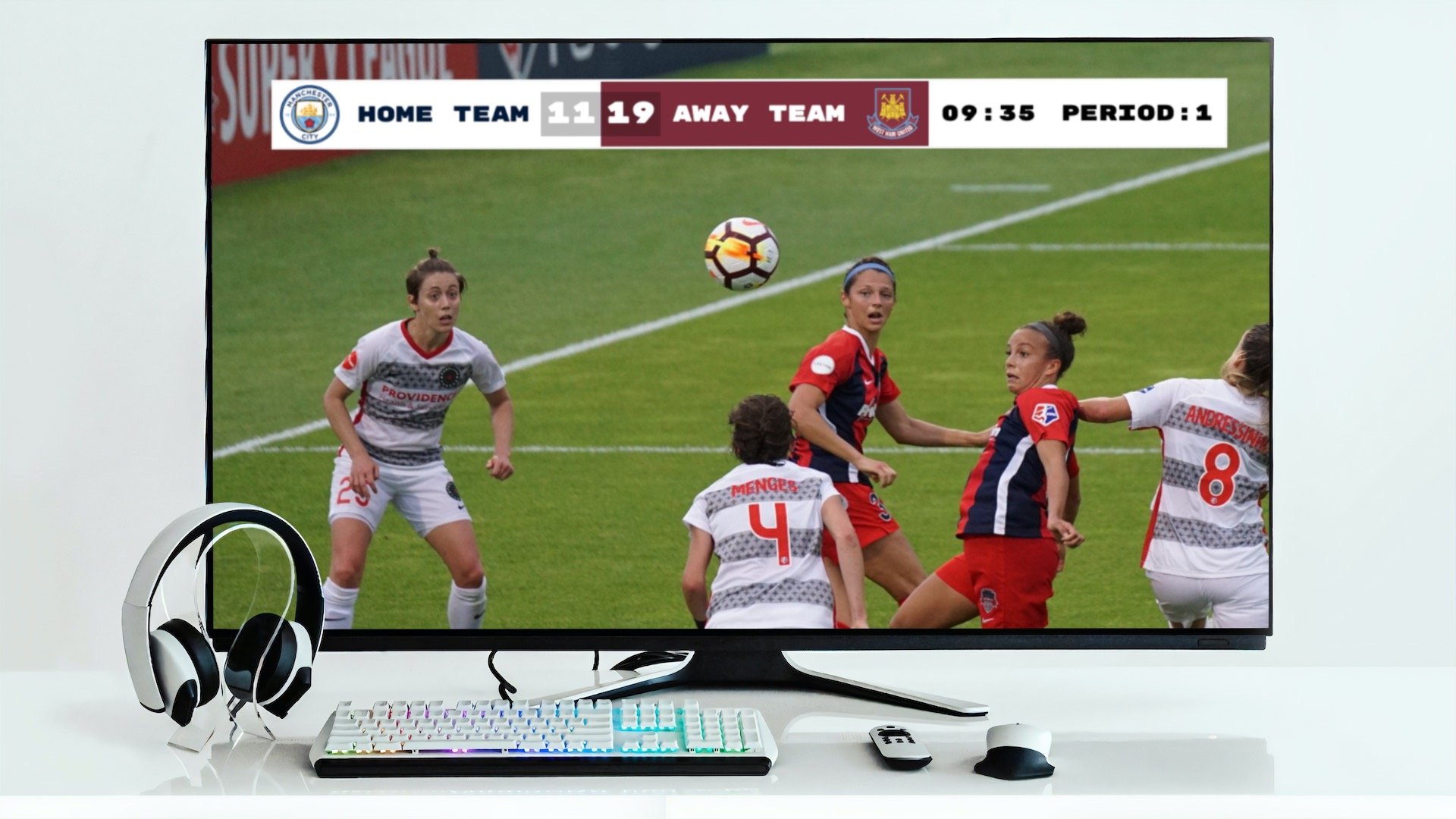
Going live on TikTok from your computer with TikTok LIVE Studio and want the score on screen? This guide shows you how to add a live scoreboard overlay (also called a score bug) using KeepTheScore. It works for a sports match you film yourself and for an esports or gaming stream. Setup takes a few minutes, and anyone with the admin link can update the score from their phone while you stream.
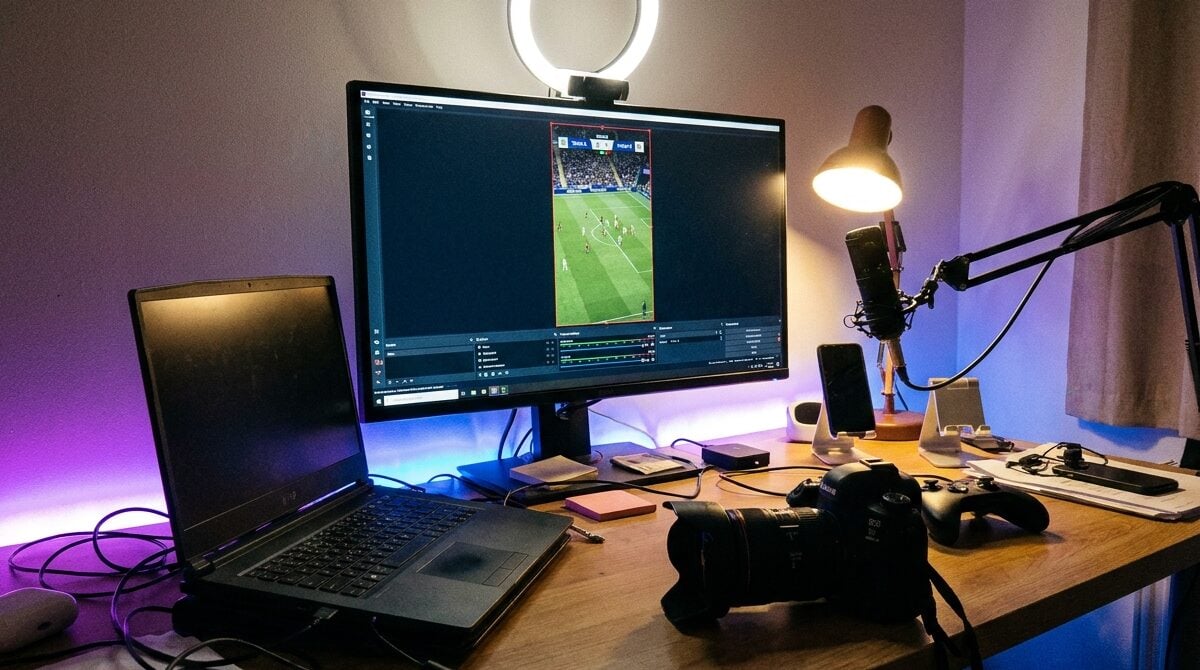
Quick Overview
Two steps:
- Create your scoreboard on KeepTheScore and copy the display link
- Add that link as a "Link" source in TikTok LIVE Studio
No plugins and no extra apps. Let's walk through it.
Step 1: Create Your Scoreboard
In this step we create and customize a scoreboard.
We have dedicated scoreboards for the following sports: football, baseball, basketball, hockey, soccer, tennis, volleyball and more! To begin, click the button below 👇 and choose your sport.
You should then see the following. This is your "control panel".
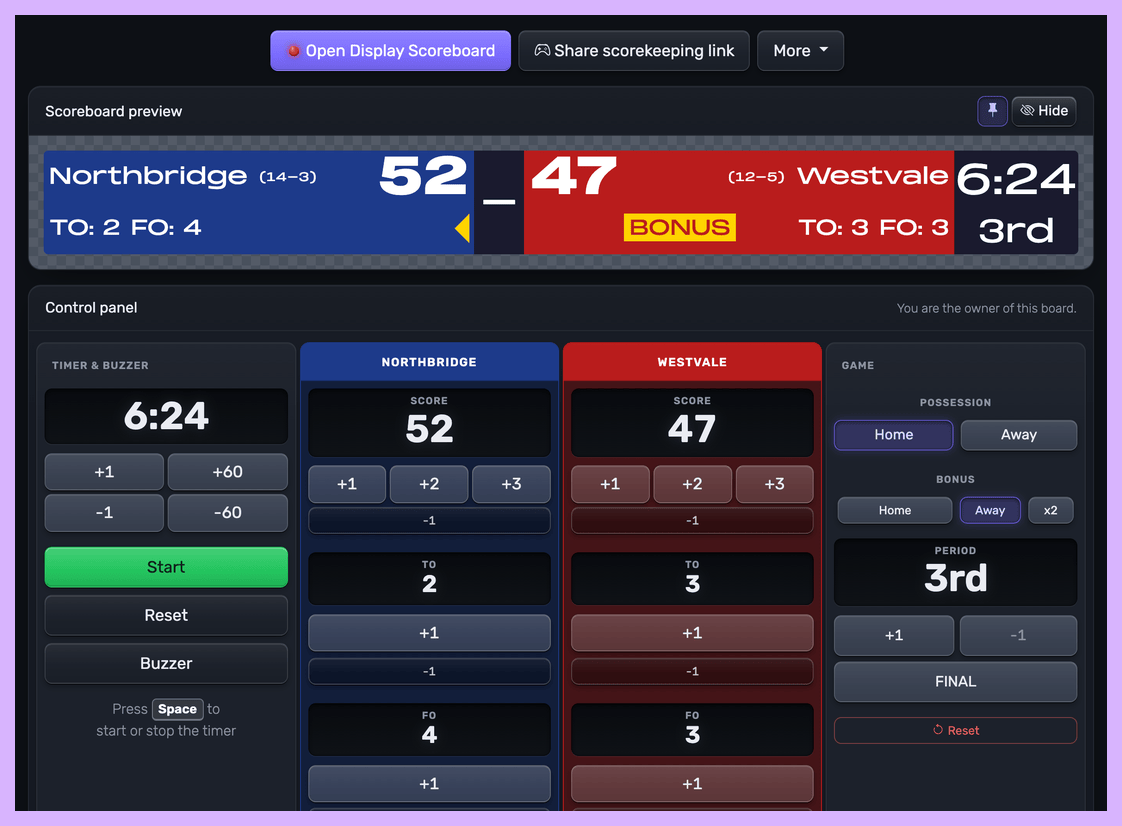 Control panel for an online scoreboard
You will use this control panel to control the scores. For detailed customization options (team names, colors, logos, layouts), see our scoreboard customization guide.
💡 You can share the URL of the control panel to give someone else the ability to change scores. Click the "Share scorekeeping link" button to copy the link or generate a QR code for easy sharing.
Next, we will get hold of the public scoreboard URL.
Click on the "Open Display Scoreboard" button at the top of the control panel. See below:
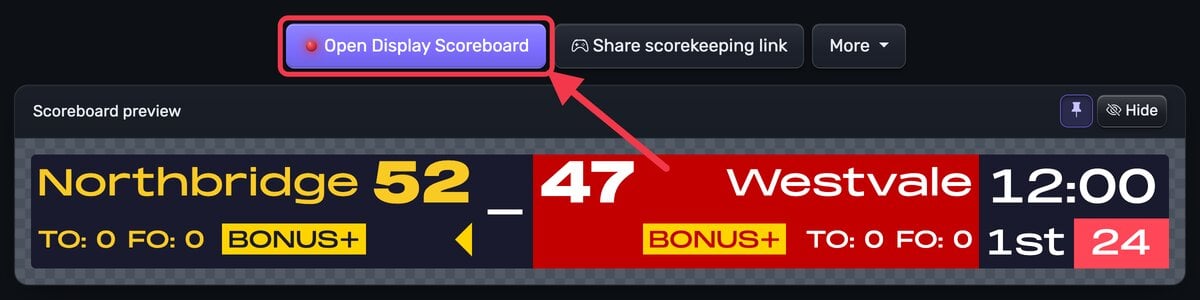 1. Getting the scoreboard link
You have several options in the dialog that appears:
- Click "Copy" to copy the URL to your clipboard
- Click "Open on this device" to preview the scoreboard
- Scan the QR code to open the scoreboard on another device
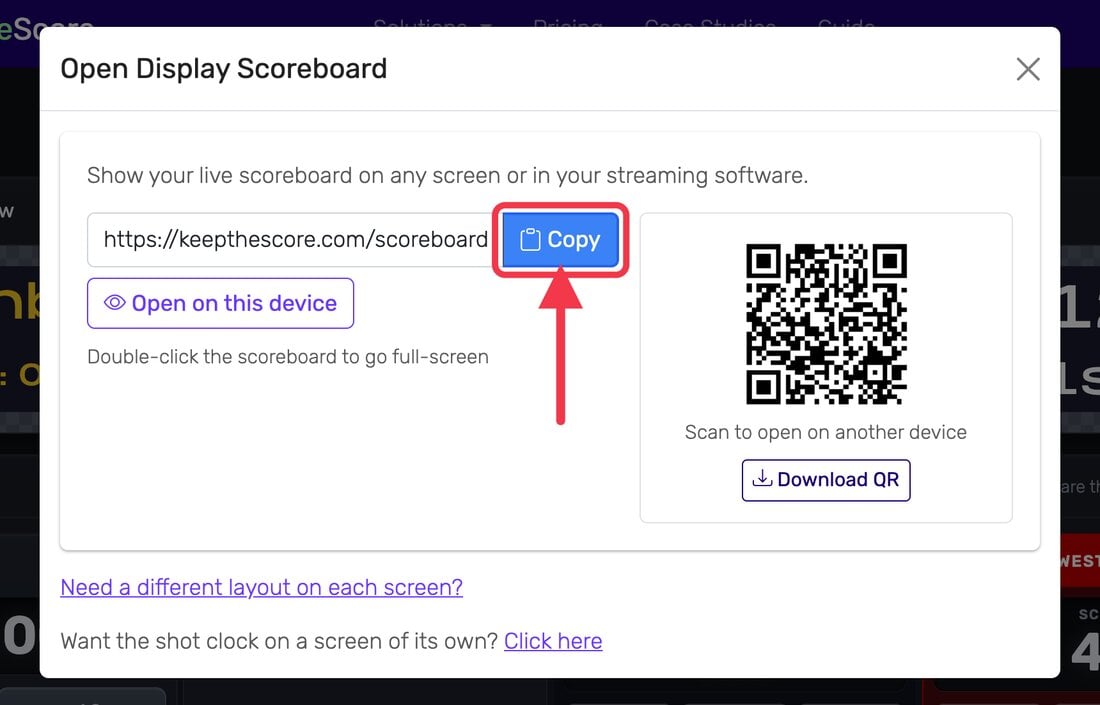 2. Copying the scoreboard link
💡 Layout Options: Many sports (including Universal, Basketball, Hockey, and all set-based sports like Tennis, Volleyball, Badminton, Squash, and Pickleball) support multiple layouts. You can:
- Use different layouts on different devices simultaneously
- Lock specific layouts using URL parameters (e.g.,
?layout=simpleBug)- Show a scorebug overlay in your stream while displaying a full scoreboard on a TV
Click "Need a different layout on each screen?" in the dialog to see all available layout options for your sport.
⚠️ Use the display link, not the control panel link. The control panel link shows your score buttons to every viewer.
Step 2: Add the Link Source in TikTok LIVE Studio
- Open TikTok LIVE Studio and select the scene you stream from.
- Click Add source and choose Link. Some versions call it a web page or URL source.
- Paste your scoreboard's display link and give the source a name, such as "Scoreboard".
- Set the size of the source to match your stream:
- Portrait (9:16), the usual TikTok format: 1080 × 1920
- Landscape (16:9): 1920 × 1080
- Drag the scoreboard source above your camera or game capture in the source list, so it sits on top.
- Resize and move the scorebug to where you want it. The top of the screen works well in portrait, because TikTok shows comments and gifts at the bottom.
That's it. When you change the score, team names or colors on KeepTheScore, the overlay updates on your stream within a few seconds. Your scorekeeper does not need TikTok LIVE Studio, only a browser and the admin link.
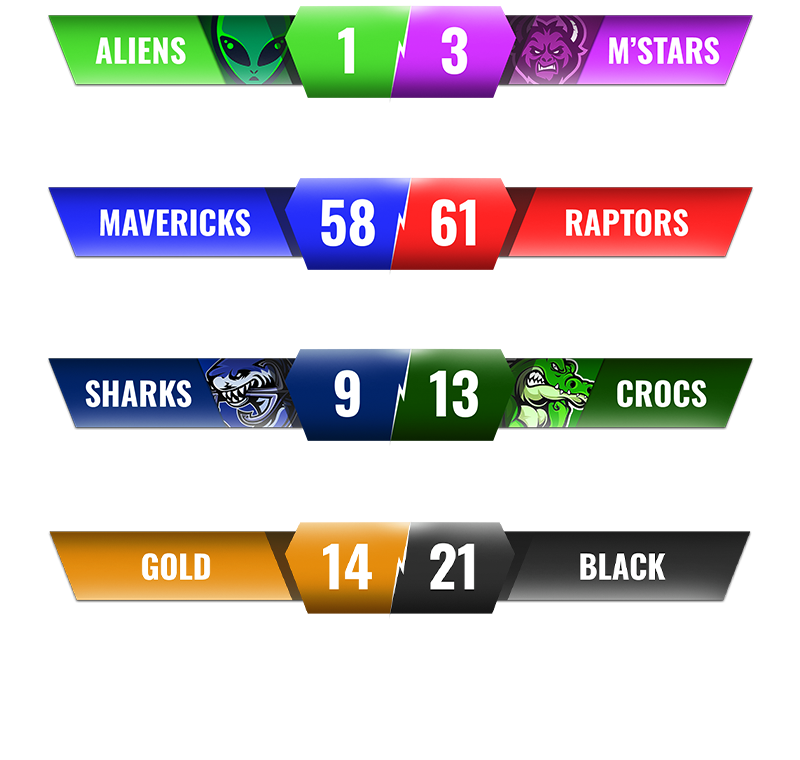
Tips for TikTok LIVE
- Pick a compact layout for portrait. A vertical stream is narrow, so a small scorebug leaves more room for the action. Lock a layout with a link parameter such as
?layout=simpleBug. - Let someone else keep score. Send a teammate the scorekeeping link from the control panel. They update the score from the sideline or the next seat, and you focus on the stream.
- Reload a stuck overlay. TikTok LIVE Studio has no refresh button for Link sources. If the overlay ever stops updating, edit the source and add
&r=1to the end of the link (or?r=1if the link has no?yet). Change the number each time you need another reload.
Why This Works Well
- Browser-based: nothing to install beyond pasting the link
- Remote scoring: anyone with the admin link can update the score from a phone
- Same board everywhere: show the scorebug on TikTok and the full scoreboard on a TV at the venue at the same time

Written by Caspar von Wrede
Founder of KeepTheScore. Building tools that help teams track scores and celebrate wins.