How to Stream Youth Sports Games to Parents
Stream youth games to parents and grandparents with a phone and a tripod, then add a live score overlay once the basics work.
Article Contents

A grandmother in another country wants to watch her grandson's basketball game. A parent on the West Coast wants the second half of their daughter's volleyball match without leaving the office. A sibling away at college wants the rivalry game.
None of that needs a TV truck. It needs a camera, a stable connection and somewhere for people to watch. Start with the simplest setup that gets families watching, and add a live score overlay once that works reliably. In that order. Complexity only pays off after the simple version is boring.
KeepTheScore does not host the video. Use YouTube, Facebook Live, Twitch, a school platform or any other video service for that. KeepTheScore provides the live scoreboard, the on-stream overlay, and a score-only display link that sits next to or on top of your video.
Start with a phone on a tripod
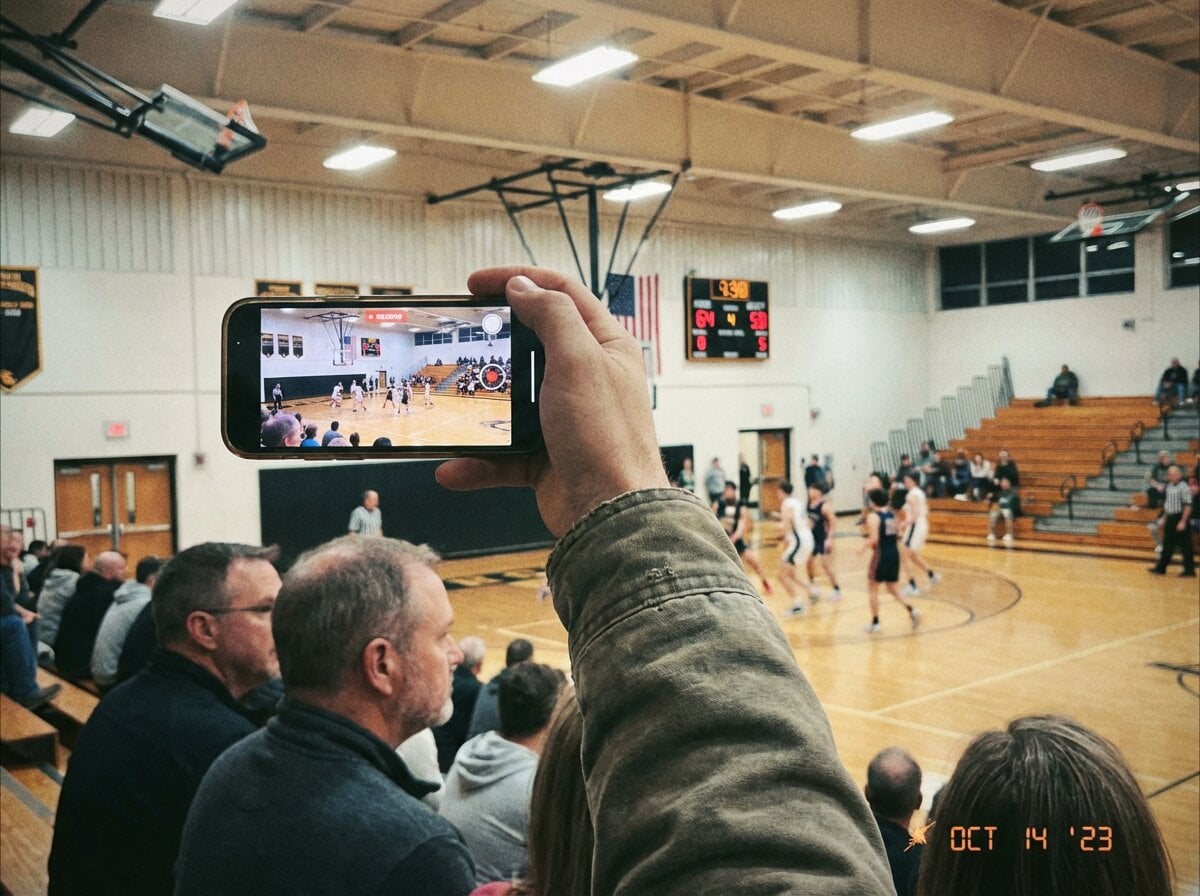
A phone on a tripod, pointed at the court, going live to Facebook or YouTube. No laptop, no streaming software, no overlay. Tap "Go Live", share the link with the team group, and grandma is watching.
You lose the on-screen score, the zoom and the scene switching. Parents who couldn't be there get to watch. That's the whole job; the rest is polish.
What you need
- A phone. A modern smartphone is enough for your first season, and most teams never outgrow it.
- A tripod. Handheld video of a 45-minute game is unwatchable.
- A platform. Facebook Live and YouTube are the free defaults, and both let you control who watches. One YouTube catch: streaming from the phone app needs a verified channel, so set that up days before game day, not in the parking lot.
- Upload speed. 5 Mbps is the practical floor and 10 is comfortable. Test the venue's wifi first. If it's bad, a 4G or 5G hotspot works.
- Power. Streaming drains a phone fast. Bring a power bank.
Setup in four steps
- Mount the phone, court-level or higher, in landscape, with the full playing area in frame.
- Start a live stream in the Facebook or YouTube app and set the privacy level (more on that below).
- Give it a title that names the team: "Lincoln U12 vs. Madison, Saturday".
- Share the link in the team chat or email list.
Do a 60-second test stream the day before. The first time something breaks should not be five minutes before tip-off. Put the phone in airplane mode with wifi on, so an incoming call can't kill the stream.
Decide who can watch
Parents care about this more than anything else on the page. They want to know the stream won't end up in front of strangers.
- Public. Anyone can find it. Fine for varsity games the local paper might cover, a poor fit for U10s.
- Unlisted on YouTube. Anyone with the link can watch, but it stays out of search and off the channel page. This is the right answer for most teams.
- Closed Facebook Group. Only group members can watch. The strongest privacy, but every parent has to join first, which costs you some viewers.
- Twitch and others. Similar options exist, and the names change often, so read the platform's current settings instead of trusting a blog post from two seasons ago.
All of these live on the streaming platform. KeepTheScore doesn't control who watches your video. Pick the most restrictive option that still lets your families find the stream. Opening it up later is easy, and pulling a public stream back is not.
When you outgrow the phone
Once you want overlays, scene switching or a better camera, move to a laptop running OBS Studio or Streamlabs. The camera plugs in over USB, and you stream out to YouTube or Facebook as before.
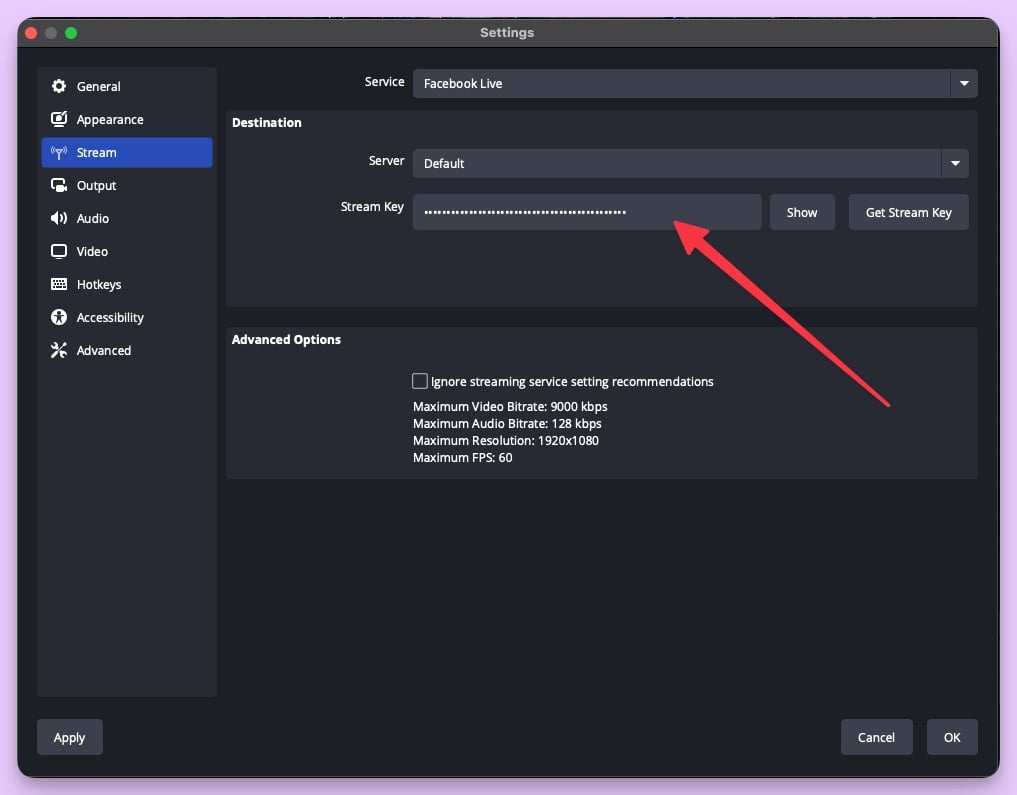
The overlay walkthroughs are in our OBS scoreboard guide and Facebook Live scoreboard overlay guide. The streaming software hub compares apps, including which ones support browser sources and which, like StreamYard, don't. Read those once a basic stream is running.
Add live scores
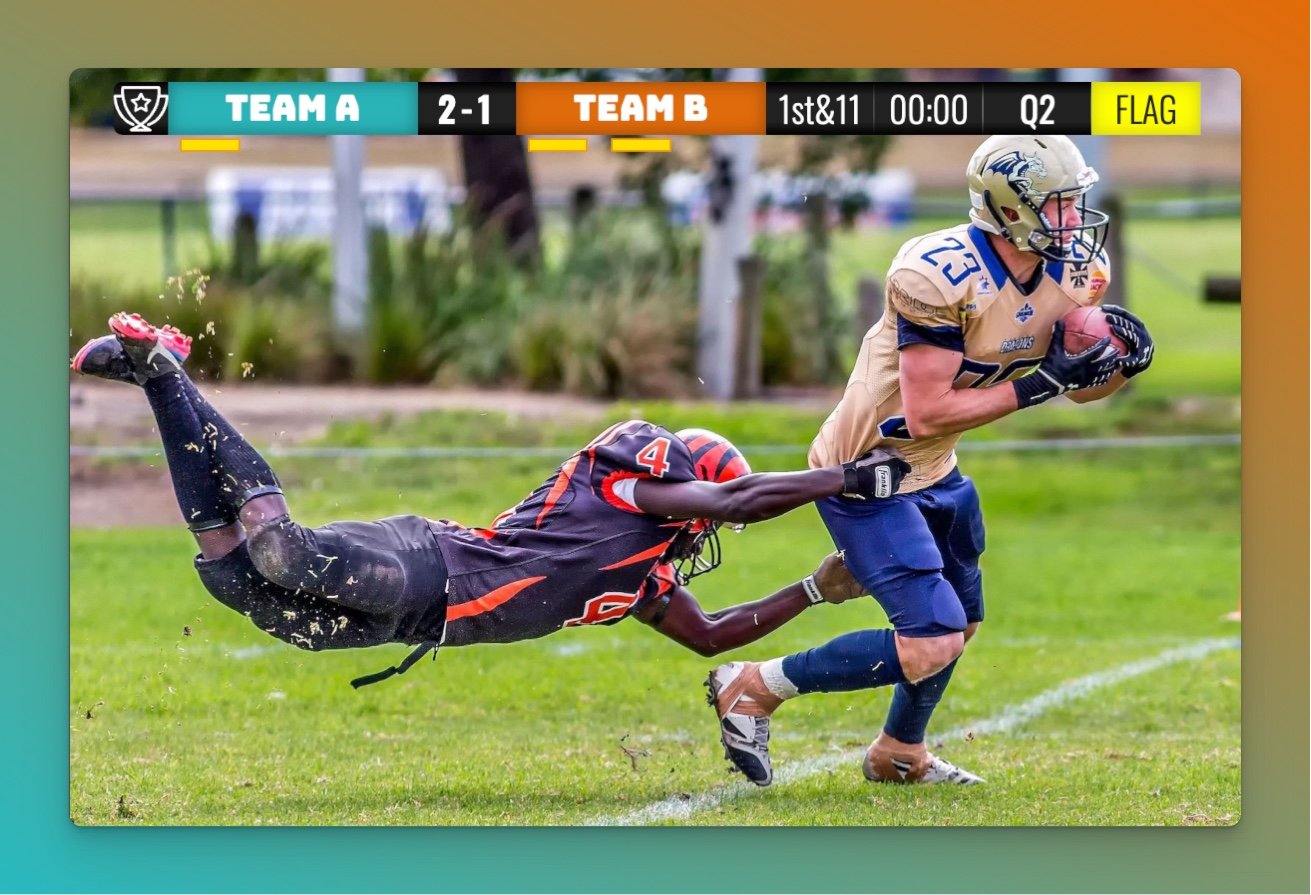
This is the upgrade that most reliably ends the "what's the score?" comments.
Create a scoreboard and click Open Display Scoreboard. Copy the display link into your streaming software as a browser source. Then use Share scorekeeping link to send the scorekeeper link to whoever is keeping score. (Creating that link needs a logged-in account.) Scores update live on the overlay, and the scorer never touches the streaming laptop.
On a phone only?
Phone-only streaming makes the video easy and the overlay hard, because live overlays generally need production software on a laptop or a compatible mobile app. The fallback: paste the display link into the stream description or the team chat, so viewers can follow the score in a second tab. It isn't a graphic over the video, but it answers the question without changing your camera setup.
When the video drops
If the phone dies, the wifi blips or the camera tips over, send the display link to the team chat. Families who came for the score can keep following the game while you bring the video back. That's the best argument for a scoreboard that lives apart from the video: the score keeps going when the stream doesn't. After the season starts, you can also roll results into standings with a score sheet maker, so families follow the record across the year and not just one game.
Filming and scoring at once
Doing both alone is brutal. Three ways out:
- Recruit a scorer. A parent, a student manager, a younger sibling. They get the scorekeeper link on their phone, and scoring is their whole job.
- Use two devices. The phone on the tripod films, and a tablet in your hand keeps score. Glance, tap, look up. This works for slower sports and badly for hockey.
- Accept some lag. Alone, with a fast sport, the score will trail the game by 10 to 20 seconds. Most viewers don't mind when the overlay is on screen.
The scorekeeper link can change scores and nothing else, so it's safe to hand to a student helper. Your admin link stays with you.
Sponsors, donations and replays
KeepTheScore has no built-in paywall, ticketing, sponsor inventory or video monetization. Those belong to your streaming platform or to add-ons you stack on top. Leagues that want them usually do three things:
- Credit a local sponsor in the stream description, or put a static logo in the corner of the OBS scene. Plenty of youth clubs cover season costs this way.
- Pin a donation link as the top comment, which suits travel teams and fundraising programs.
- Keep the recording. YouTube saves live streams automatically and Facebook keeps the video on the page, so grandparents in other time zones can watch later.
Troubleshooting
The stream froze or dropped
Almost always upload bandwidth. Run a speed test on the venue's wifi. Under 5 Mbps, switch to a hotspot. If it keeps happening, lower the stream quality in the platform's settings.
The audio is muddy
A phone mic hears the gym ceiling more than the court. A directional clip-on mic that plugs into the phone is the biggest upgrade you can buy for under $50.
The camera blocks half the court
Get it higher. Tripod fully extended, on the bleachers if you can. Court-level shots look like security footage.
The stream dies mid-game
Keep a second phone ready to start a fresh stream on the same channel, and the team chat ready for the new link. It will happen eventually. Don't let one battery be your single point of failure.
Start this weekend
The goal isn't a broadcast. It's grandma watching her grandson play. A phone on a tripod and a shared link get you most of the way, and a score overlay closes most of the rest. Stream phone-only this weekend, share the display link with families who want the score in a second tab, and add the overlay once someone will keep the scorekeeper link open.
For a parent-volunteer setup that grew over a season, the hockey mom streaming operation is the most useful real-world read.
FAQ
Do families need a KeepTheScore account to watch?
No. The display link is public. They open it in a browser with no signup, same as the video on YouTube or Facebook.
Is YouTube or Facebook better for youth sports?
Both are free and both work. Facebook is easier if your parents are already in a team Facebook Group. YouTube is easier if you want unlisted streams and a searchable archive. Use whichever your parents already have open.
How much does it cost?
Nothing on the floor. A phone on a tripod, YouTube or Facebook, and the KeepTheScore free plan have no recurring cost. Custom branding on the scoreboard, such as team logos and colors, needs a paid plan. A tripod and a clip-on mic are one-time purchases of around $30 to $80 each.
Does KeepTheScore host the video?
No. YouTube, Facebook, Twitch or your own choice hosts the video. The scoreboard overlay sits on top of it in your streaming software.
Can grandparents watch later?
Yes, on the platform side. YouTube and Facebook save live streams. If you used the overlay in OBS, it's baked into the recording, so the replay shows the score the same way the live stream did.
What's the best first upgrade from a phone-only stream?
The live score overlay. It cuts the "what's the score?" comments to nearly zero and makes the stream look more professional, without touching the camera setup.

Written by Caspar von Wrede
Founder of KeepTheScore. Building tools that help teams track scores and celebrate wins.