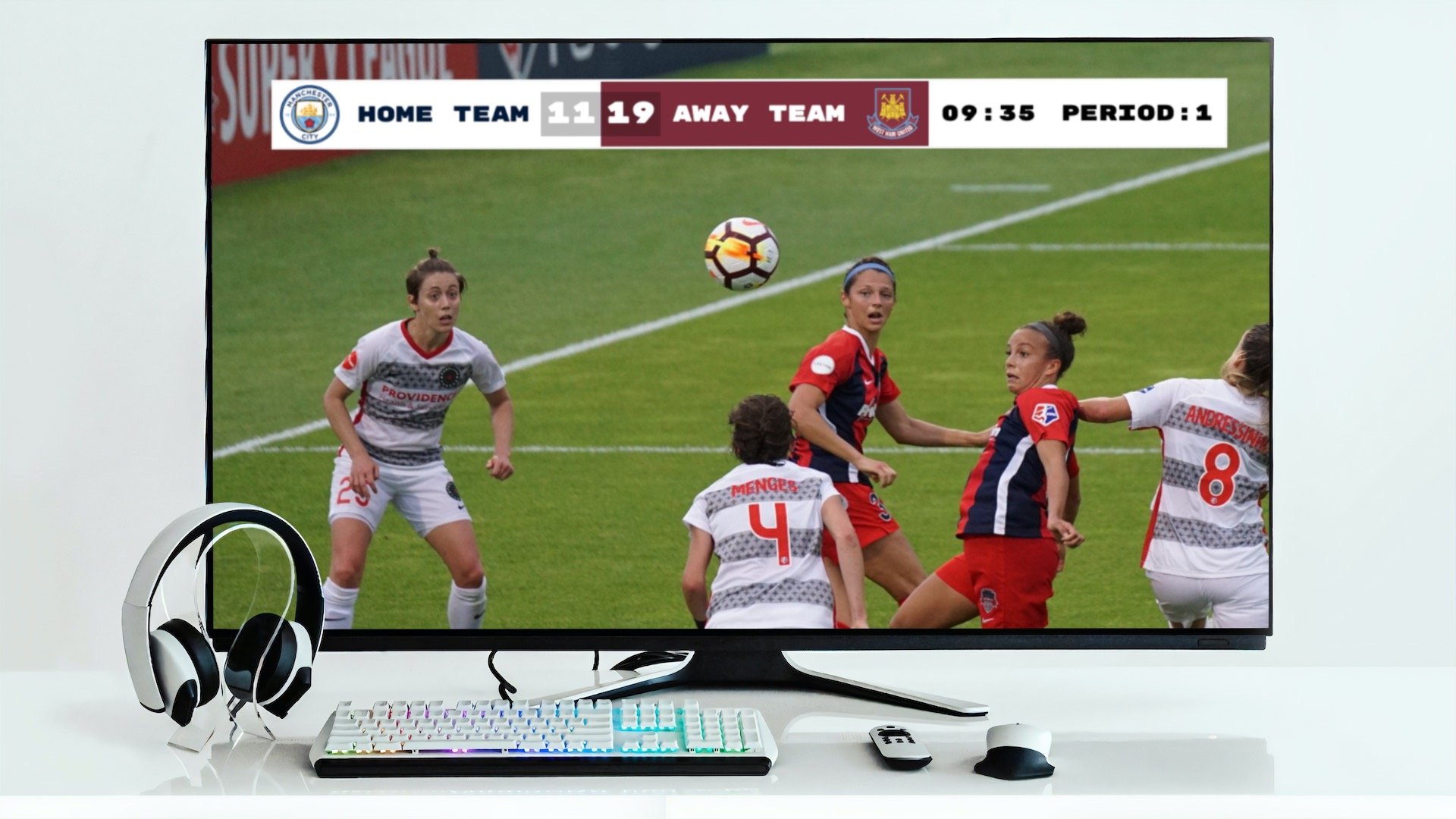
How to Add a Scoreboard Overlay to a Live Stream
Learn how to add a professional scoreboard overlay to your live stream step by step for youth leagues and schools.
Article Contents
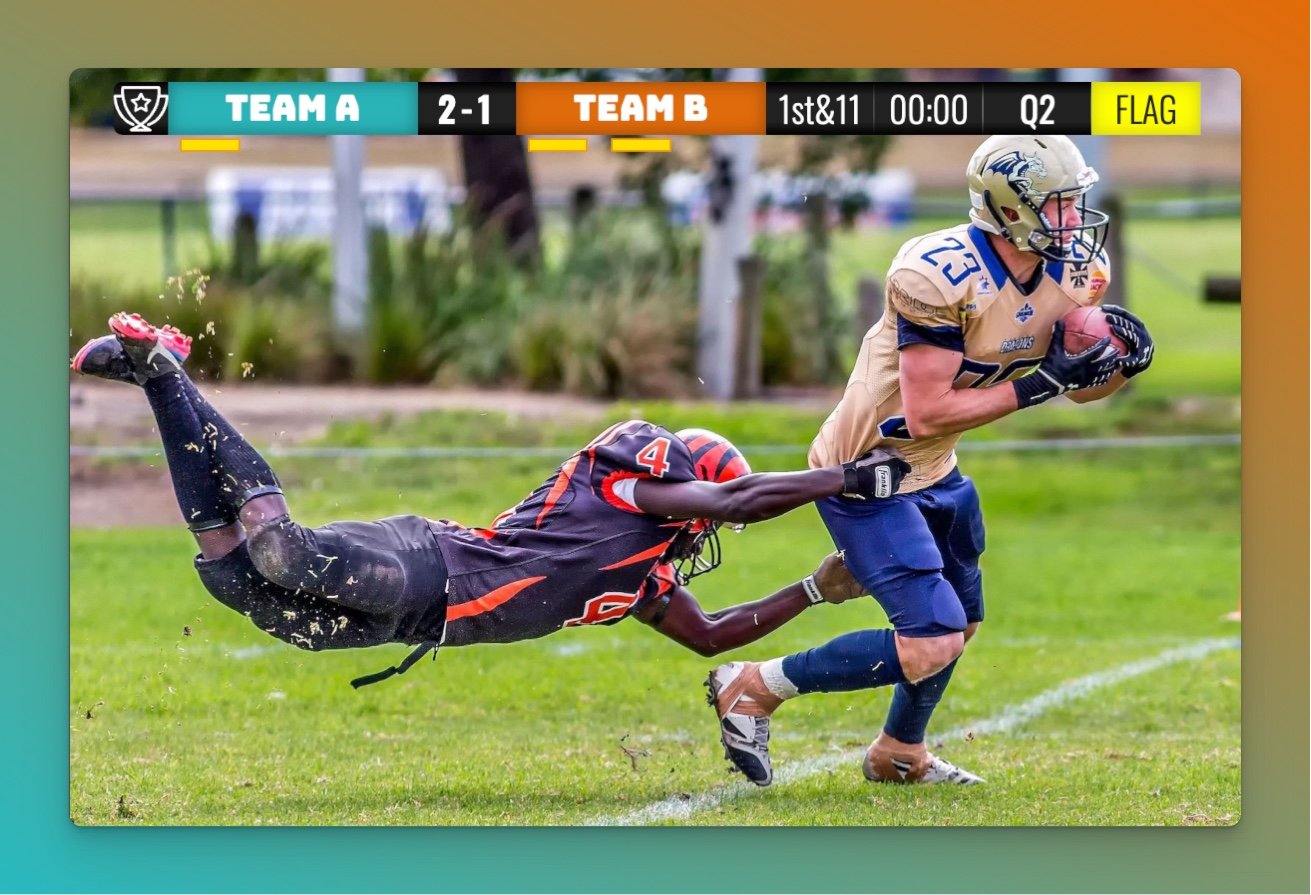
Three minutes into the second half, the comments fill up with "what's the score?" If you've ever streamed a youth game, a school match, or a rec-league tournament, you know the moment. You're filming, you might be scorekeeping too, and viewers can't see the board on the wall — so the chat turns into a help desk.
A scoreboard overlay fixes that. The score, period, and clock sit on top of the video, update live, and look like something the local news would put on screen. This guide walks through the setup that's worked for the most people: a browser-based scoreboard added to OBS as a browser source.
Picking the right guide
- This page — overview that works across OBS, Streamlabs, vMix, Ecamm Live, XSplit, and Wirecast.
- Detailed OBS walkthrough — step-by-step OBS-only setup with screenshots.
- Streaming software hub — full compatibility list, including apps that don't support browser sources.
What a scoreboard overlay actually is
An overlay (sometimes called a scorebug) is a graphic layered on top of your video feed. It shows the score and whatever else matters for the sport — period, clock, sets, fouls, sometimes team logos. Viewers see it the whole time without needing to ask.
The trick is that the overlay isn't a static image. It's a live web page. Your streaming software loads the URL, the scorer updates the score from their phone, and what's on screen changes the instant the score does.
What you need
- A scoreboard. KeepTheScore is free to start, runs in a browser, and covers basketball, football, soccer, hockey, volleyball, tennis, baseball, and a couple dozen other sports.
- Streaming software that supports a browser source or web overlay — OBS, Streamlabs, vMix, Ecamm Live, XSplit, and Wirecast all do, along with other tools that support browser sources. StreamYard is the common exception that doesn't; we'll come back to that.
- A device for the scorer. A phone works. So does a tablet or a second laptop.
- A stable internet connection. The overlay is talking to the cloud, and so is your stream.
That's the whole list. No plugins, no overlay packs to download.
The simplest KeepTheScore setup
- Pick your sport and enter team names.
- Click Open Display Scoreboard.
- Copy the URL of the tab that opens — this is the display URL. It's the link you'll paste into your streaming software.
- If someone else is keeping score, grab the scorekeeper link from the same share dialog. Send it to them. They'll get a phone-friendly admin view.
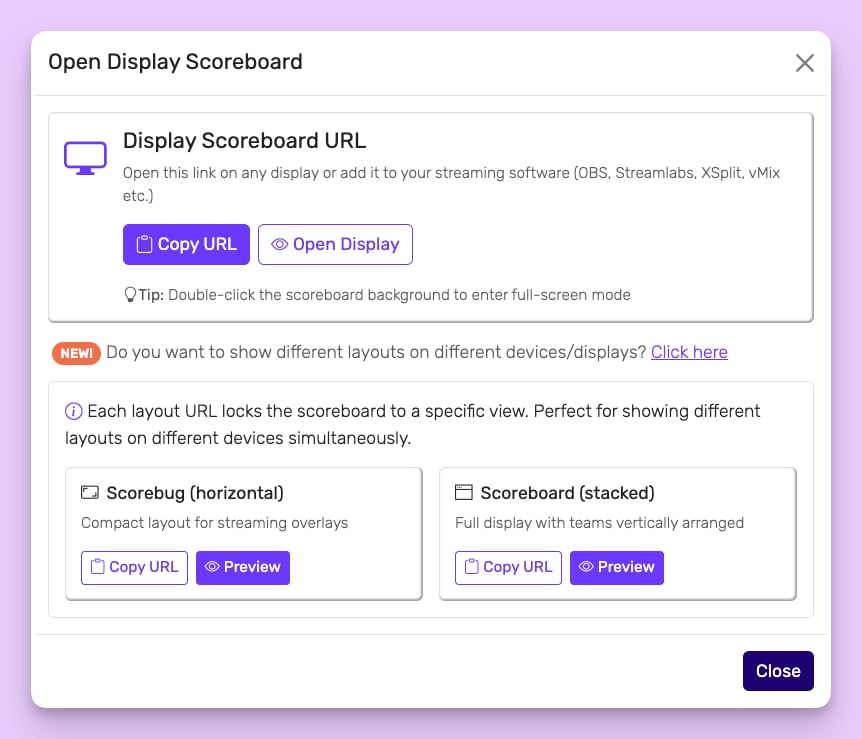
The display URL is the link that goes into your streaming software as a browser source — it's what your viewers will see composited over the video. It has a transparent background by default, which is exactly what you want on top of a video feed — the scoreboard graphics sit on the game, not on a black box.
The scorekeeper link is for the person updating the score from a phone or tablet. It's separate on purpose: the person updating the score doesn't need (and shouldn't have) access to the rest of the board's settings. Never paste the scorekeeper link into OBS — that's the display URL's job.
Step-by-step OBS walkthrough
OBS is the cleanest one to learn on. Once you've done it here, the same idea works everywhere else.
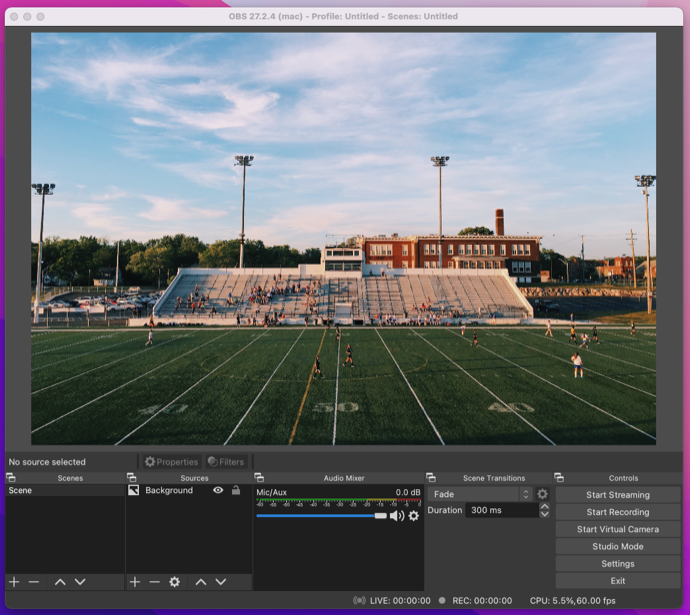
- Add a new browser source to your active scene and label it "Scoreboard" so you can find it later.
- Paste the display URL into the URL field.
- Set the size to 1920×1080 for a 1080p stream. The overlay scales inside that box; you don't need to match it pixel-for-pixel.
- Save the source.
Live updates are the normal behavior — under normal conditions the scoreboard refreshes itself the instant the scorer taps a button. (If you ever see the overlay stuck on an old number, the troubleshooting section below covers the OBS settings that fix it.)
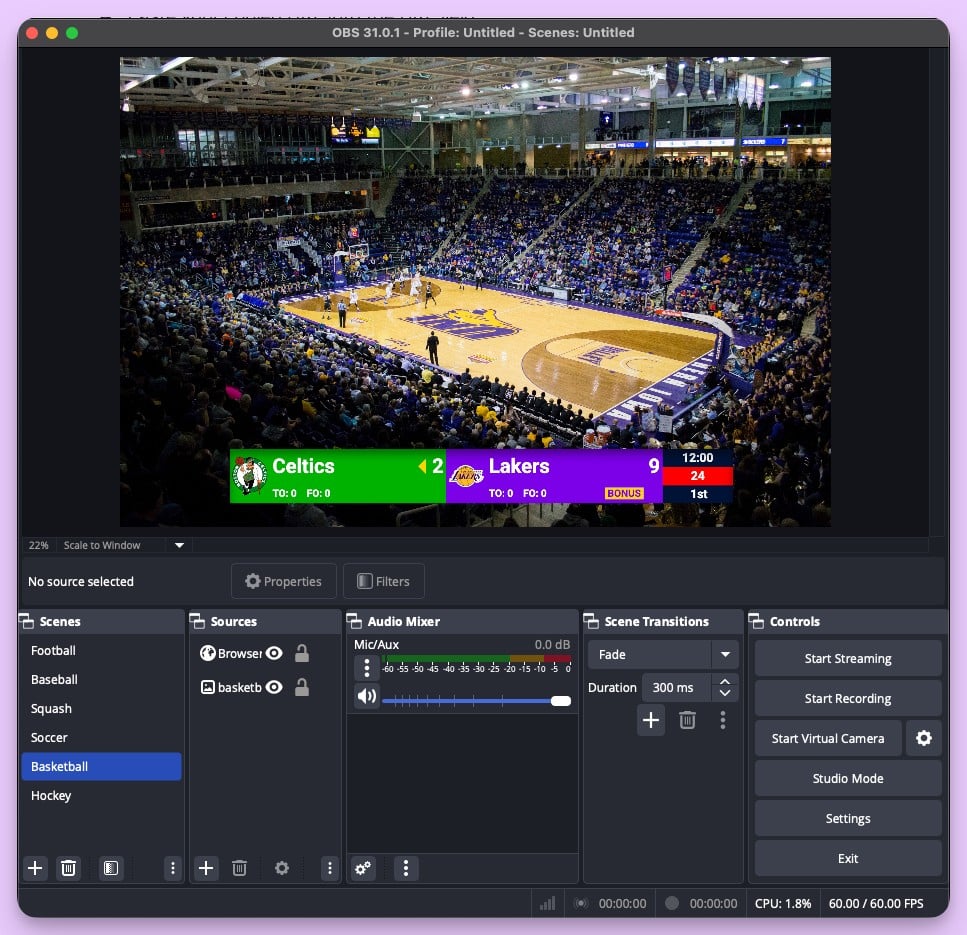
The scoreboard will appear in your scene. Drag the corners to size it; drag the body to position it. Most leagues put it in a bottom corner or as a bottom strip — wherever it doesn't sit on the action.
Before you go live, open the scorekeeper link on your phone and bump the score. The number should change inside OBS within a second. If it does, you're done.
For a deeper, screenshot-by-screenshot OBS walkthrough — including stream-key setup and scene layouts — read How to add a live scoreboard in OBS.
How this works in other streaming software
The exact menu names differ, but the pattern is identical:
- Streamlabs Desktop — same browser source as OBS. See the Streamlabs scoreboard guide.
- vMix — add a "Web Browser" input, paste the display URL. Detailed steps in the vMix scoreboard guide.
- Ecamm Live (Mac only) — use a "Web Widget" overlay. See Ecamm scoreboard setup.
- XSplit — webpage source with the display URL.
- Wirecast — web page input.
If your software doesn't have a browser source or web overlay input — StreamYard is the most common example — you can't add a live overlay directly. The standard workaround is to composite the overlay in OBS and pipe OBS's output into the other app as a virtual camera. It works, but you're now running two programs. The streaming software hub covers what does and doesn't support browser overlays.
Mobile scorekeeping and one-person workflows
The setup most parent-volunteers end up with: laptop running the stream, phone running the scorekeeper link. You film with the laptop's webcam or a USB camera, and you tap the score in on your phone with one hand.
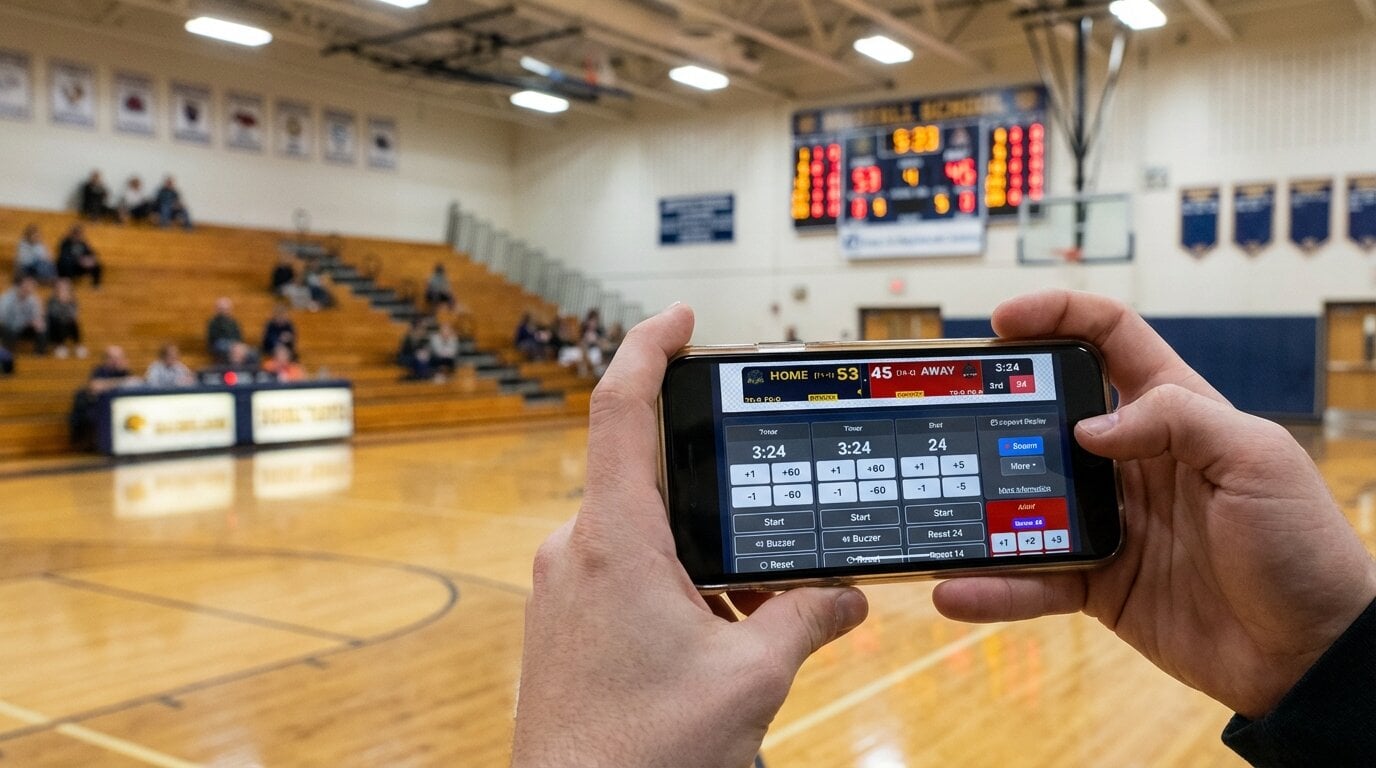
If you've got a second person — a parent, a student manager — hand them the scorekeeper link. The display URL stays on your machine in OBS; the scorekeeper link is on their phone. They don't need to know anything about OBS to keep the score moving.
Layout and branding
Sport boards in KeepTheScore have multiple layouts. The share dialog shows you which ones your sport has.
- Scorebug — small strip across the bottom or in a corner. Best when you don't want to cover the action.
- Scoreboard — fuller layout with both teams stacked or side by side. Better for stream intermissions, splash screens, or pre-game shots.
Layout availability varies by sport, and some layouts hide details like logos or extra stats to keep the strip small. If a stat you want isn't showing, try a different layout from the share dialog.
For colors and logos, the control panel lets you set team colors and upload logos. Logo uploads and some customization options are part of a paid plan; team names and basic colors work on the free plan.
A practical rule: test the overlay placement before going live, not during. Have someone open the public stream URL on a phone while you're setting up. What looks fine inside OBS at 100% zoom can sit on top of the ball on a phone screen.
Troubleshooting
Overlay is blank or stuck loading. Live updates are the default, so a frozen overlay is almost always a connection issue. Right-click the browser source in OBS and pick Refresh as your first move. If that doesn't fix it, open the display URL in a normal browser tab — if it loads there, OBS is the issue (try removing and re-adding the source). If it doesn't load there, your internet's the issue.
Score on stream doesn't match the scorer's phone. Score changes are pushed live, so a delta usually means the overlay lost its connection. Refresh the browser source once. If it keeps happening, your scorer's internet (or yours) is dropping out.
Overlay stops updating after a scene switch. OBS browser sources have a setting called "Shutdown source when not visible" — if it's enabled, the live connection is dropped every time you switch to another scene. Right-click the browser source → Properties and disable it. As a belt-and-braces option, enable "Refresh browser when scene becomes active" so the overlay reconnects automatically whenever the scene comes back on.
Overlay is too small or cut off. The browser source dimensions and the position of the overlay in your scene are two separate things. Make sure the source's width/height is at least 1280×720 so the scoreboard graphics aren't being upscaled, then resize the box in the scene to fit.
Logos don't show up. Some layouts hide logos to keep the strip thin. Try the larger Scoreboard layout from the share dialog.
Timer is off by a few seconds. The clock runs off the scorer's device clock. If their phone's time is wrong, the scoreboard time will be too. Make sure both devices are on automatic time.
Try it on your next stream
You can have a working scoreboard, copied display URL, and scorekeeper link in under a minute. Drop the URL into OBS, point a phone at it for testing, and you've got a broadcast-quality overlay sitting on your stream.
If you want a sport-specific walkthrough next, the OBS basketball scoreboard guide and OBS football scoreboard guide cover the same flow with sport-specific layout notes.
FAQ
Do I need a paid plan for the overlay to work?
No. The free plan covers creating a scoreboard, getting the display URL, and adding it as a browser source in OBS or any other tool that supports browser sources. Custom logo uploads and some branding options sit on a paid plan, but the core overlay is free.
Can my scorekeeper use a phone, or do they need a laptop?
A phone works fine. The scorekeeper link opens a touch-friendly admin view. Tablets and laptops work too — whatever's easiest for the person on the sideline.
Will viewers see the overlay if they're watching on a phone?
Yes. The overlay is composited into the video by your streaming software before it's sent to YouTube, Facebook, or wherever. Viewers see one video — they don't know the scoreboard came from a separate URL.
What if my streaming software doesn't have a browser source?
You'll either need to switch to one that does (OBS, Streamlabs, and vMix are all free or have free tiers), or run the overlay in OBS and pipe OBS's output into your main app as a virtual camera. The streaming software compatibility doc has details.
Does the scoreboard work for multiple sports?
A single account can run scoreboards for 20+ sports — basketball, football, soccer, hockey, volleyball, tennis, baseball, cricket, and more. You pick the sport when you create the board. If you run a multi-sport venue, the same OBS scene can swap between different scoreboard URLs for different games.
How do I get the scoreboard off the screen between games?
In OBS, hide the browser source layer or switch to a different scene. The scoreboard itself stays running in the background — the score and clock aren't affected by whether the overlay is visible in your stream. Many broadcasters switch to a break scene with a synced countdown timer so viewers know exactly when the next game starts.

Written by Caspar von Wrede
Founder of KeepTheScore. Building tools that help teams track scores and celebrate wins.