How to Add a Scoreboard Overlay to Facebook Live
Add a scoreboard overlay to Facebook Live with OBS. Step-by-step guide for streaming youth sports with live scores.
Article Contents
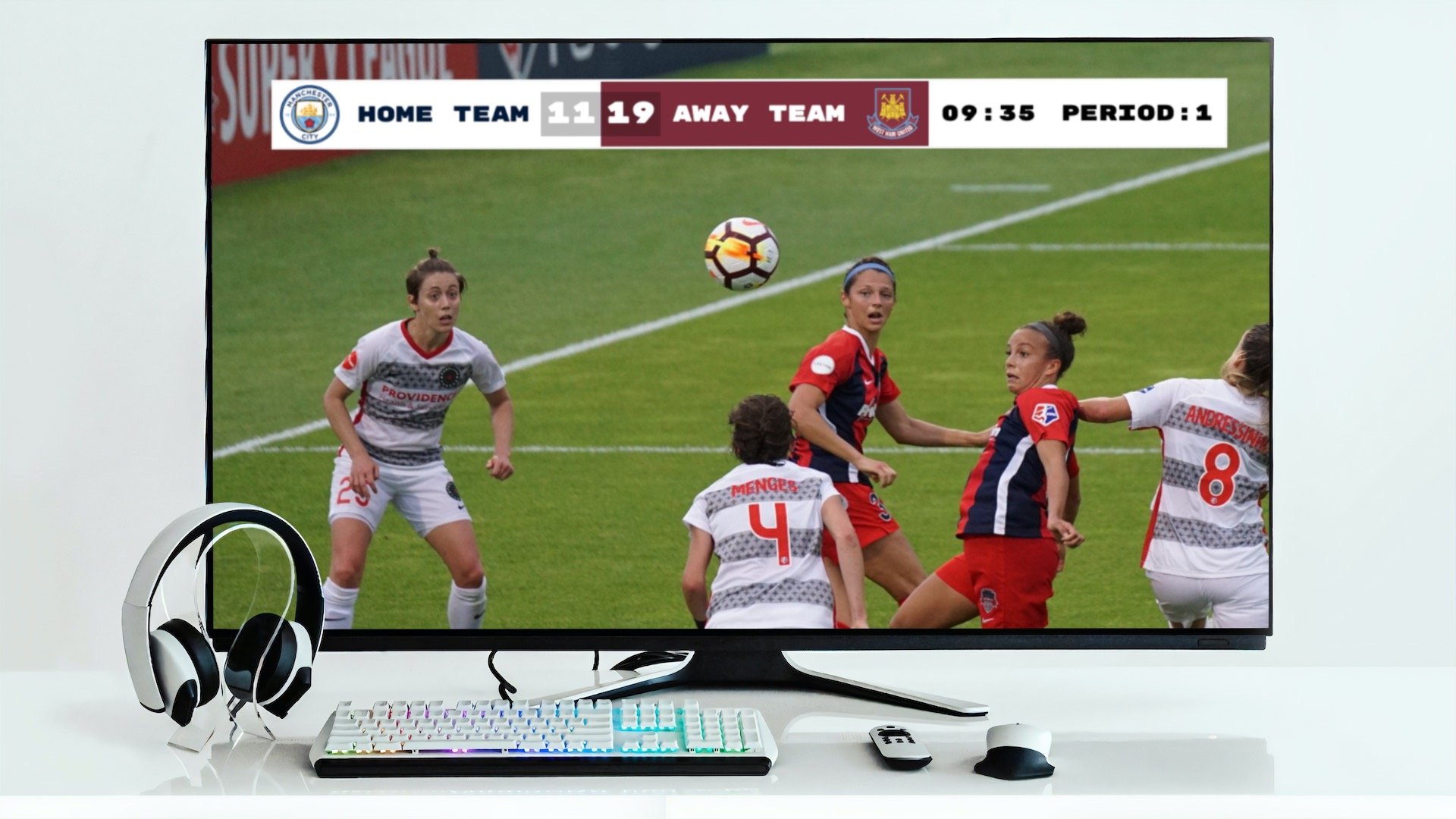
You're streaming your kid's championship game on Facebook Live. Grandma's watching from three states away. Everything looks fine — except nobody can tell what the score is.
Adding a professional scoreboard overlay to your Facebook Live stream is easier than it sounds. You need two free tools and about 30 minutes.
Why the Facebook App Won't Work
Quick heads-up: the Facebook mobile app doesn't support web overlays — only camera effects like filters and stickers. For a live scoreboard that updates in real-time, you need streaming software on a computer.
The solution is OBS Studio combined with KeepTheScore.
OBS Studio is a free virtual TV studio for your computer. It combines multiple video sources — your camera, graphics, scoreboards — into one professional stream. Broadcasters worldwide use it to stream to Facebook, YouTube, and Twitch.
KeepTheScore creates a web-based scoreboard you update from your phone. Score changes appear on the stream instantly. No special equipment needed beyond a browser and an internet connection.
Before you start, you'll need:
- OBS Studio installed (download here)
- A KeepTheScore scoreboard with its overlay URL
- Your Facebook stream key from Facebook Live Producer
- A stable internet connection (5–10 Mbps upload recommended)
Step 1: Get Your Facebook Stream Key
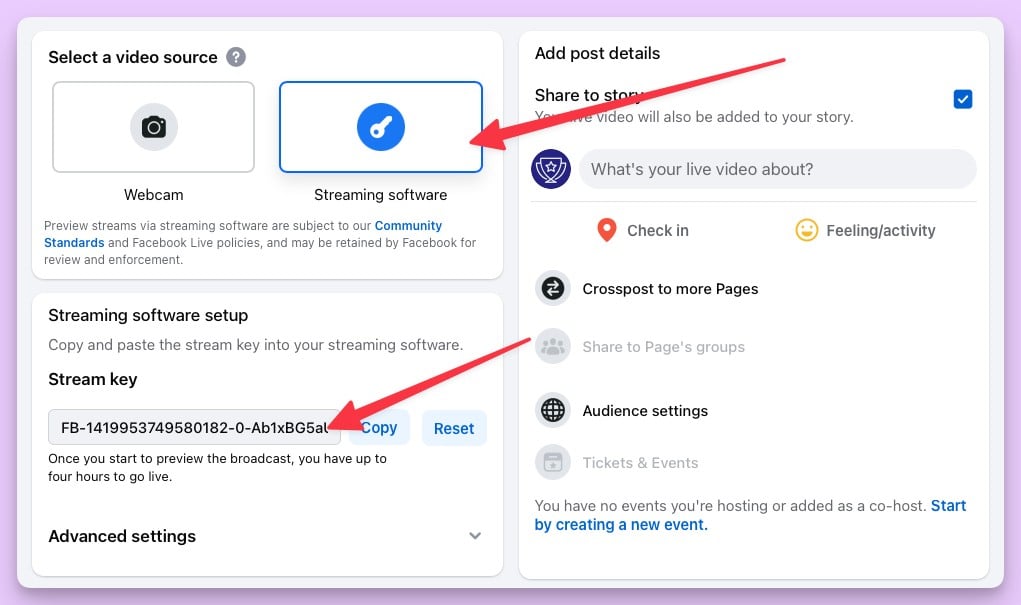
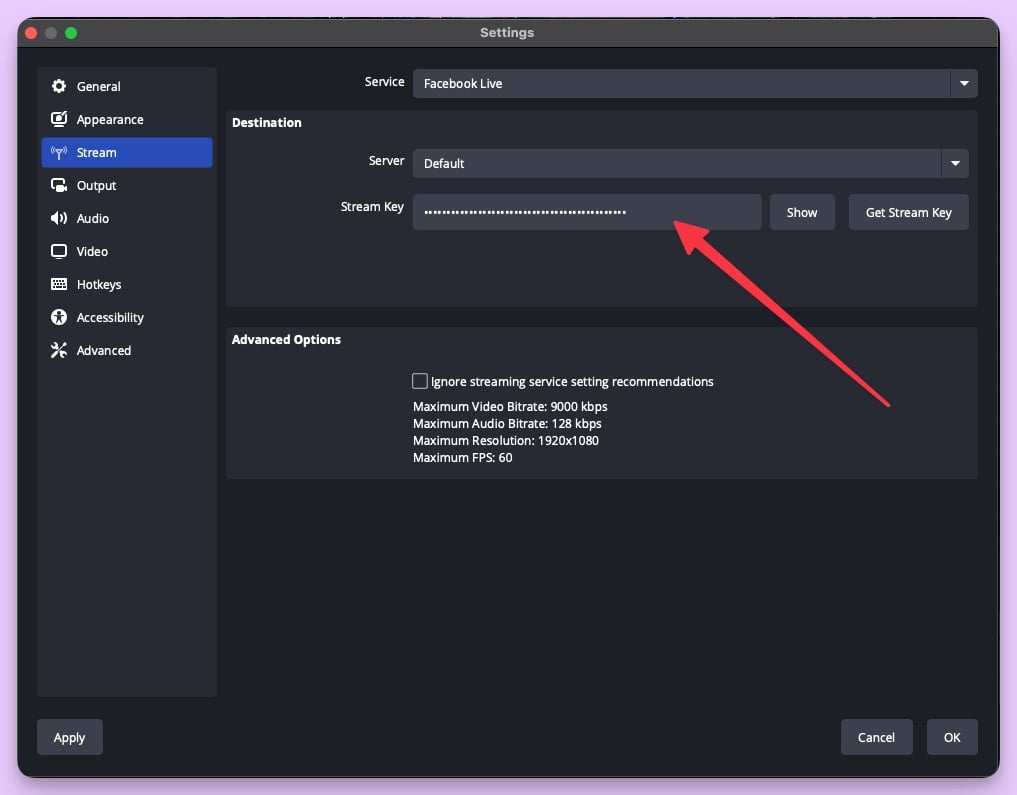
Go to Facebook Live Producer, click "Go Live," and choose "Streaming Software." Under Stream Setup, copy your stream key — keep this private, it's like a password connecting OBS to your Facebook account. Leave this window open.
Step 2: Configure OBS for Facebook Live
Open OBS Studio and go to Settings → Stream. Set the service to "Facebook Live" and paste your stream key. Click Apply and OK.
Step 3: Add Your Camera
In the Sources panel, click +, select "Video Capture Device," and choose your camera from the dropdown. Adjust size and position in the preview window.
Don't have a webcam? Install DroidCam or EpocCam on your phone, connect it to your computer, and select it as a Video Capture Device. Phone cameras often look better than built-in laptop cameras anyway.
Step 4: Set Up Your Scoreboard
In this step we create and customize a scoreboard.
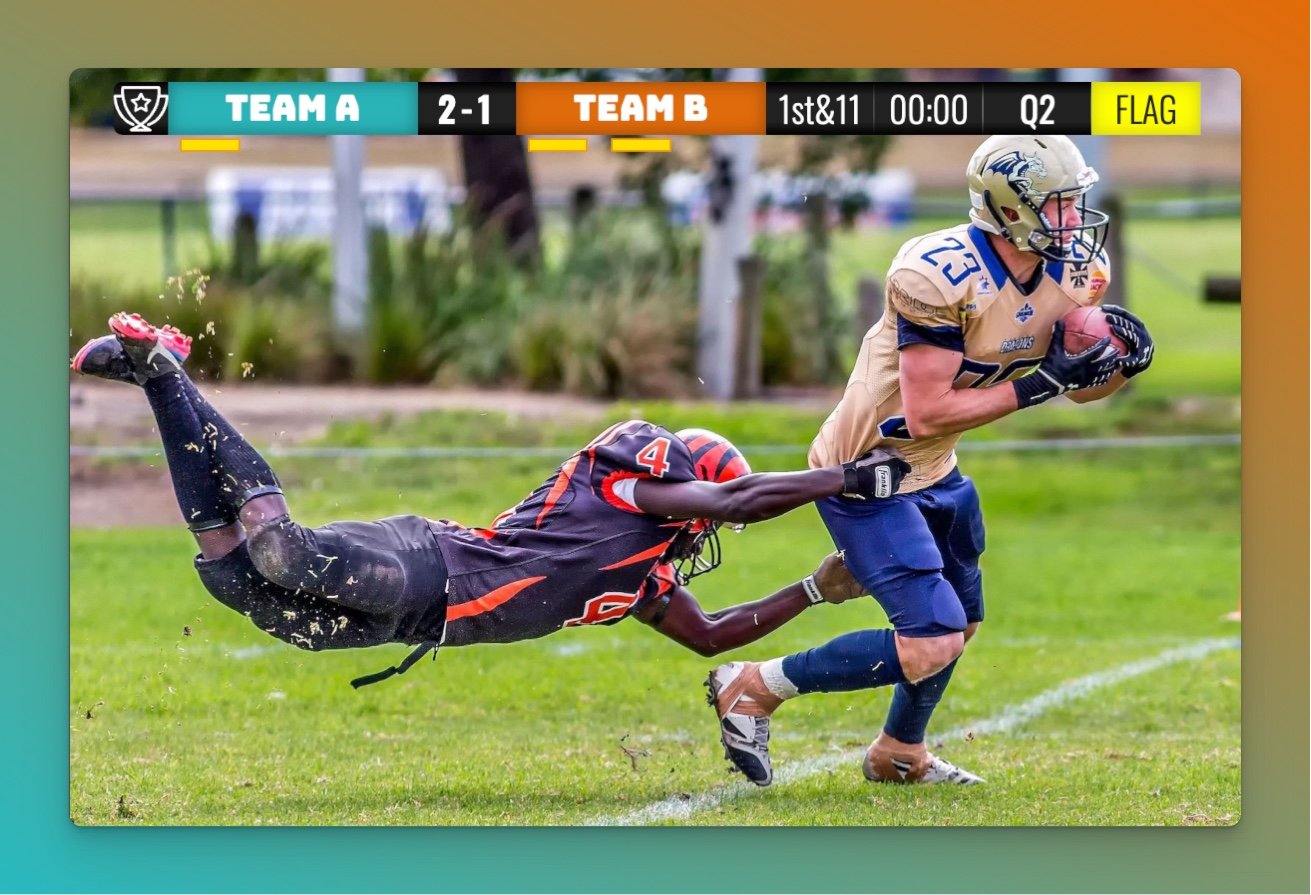
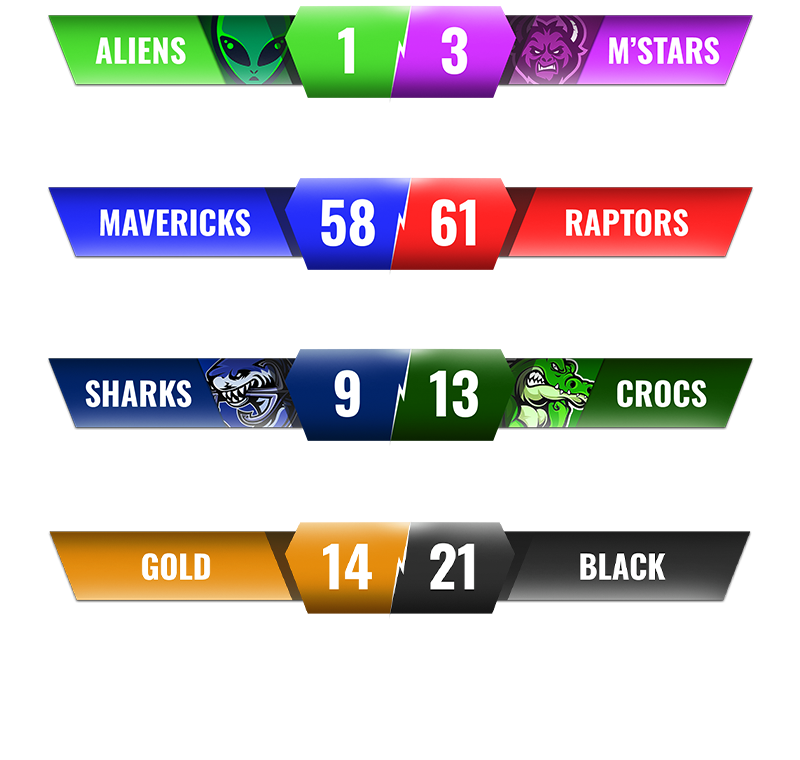
We have dedicated scoreboards for the following sports: football, baseball, basketball, hockey, soccer, tennis, volleyball and more! To begin, click the button below 👇 and choose your sport.
You should then see the following. This is your "control panel".
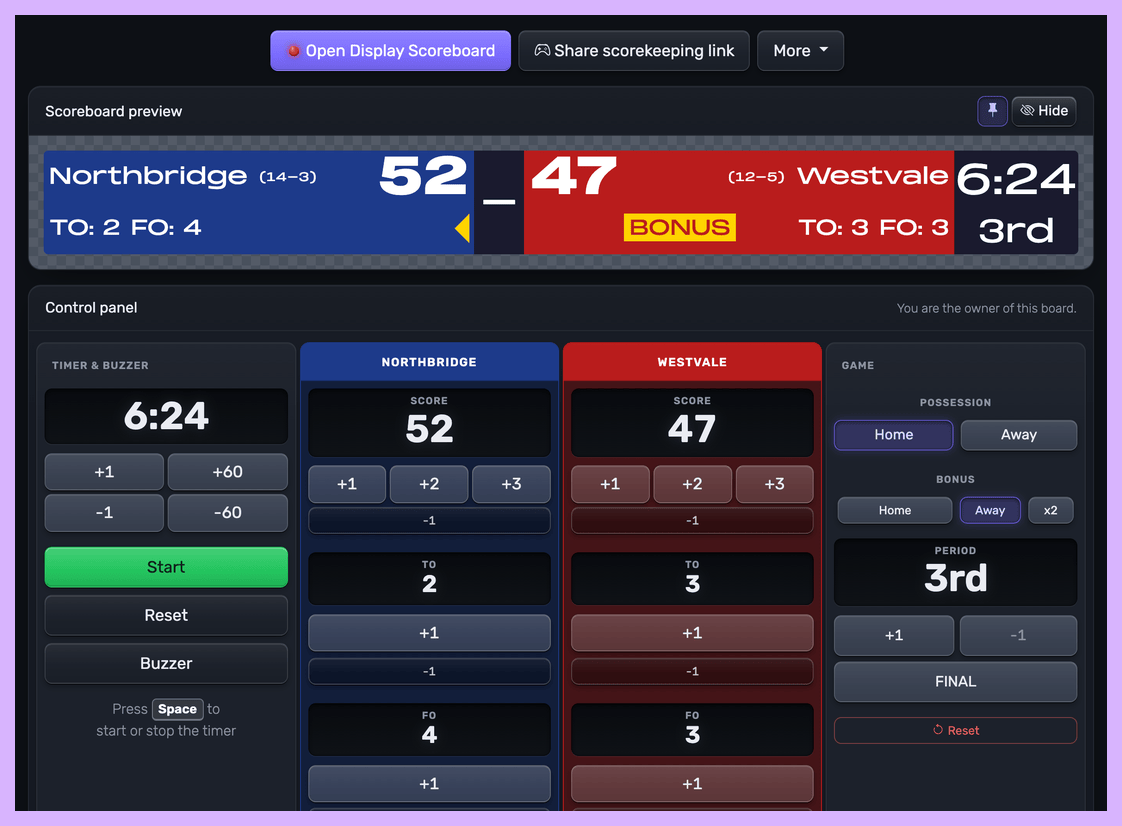 Control panel for an online scoreboard
You will use this control panel to control the scores. For detailed customization options (team names, colors, logos, layouts), see our scoreboard customization guide.
💡 You can share the URL of the control panel to give someone else the ability to change scores. Click the "Share scorekeeping link" button to copy the link or generate a QR code for easy sharing.
Next, we will get hold of the public scoreboard URL.
Click on the "Open Display Scoreboard" button at the top of the control panel. See below:
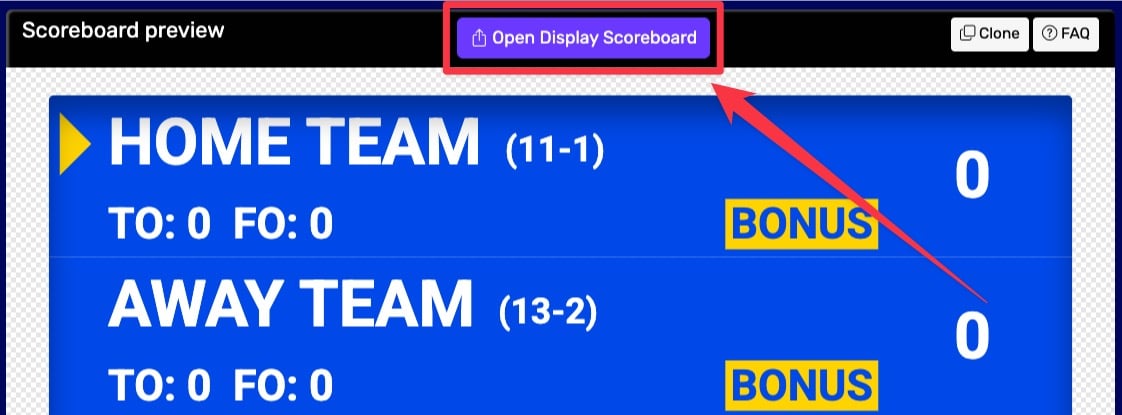 1. Getting the scoreboard link
You have several options in the dialog that appears:
- Click "COPY" to copy the URL to your clipboard
- Click "VIEW" to preview the scoreboard
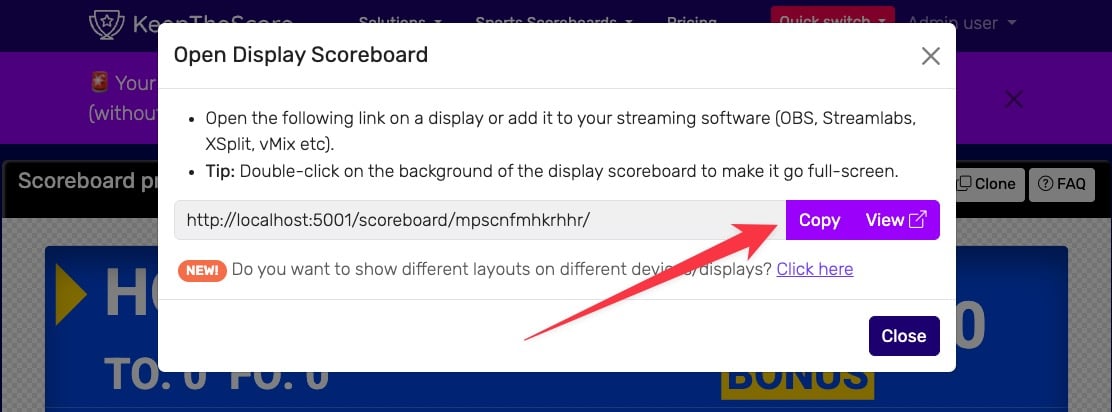 2. Getting the scoreboard link
💡 Layout Options: Many sports (including Universal, Basketball, Hockey, and all set-based sports like Tennis, Volleyball, Badminton, Squash, and Pickleball) support multiple layouts. You can:
- Use different layouts on different devices simultaneously
- Lock specific layouts using URL parameters (e.g.,
?layout=simpleBug)- Show a scorebug overlay in your stream while displaying a full scoreboard on a TV
Click "Click here" in the share dialog to see all available layout options for your sport.
Step 5: Add the Scoreboard URL to OBS
In the Sources panel, click + → Browser. Name it "Scoreboard Overlay" and paste your KeepTheScore overlay URL. Set Width to 1920 and Height to 1080, then click OK.
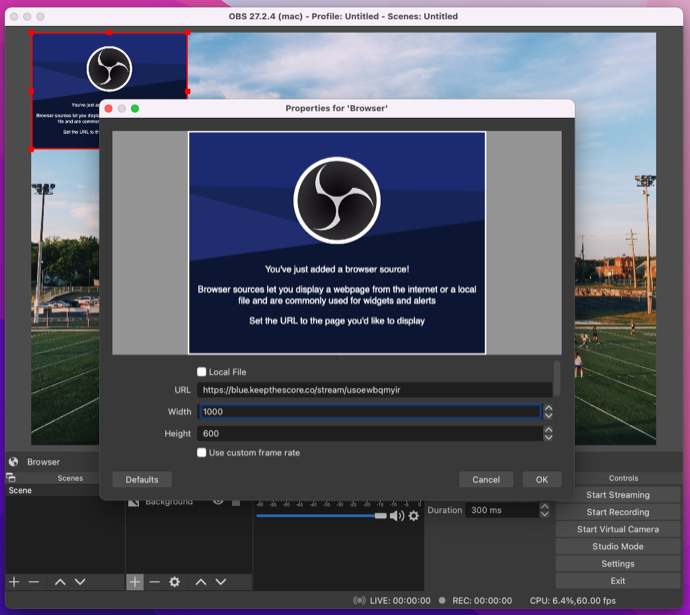
Drag the red frame in the preview to position the overlay where you want it. Drag the corners to resize.
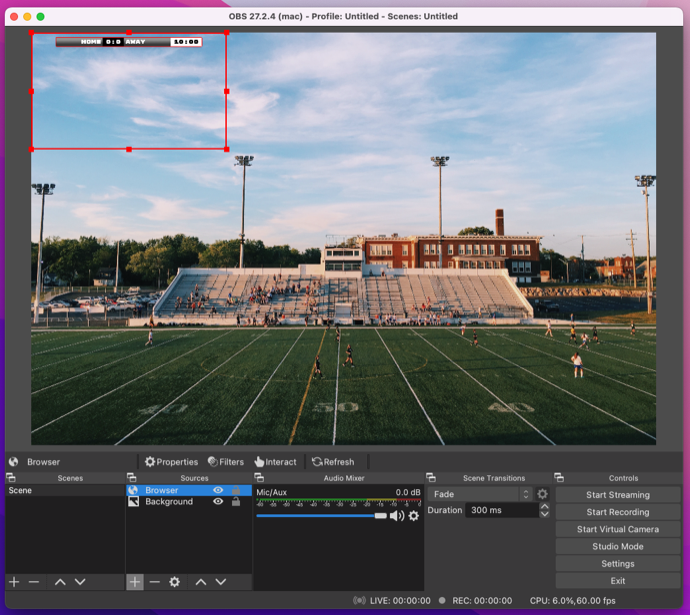
Step 6: Go Live
Click Start Streaming in OBS, then return to Facebook Live Producer. You should see your stream preview appear. Add a title and description, then click Go Live.
Your camera feed with the scoreboard overlay is now live on Facebook.
Recommended Encoder Settings
In OBS, go to Settings → Output and use these defaults:
- Bitrate: 4,000–6,000 Kbps
- Encoder: x264 or your hardware encoder
- Rate Control: CBR
- Keyframe Interval: 2 seconds
For video (Settings → Video):
- Resolution: 1920x1080 (or 1280x720 for slower connections)
- FPS: 30 (60fps if your bandwidth allows)
Troubleshooting
Overlay not showing
Make sure you copied the complete overlay URL from KeepTheScore, set the Browser Source dimensions to at least 1920x1080, and right-click the Browser source to select Refresh if it still doesn't appear.
No preview in Facebook
Verify your stream key is correct in OBS Settings → Stream. Test your upload speed at speedtest.net — you need at least 5 Mbps. Try restarting OBS if the key looks right.
Choppy stream
Lower your bitrate to 3,000–4,000 Kbps, reduce resolution to 1280x720, and close any bandwidth-heavy programs. Check OBS stats (View → Stats) for dropped frames.
Audio not working
Go to Settings → Audio and confirm your microphone is selected. Check the audio mixer panel — make sure levels are visible and not muted.
Frequently Asked Questions
Can I add overlays from the Facebook app only?
No. The Facebook mobile app offers camera effects, not web overlays. You need streaming software like OBS on a computer to add scoreboard overlays.
Where do I get the Facebook stream key?
In Facebook Live Producer under Stream Setup. Go to facebook.com/live/producer, click "Go Live," choose "Streaming Software," and you'll see the stream key.
What OBS source shows the scoreboard?
Use a Browser Source and paste your KeepTheScore overlay URL.
What encoder settings work for most connections?
CBR rate control, keyframe interval 2 seconds, 1080p at 30 fps, and a bitrate of 4,000–6,000 Kbps covers most home internet connections. Adjust down if you see dropped frames.
Can I control the scoreboard from my phone while streaming?
Yes. Open your KeepTheScore control panel on your phone and update scores in real-time. The overlay in OBS updates automatically.
Do I need a Facebook Page to stream?
You can stream to a personal profile, a Page, or a Group. Streaming to a Page gives you access to more features and analytics in Facebook Live Producer.
Other Streaming Software
KeepTheScore scoreboards work with most professional streaming software, not just OBS. We cover popular options in our complete guide to streaming software, including Streamlabs, vMix, and Ecamm Live.
One important exception: StreamYard doesn't support live web overlays. Read our post on StreamYard's sports streaming limitations if you're considering that tool.

Written by Caspar von Wrede
Founder of KeepTheScore. Building tools that help teams track scores and celebrate wins.