How to Use OBS Custom Browser Docks With Any Web Tool
Learn how OBS custom browser docks work, how to add any browser-based tool inside OBS, and when to use docks instead of browser sources.
Article Contents
Chat in one window, mod tools in another, a scoreboard control panel in a third, the stream dashboard in a fourth. Every alt-tab costs you sight of your scene preview, and mid-stream that's how cues get missed and dead air happens.
OBS has a fix that most streamers skip: custom browser docks. A dock pulls any web page into the OBS window itself, so you can run web tools without leaving it. Everyone knows browser sources for overlays. Docks are the other half, and they're underused.
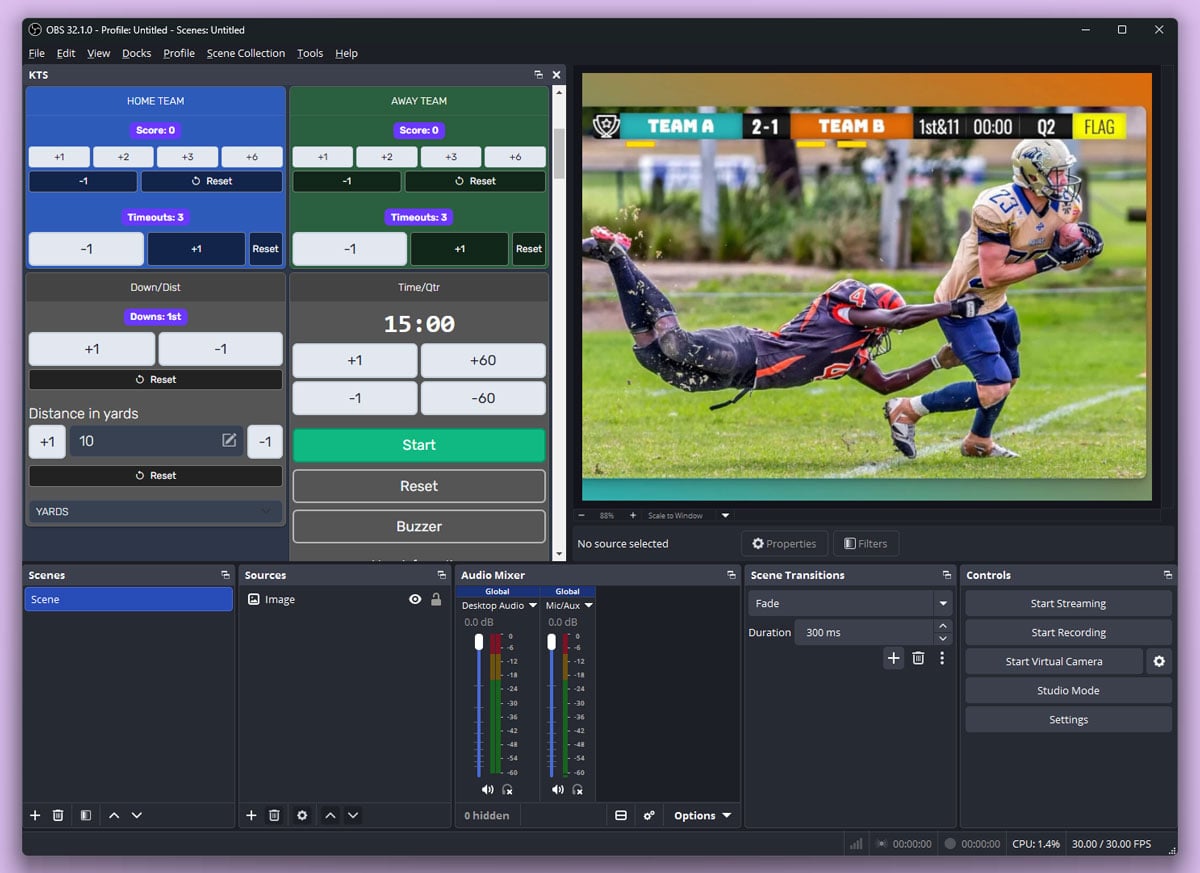
Dock or source: which one do you need?
A custom browser dock is a panel in the OBS interface that loads a web page. You can resize it, stack it beside the scenes panel, or tear it off into a floating window. The part people miss: a dock never appears in your stream or recording. It's your workspace, not the broadcast. Under the hood it runs the same embedded browser engine as a browser source. The only difference is where it shows up.
| Browser dock | Browser source | |
|---|---|---|
| Where it appears | In the OBS interface | Inside a scene |
| Who sees it | Only you | Your viewers |
| Best for | Control panels, dashboards, chat | Overlays, scoreboards, graphics |
| Interactive? | Yes, click and type directly | Only via Interact (right-click the source); viewers can't interact |
The rule: if you need to use a web tool while streaming, dock it. If viewers need to see something, make it a source. Often you want both from the same tool, and that's where docks earn their keep (more on that below).
Add a custom browser dock in OBS
It takes about 30 seconds.
- In the top menu bar, open Docks.
- Click Custom Browser Docks... near the bottom of the menu.
- Type a name ("Chat", "Score Controls") and paste the page's link into the URL field.
- Click Apply. The dock appears as a new panel.
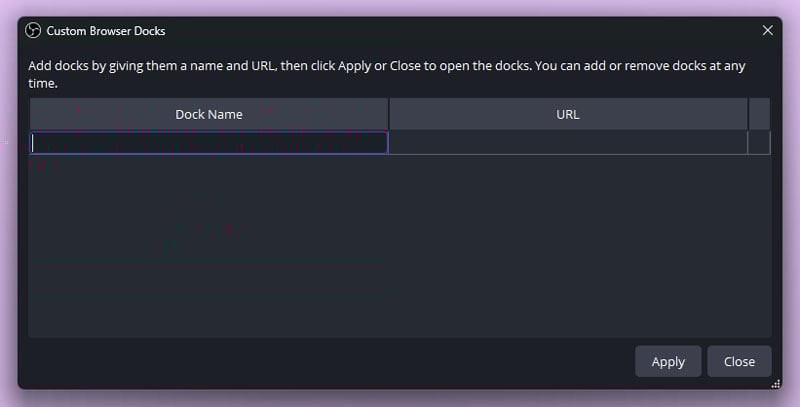
Drag the title bar to move it, drag the edges to resize it, or drag it out of the OBS window onto a second monitor. Each dock gets a show/hide toggle in the Docks menu. The dialog takes several name and link pairs at once, so you can add all of them in one go.
What's worth docking
Skip anything you only glance at once an hour. Dock the things you touch mid-stream.
- Chat and moderation. Your Twitch or YouTube chat popout link, or a StreamElements dashboard.
- Stream dashboards. Health monitors, analytics, alert settings.
- Control panels. This is where docks shine: scorekeeping apps, overlay controllers, PTZ camera web panels, lighting controls. Anything with a browser interface works.
The pattern that matters: control in a dock, output as a source
The strongest OBS setups use two links from the same tool. The control page goes in a dock, where you press the buttons. The display page goes in a scene as a browser source, where viewers see the result. One tool, two links, no alt-tabbing. Lower-third generators, poll widgets and scoreboards all work this way.
Example: scorekeeping inside OBS
KeepTheScore is a good fit because it's built around exactly this split.
- Create a sport scoreboard and use Share scorekeeping link to get the scorekeeper link, which can change scores but nothing else. (You need to be logged in to create it.)
- Paste that link into a dock named "Score Controls".
- Open Open Display Scoreboard, copy the display link, and add it to your scene as a browser source.
Now you tap scores in the dock while the scoreboard overlay updates live on stream.
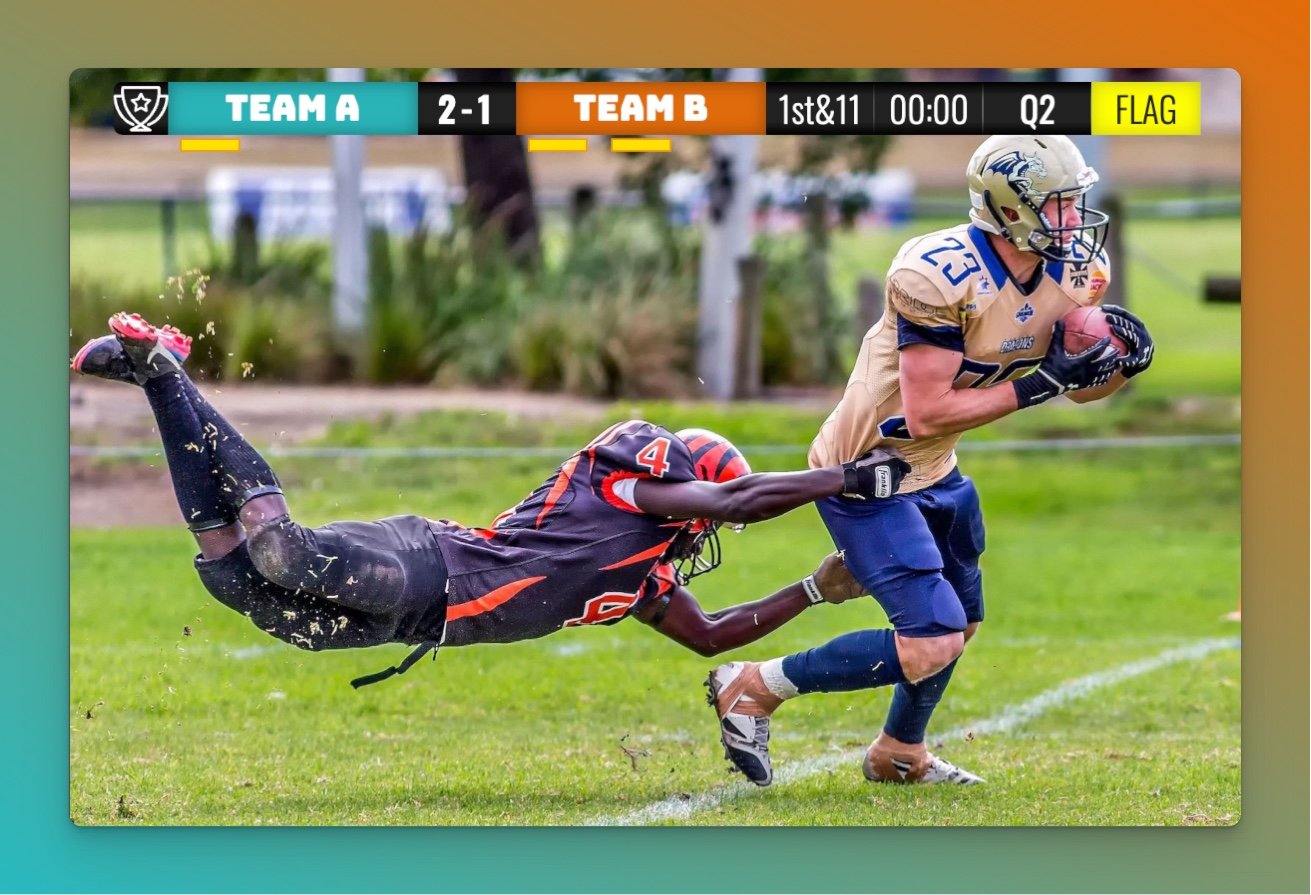
It works the same for basketball and football streams. For the full browser-source half, see the OBS scoreboard setup guide. If you're also running halftime and starting-soon countdowns, dock the control page of the synced online timer the same way and start them from inside OBS.
One caveat: the scorekeeper link doesn't need a login, which makes it ideal for a dock. It also means anyone who has it can change scores. Treat it like a password. If a green banner in the dock says you're sharing the scorekeeper view, that message is aimed at people who put the control page on stream. You can dismiss it.
When docks misbehave
The "Custom Browser Docks" option is missing
You need an OBS build with browser support, which official builds from obsproject.com include. Third-party and stripped-down packages may not. On Linux, Wayland sessions are a known problem; switch to X11 or an OBS version that fixes Wayland browser support.
Login and cookie problems
The dock uses OBS's own embedded browser, not Chrome. You'll log in again inside it, and cookies don't carry over. Multi-factor logins and OAuth redirects to third-party providers are the usual trouble spots. If a tool offers a direct link or token that skips the login, use that. KeepTheScore scorekeeper links work this way: the link itself grants access.
Sites that load wrong
Heavy single-page apps, sites that block embedded browsers, and anything asking for camera or microphone access often fail, because the embedded browser doesn't handle permission prompts like a normal one. If a page loads but looks broken, right-click inside the dock and look for a reload option, or close and re-add the dock.
A dock freezes
Reload it. If that doesn't work, delete the dock and add it again from the Custom Browser Docks dialog. Takes ten seconds, and it's faster than debugging.
Try one dock first
Don't dock everything. Start with the one tab you alt-tab to most, usually chat or your score controls, and see whether you miss the other window. For sports streams, a docked scorekeeper link plus a browser-source overlay is one of the cleanest setups you can build: no extra apps, and the scores update for viewers in real time.
Common Questions
"What is a custom browser dock in OBS?"
A custom browser dock is a panel inside the OBS interface that loads a webpage. It lets you interact with browser-based tools — chat, dashboards, control panels — without leaving OBS. It doesn't appear in your stream output.
"What is the difference between an OBS browser dock and a browser source?"
A browser dock lives inside the OBS interface for your own use — viewers never see it. A browser source is added to a scene and appears in your stream or recording output.
"Can I use any website in an OBS custom browser dock?"
Many browser-based tools work well in OBS docks, but some sites may have issues with login flows, cookies, or permission requests (like camera or microphone access) because OBS uses an embedded browser environment.
"Why is the custom browser dock option missing in OBS?"
Custom browser docks require OBS browser support, which is included in official OBS builds. Make sure you're running an up-to-date version from obsproject.com. On Linux, Wayland sessions are a known limitation for browser docks.
"Can I use OBS browser docks with KeepTheScore?"
Yes. Dock the scorekeeper link inside OBS to control scores without switching windows, and add the display link as a browser source for the on-stream scoreboard. See our streaming setup guide for details.

Written by Caspar von Wrede
Founder of KeepTheScore. Building tools that help teams track scores and celebrate wins.