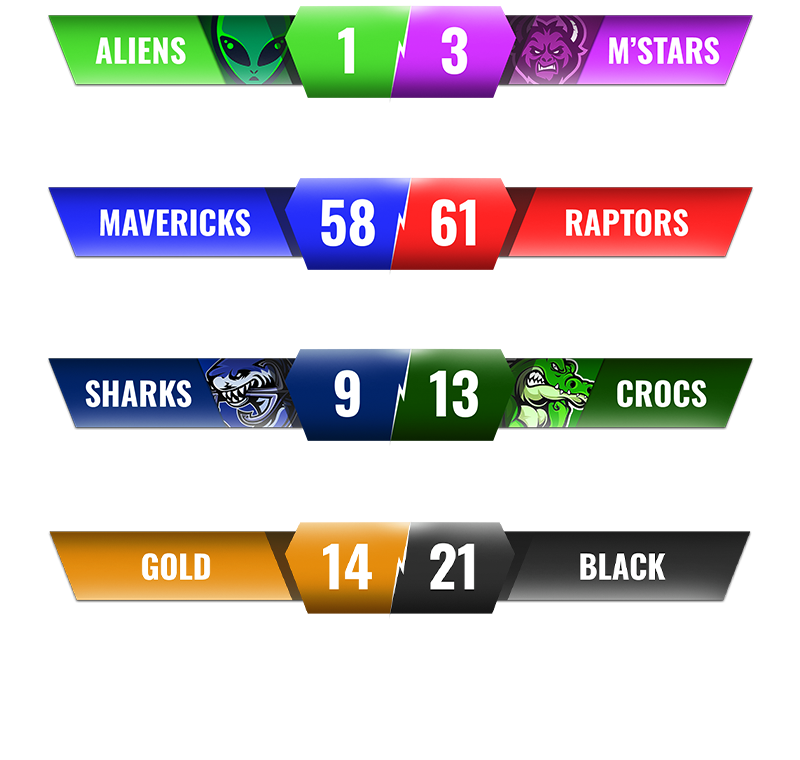
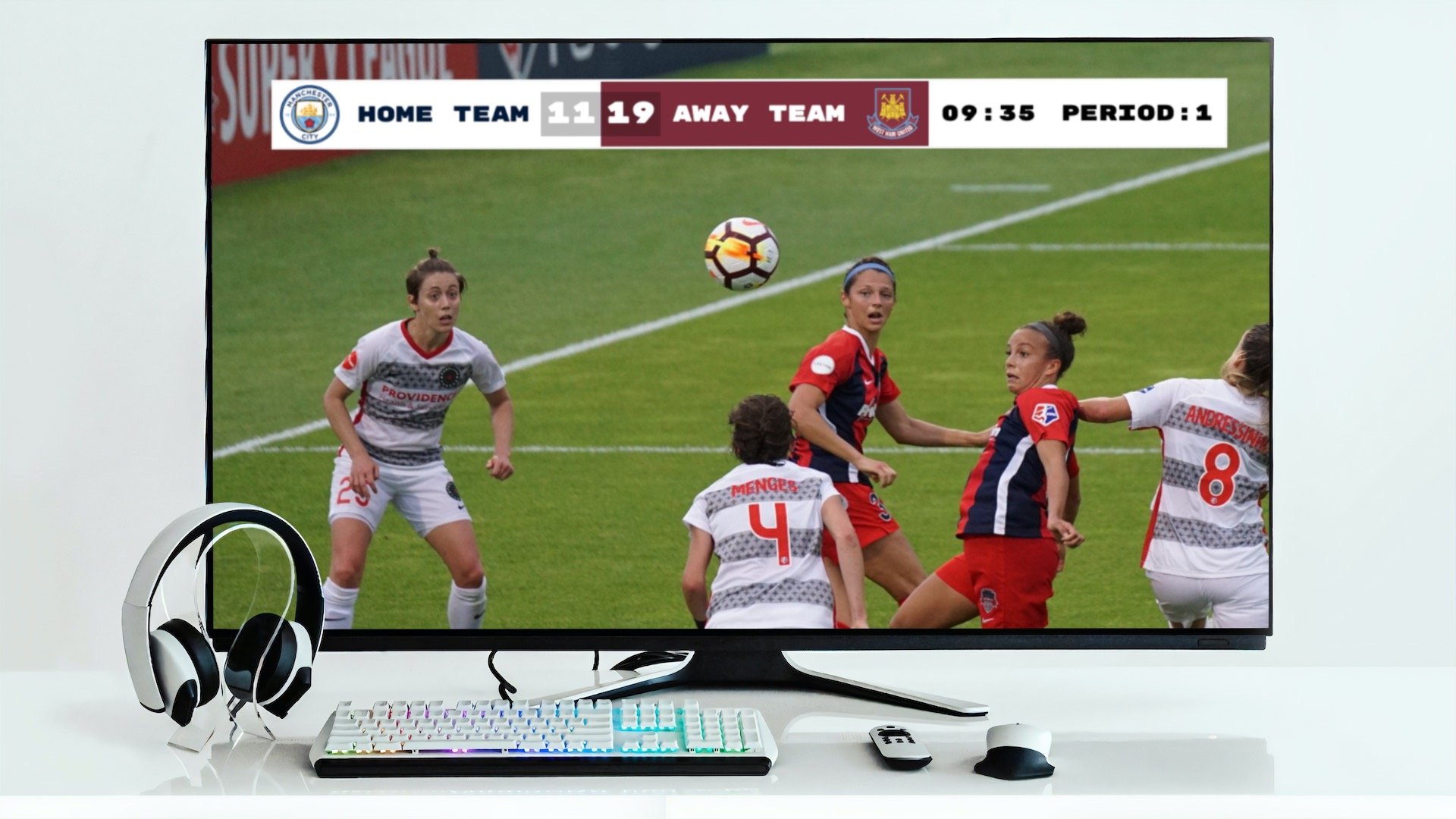
YoloBox is an all-in-one portable live streaming device—no laptop required. If you're broadcasting sports with a YoloBox (Pro, Ultra, or Mini), here's how to add a live scoreboard overlay.
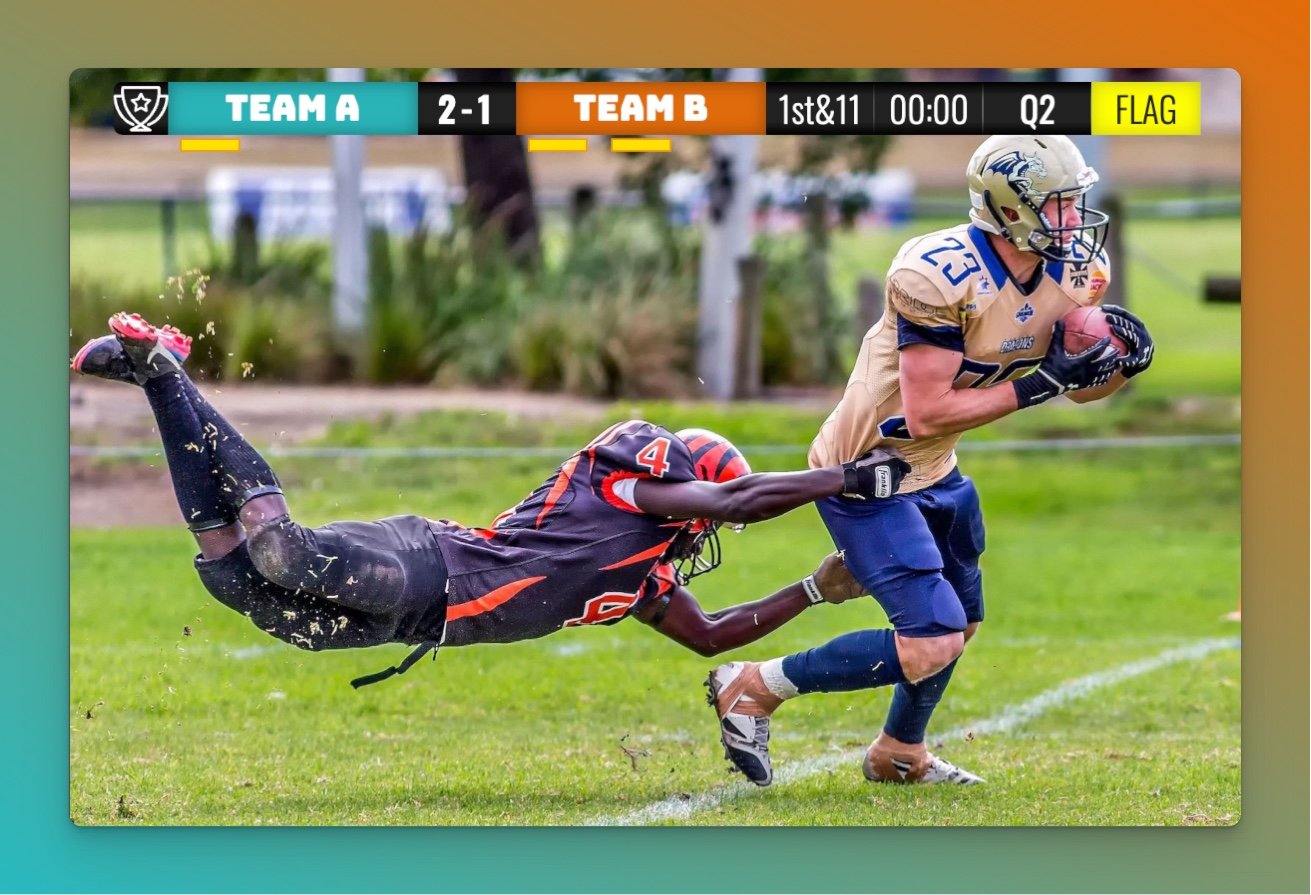
The device has a built-in "Web URL Overlays" feature. Point it at your scoreboard URL, and the overlay updates live whenever someone changes the score.
Step 1: Set Up Your Scoreboard
In this step we create and customize a scoreboard.
We have dedicated scoreboards for the following sports: football, baseball, basketball, hockey, soccer, tennis, volleyball and more! To begin, click the button below 👇 and choose your sport.
You should then see the following. This is your "control panel".
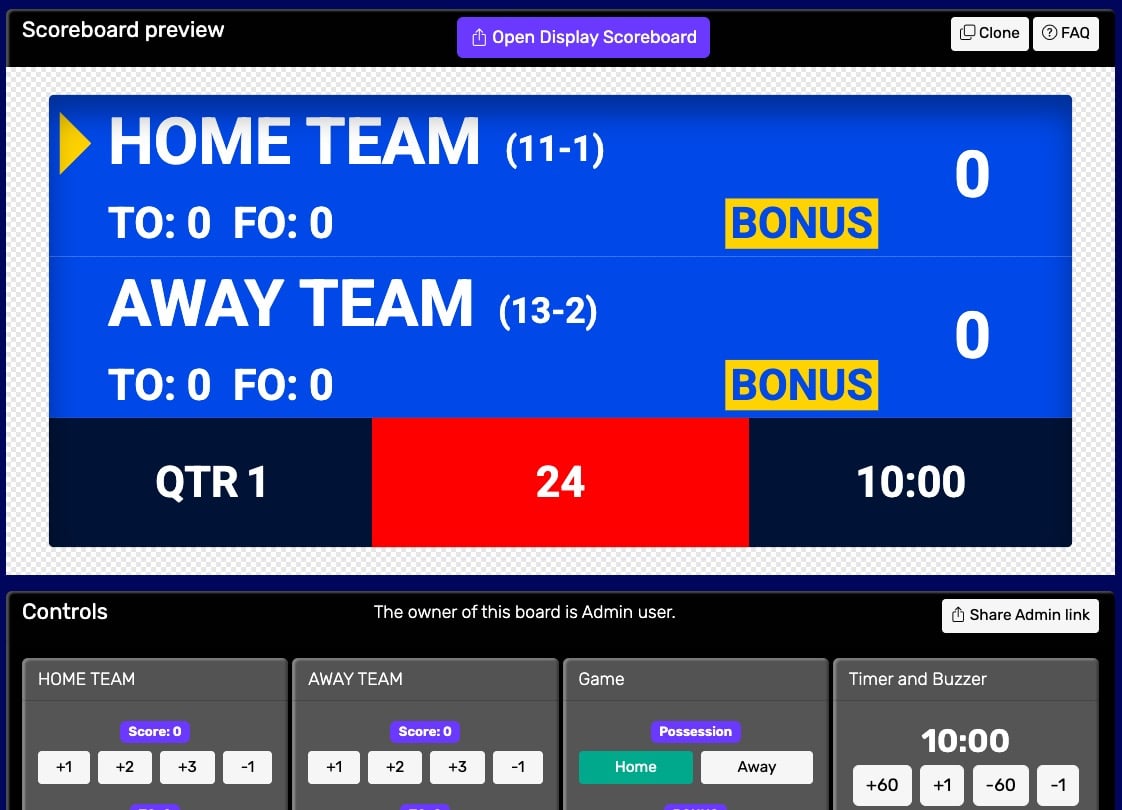 Control panel for an online scoreboard
You will use this control panel to control the scores. For detailed customization options (team names, colors, logos, layouts), see our scoreboard customization guide.
💡 You can share the URL of the control panel to give someone else the ability to change scores. Click the "Share scorekeeping link" button to copy the link or generate a QR code for easy sharing.
Next, we will get hold of the public scoreboard URL.
Click on the "Open Display Scoreboard" button at the top of the control panel. See below:
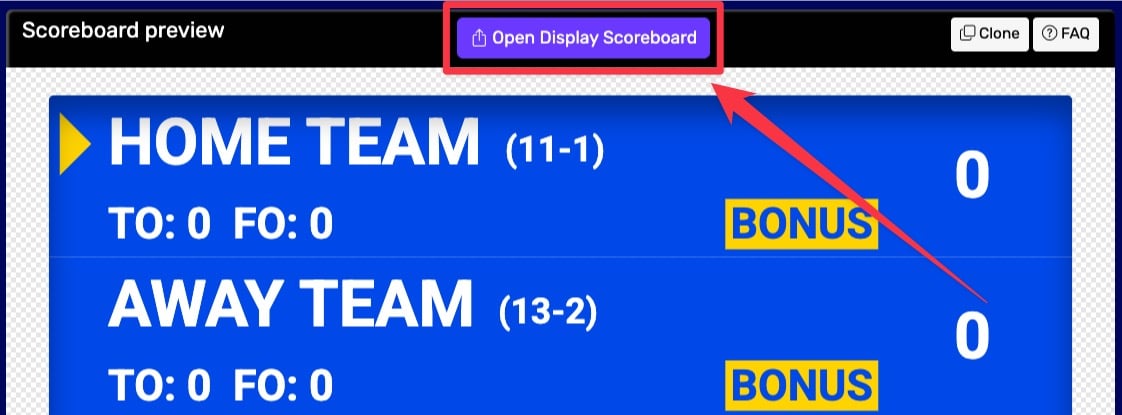 1. Getting the scoreboard link
You have several options in the dialog that appears:
- Click "COPY" to copy the URL to your clipboard
- Click "VIEW" to preview the scoreboard
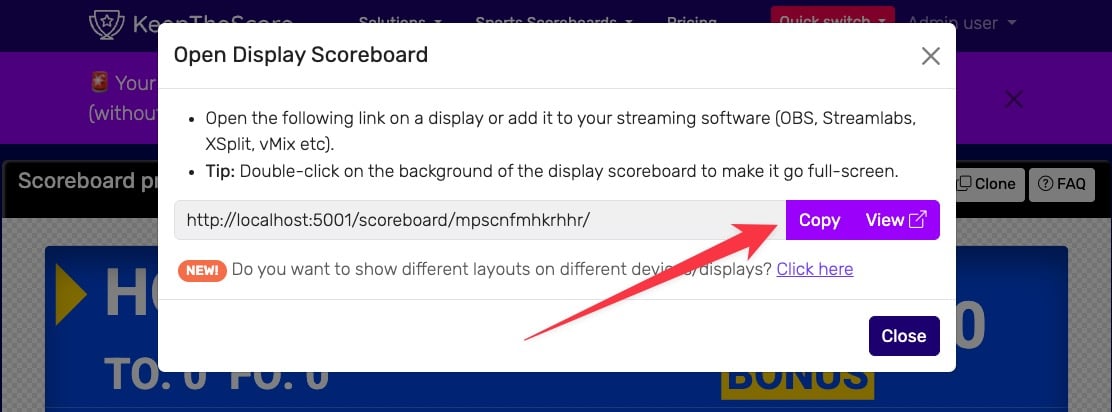 2. Getting the scoreboard link
💡 Layout Options: Many sports (including Universal, Basketball, Hockey, and all set-based sports like Tennis, Volleyball, Badminton, Squash, and Pickleball) support multiple layouts. You can:
- Use different layouts on different devices simultaneously
- Lock specific layouts using URL parameters (e.g.,
?layout=simpleBug)- Show a scorebug overlay in your stream while displaying a full scoreboard on a TV
Click "Click here" in the share dialog to see all available layout options for your sport.
Step 2: Add the Web URL Overlay in YoloBox
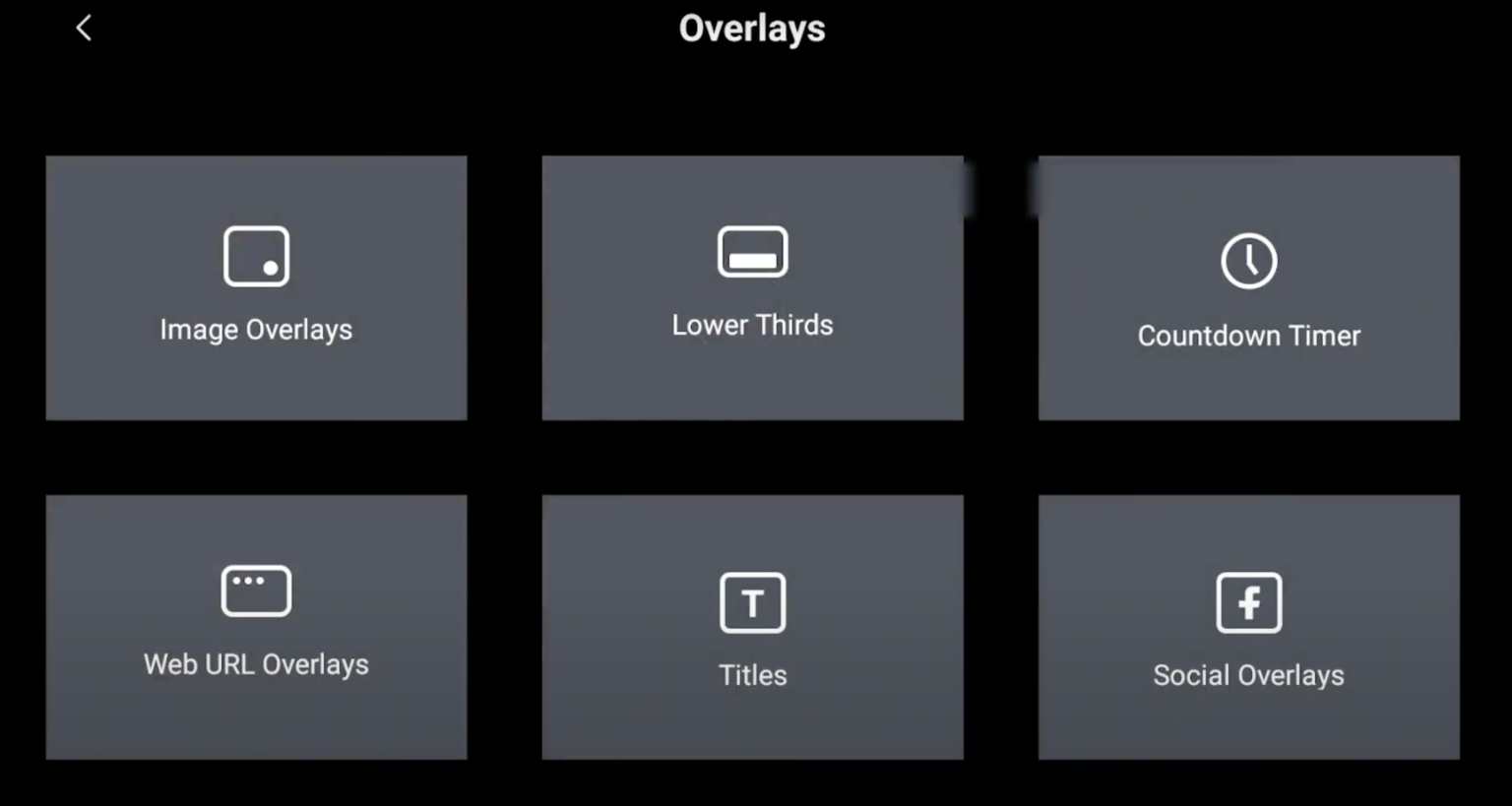
On your YoloBox device, tap the Overlays button in the main interface.
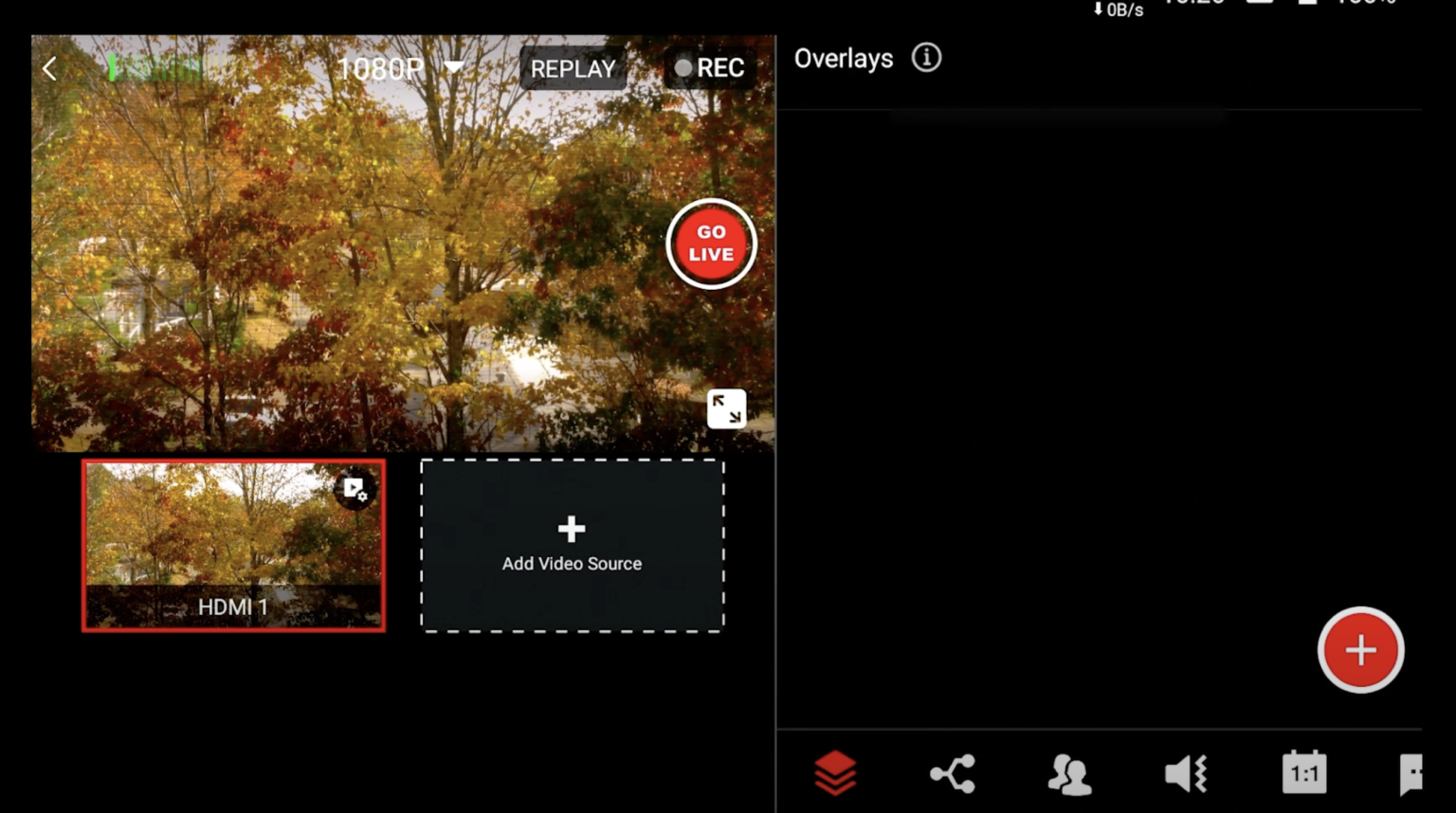
Select Web URL Overlays from the overlay options menu.
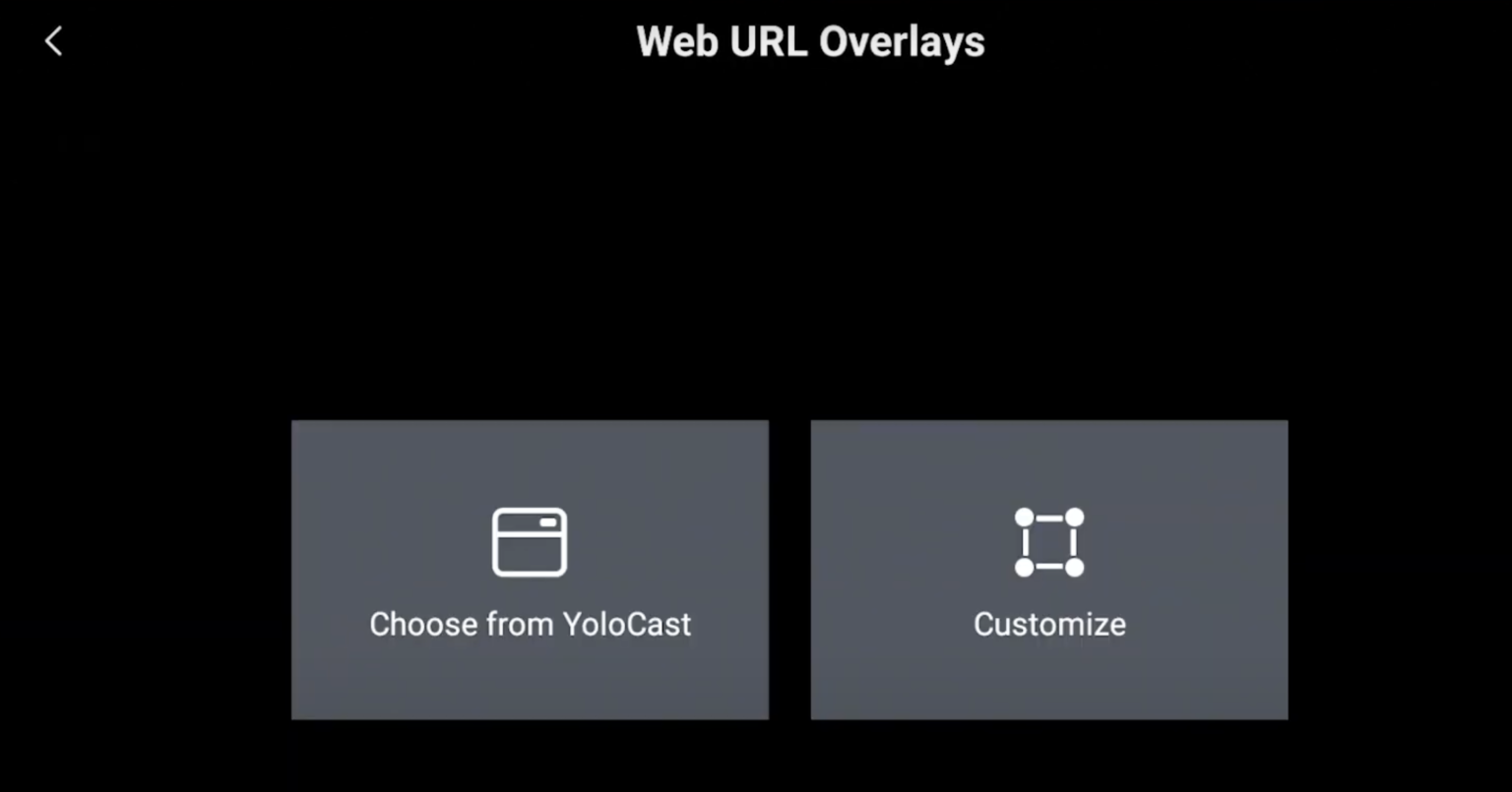
In the Web URL Overlays tab, tap Customize.
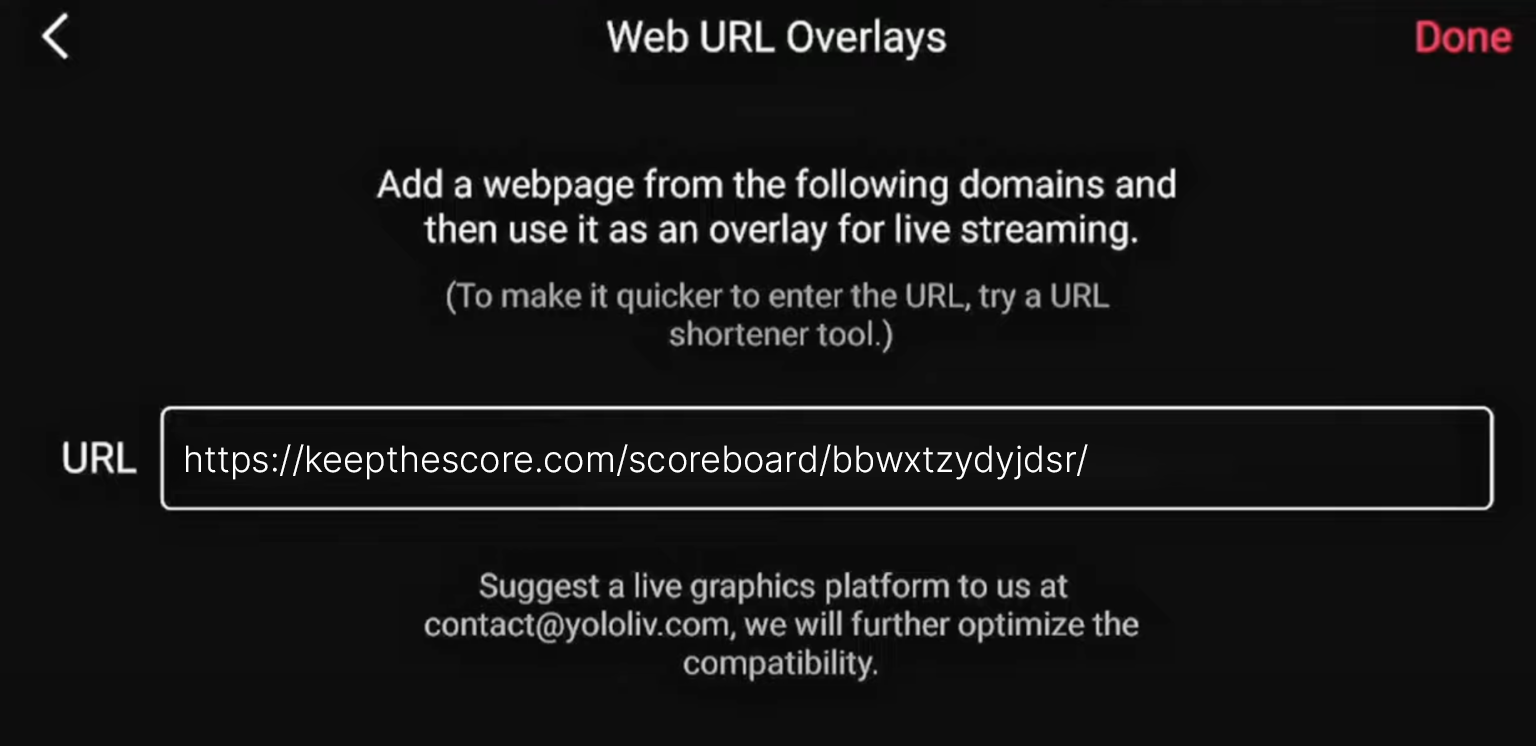
Paste your scoreboard URL into the URL field and tap to confirm.
Step 3: Position and Resize
Use the Width, Height, and Scale controls to position your overlay:
- Scale shrinks the overlay to scorebug size (start around 50%)
- Width/Height adjust the overlay dimensions
- Drag to position it in a corner of your broadcast
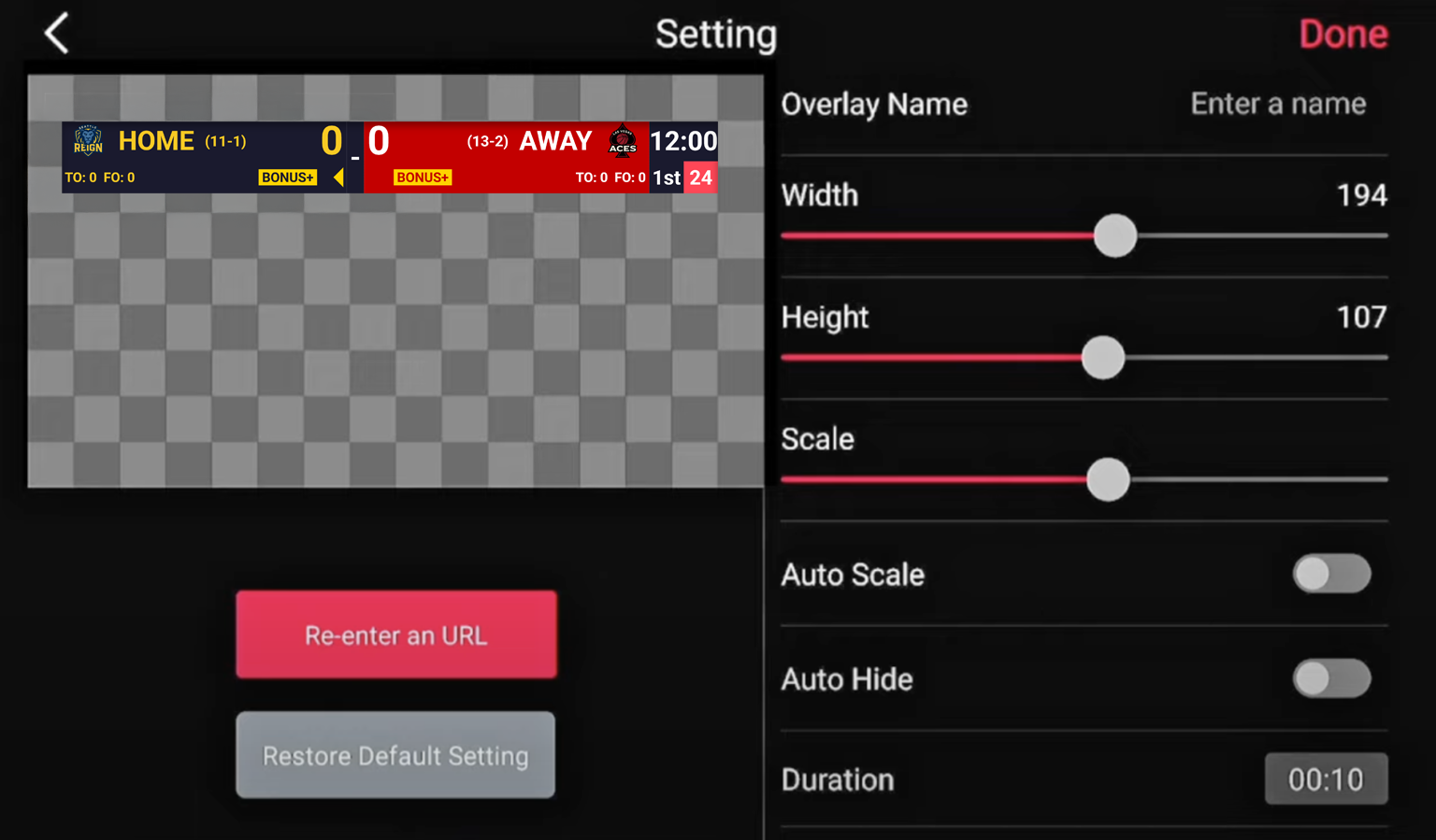
Tap Done when you're happy with the placement.
Updating Scores Live
The person running the scoreboard doesn't need to touch the YoloBox. They can update scores from:
- A phone or tablet
- Another computer
- Anywhere with internet (using the admin link)
Changes show up immediately in your broadcast. Camera operator handles the video; scorekeeper handles the points.
Why This Works Well
No app to install on the YoloBox. The score operator can be in a completely different location—they just need the admin URL. Perfect for portable setups where you want minimal equipment.
If Something Goes Wrong
Scoreboard won't load? Check your YoloBox's internet connection (WiFi or cellular). Try loading the URL on your phone first to verify it works.
Overlay too large? Reduce the Scale setting. Start around 50% and adjust from there.
Laggy updates? Make sure you have a stable internet connection. Ethernet adapters are available for YoloBox if WiFi is unreliable at your venue.