How to Add a Scoreboard Overlay to SplitCam
Stream a game from your Android phone with SplitCam and show a live KeepTheScore scoreboard on screen. Keep score from a second phone.
Article Contents
SplitCam is a free live streaming app. Its Android app streams to YouTube, Twitch, Kick and other platforms at the same time, and it has a built-in "Sports scoreboard" layer for KeepTheScore. This guide shows you how to put a live scoreboard overlay on your SplitCam stream. One phone films the game, and a second phone keeps the score.
Quick Overview
Two steps:
- Create your scoreboard on KeepTheScore and copy the display link
- Add a Sports scoreboard layer in SplitCam and paste the link
No computer needed. No plugins.
Step 1: Create Your Scoreboard
In this step we create and customize a scoreboard.
We have dedicated scoreboards for the following sports: football, baseball, basketball, hockey, soccer, tennis, volleyball and more! To begin, click the button below 👇 and choose your sport.
You should then see the following. This is your "control panel".
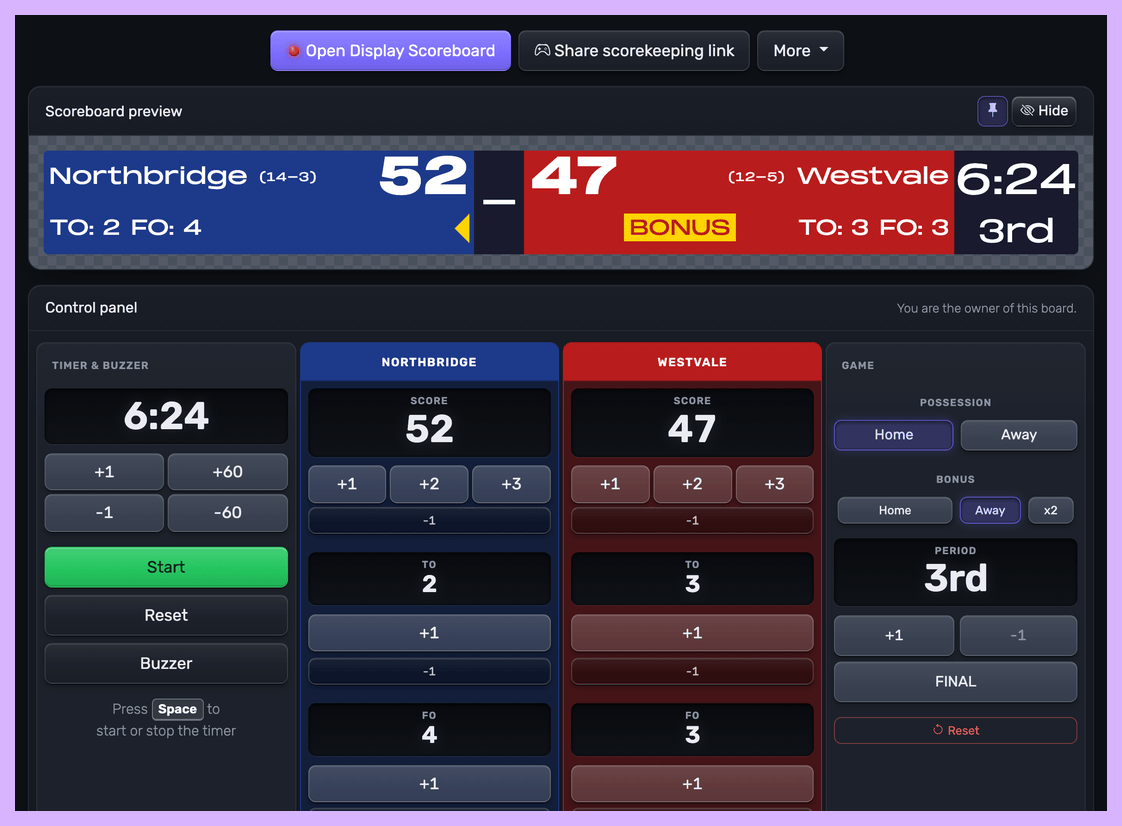 Control panel for an online scoreboard
You will use this control panel to control the scores. For detailed customization options (team names, colors, logos, layouts), see our scoreboard customization guide.
💡 You can share the URL of the control panel to give someone else the ability to change scores. Click the "Share scorekeeping link" button to copy the link or generate a QR code for easy sharing.
Next, we will get hold of the public scoreboard URL.
Click on the "Open Display Scoreboard" button at the top of the control panel. See below:
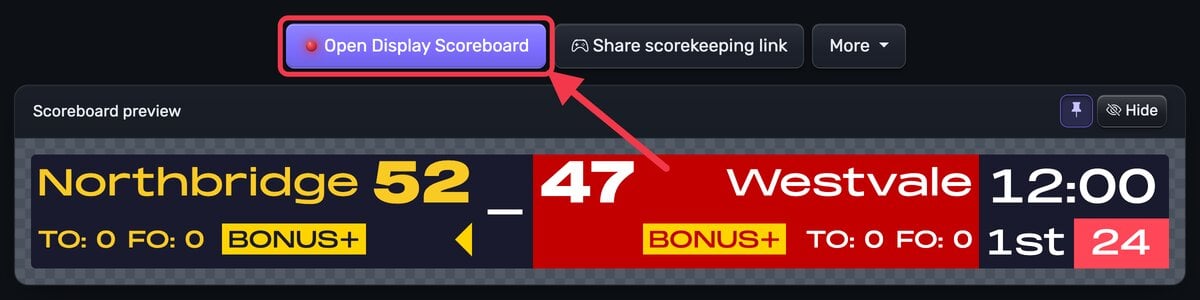 1. Getting the scoreboard link
You have several options in the dialog that appears:
- Click "Copy" to copy the URL to your clipboard
- Click "Open on this device" to preview the scoreboard
- Scan the QR code to open the scoreboard on another device
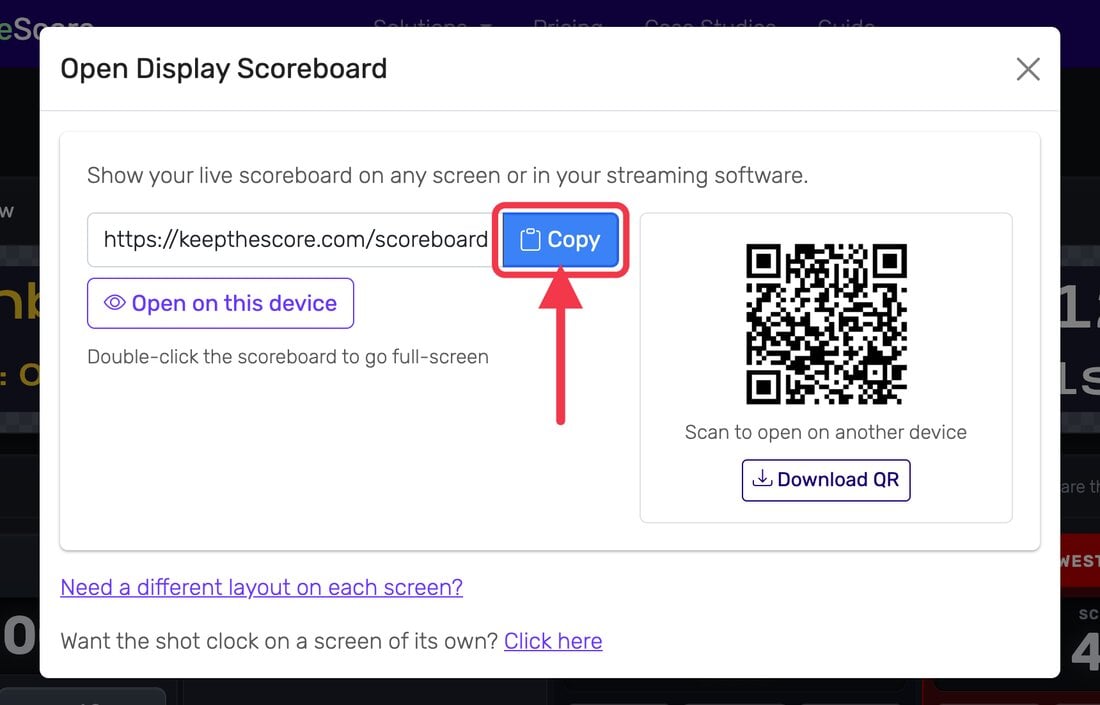 2. Copying the scoreboard link
💡 Layout Options: Many sports (including Universal, Basketball, Hockey, and all set-based sports like Tennis, Volleyball, Badminton, Squash, and Pickleball) support multiple layouts. You can:
- Use different layouts on different devices simultaneously
- Lock specific layouts using URL parameters (e.g.,
?layout=simpleBug)- Show a scorebug overlay in your stream while displaying a full scoreboard on a TV
Click "Need a different layout on each screen?" in the dialog to see all available layout options for your sport.
For a bar along the top of the stream, pick a scorebug layout. If your sport offers Narrow and wide, use it: the SplitCam team found it fits a phone stream best, in landscape and in portrait.
Step 2: Add the Scoreboard Layer in SplitCam
You need SplitCam for Android, on Android 10 or newer.
- Open a scene and tap Add.
- Tap Widgets, then Sports scoreboard.
- Choose KeepTheScore from the list of services.
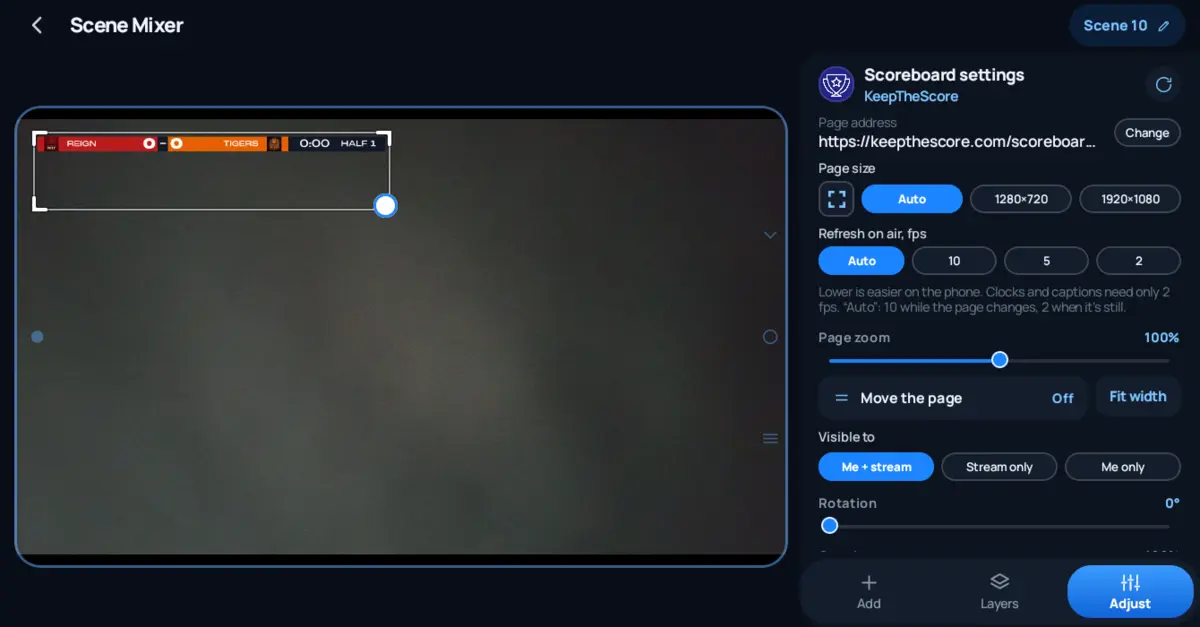
- Paste your display link and tap Add.
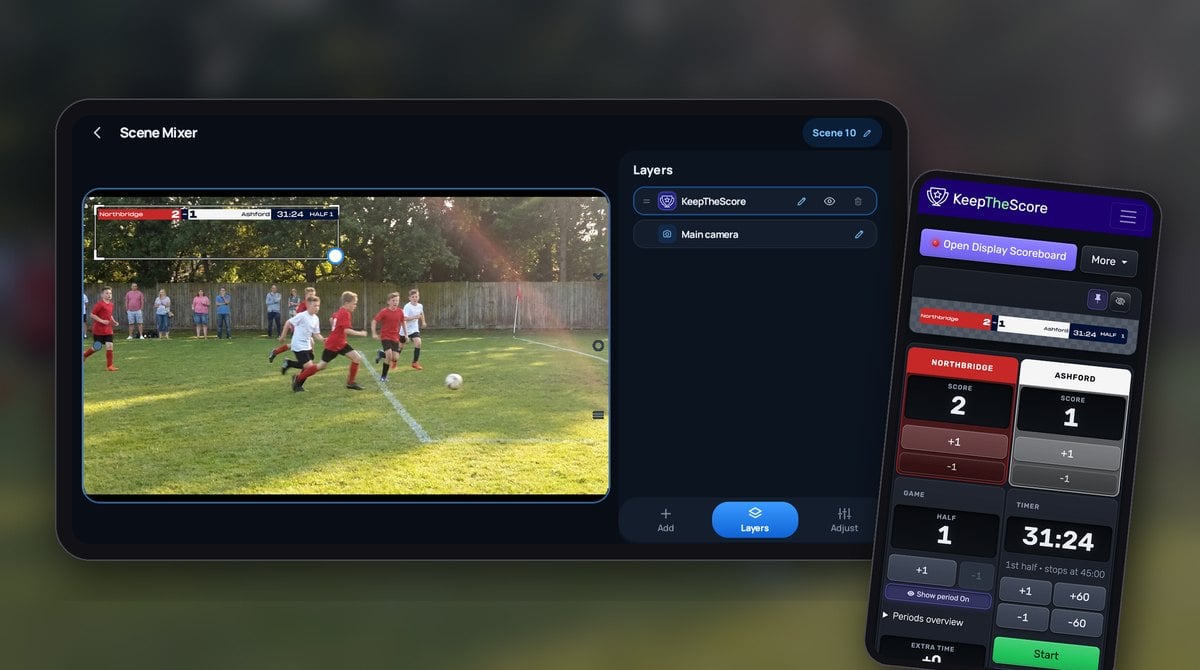
The scoreboard now shows as its own layer, on top of the camera.
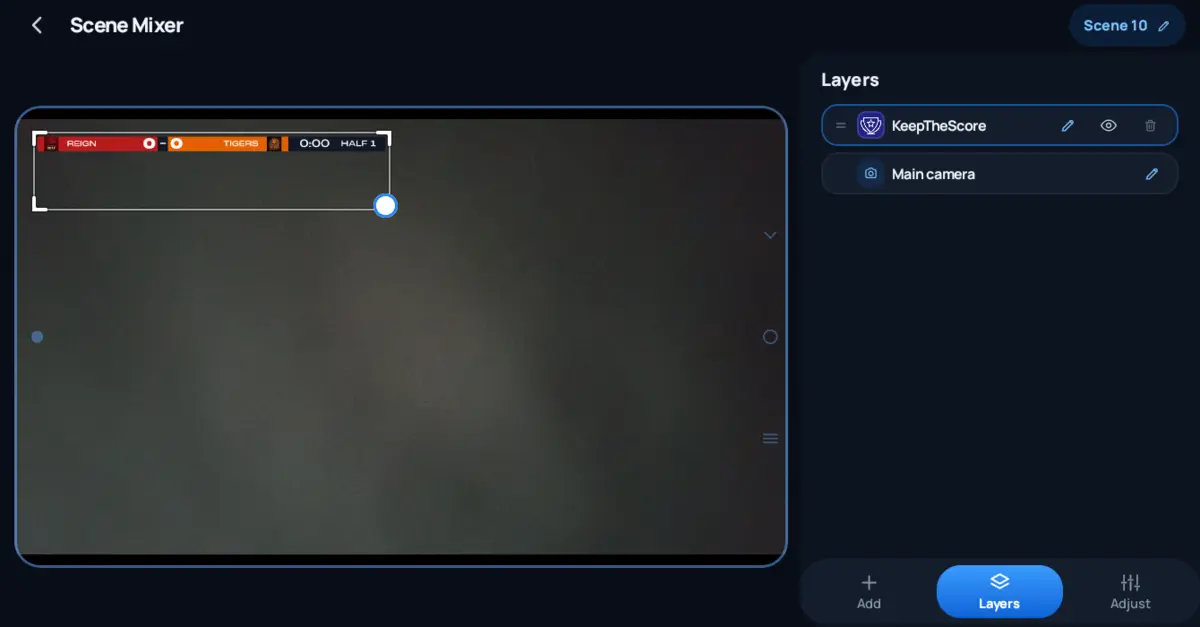
Drag the corners of the layer to resize it, and move it to the top of the frame. The Adjust tab sets the page size, zoom and rotation. Visible to lets you hide the scoreboard from your own preview and show it only on the stream.
What Your Viewers See
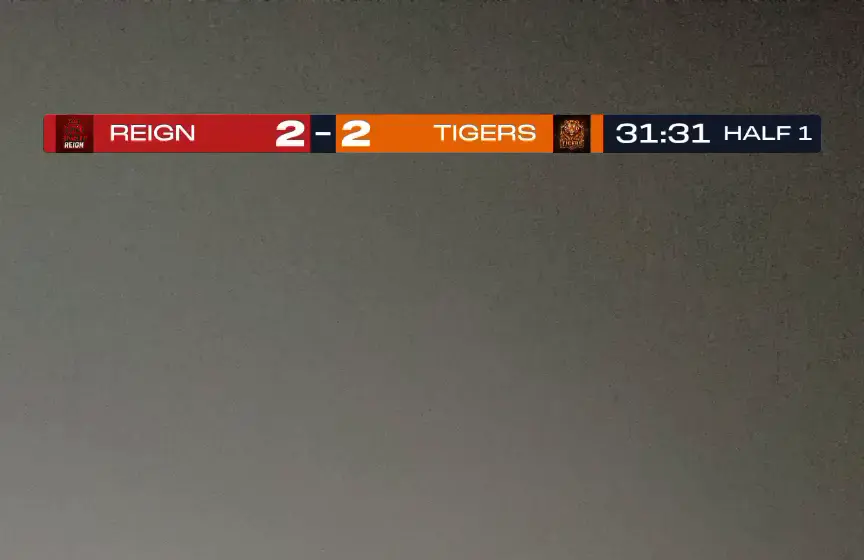
In landscape, the scorebug sits across the top of the frame:

In portrait, for TikTok or YouTube Shorts, it fills the width of the phone:
Updating Scores Live
The person who keeps score doesn't need SplitCam. They open the admin link on their own phone or laptop and tap the scores. In SplitCam's tests, a score change showed up on the stream within about 5 seconds, and the game clock kept running.
If you move the broadcast to another phone, the new phone shows the same score and the same clock. The score lives on KeepTheScore, not in SplitCam.
If Something Goes Wrong
Scoreboard is blank? Check that you pasted the display link, not the admin link. Open the link in your phone's browser first to check that it loads.
Scoreboard is cut off? Switch to a narrower scorebug layout, or lower the page zoom in the Adjust tab.
Score updates are slow? Check the phone's internet connection. A weak mobile signal at the venue slows both the stream and the score.
Other Streaming Apps
Streaming from a computer or another app? See our guides for every streaming app we support.

Written by Caspar von Wrede
Founder of KeepTheScore. Building tools that help teams track scores and celebrate wins.