If you stream live events, you already know the tab juggling problem. Chat in one window, mod tools in another, a scoreboard control panel in a third, stream dashboard in a fourth. Every time you alt-tab to update something, you lose sight of your scene preview. Mid-stream, that's a recipe for missed cues and awkward dead air.
OBS has a feature that fixes this: custom browser docks. They let you pull any browser-based tool directly into your OBS workspace, so you can interact with web apps without ever leaving the OBS window. Most streamers know about browser sources for overlays, but browser docks are a different thing entirely — and they're underused.
What is an OBS custom browser dock?
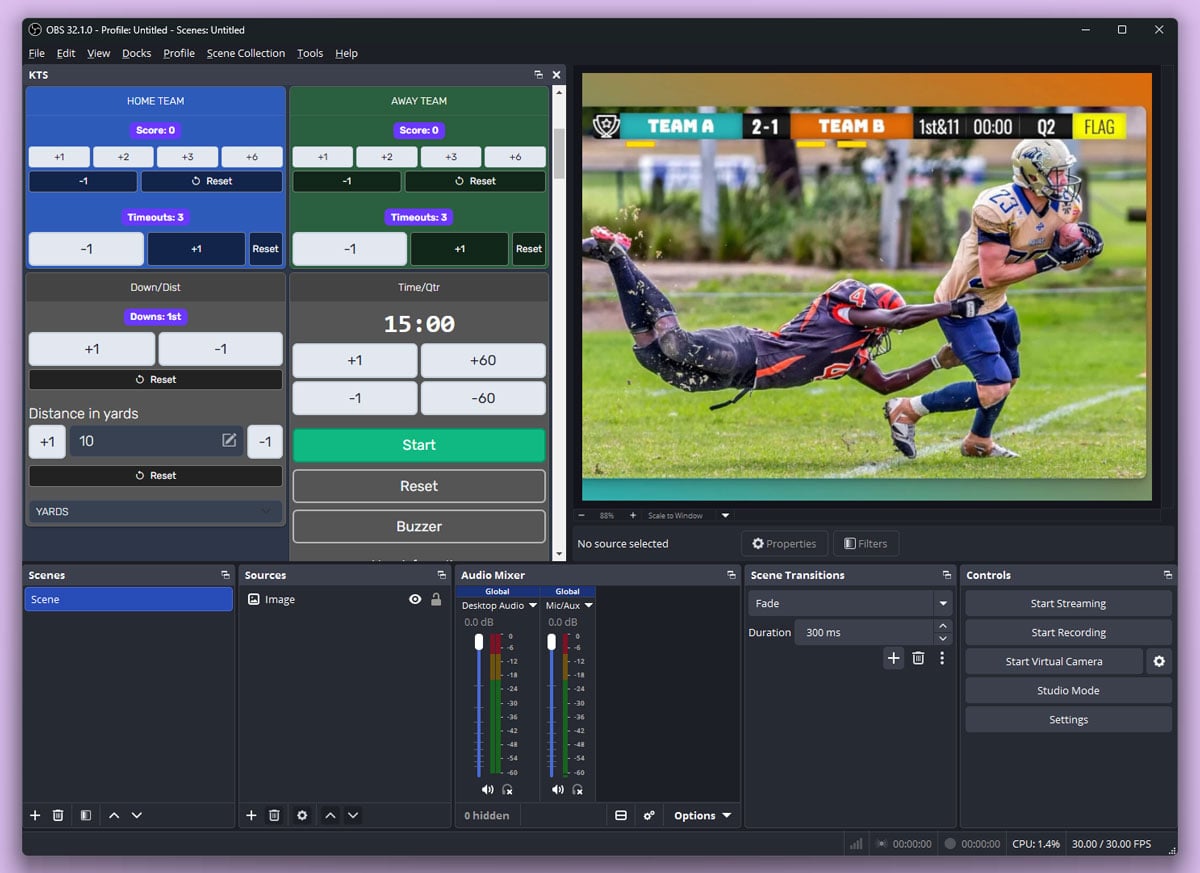
A custom browser dock is a panel inside the OBS interface that loads a webpage. Think of it like a mini browser window built into your OBS workspace. You can resize it, drag it around, stack it alongside your scenes panel, or detach it into a floating window.
The key thing to understand: a browser dock does not appear in your stream or recording. It's part of your workspace, not the broadcast output. The dock is for you — the person running the stream. Viewers never see it.
Under the hood, OBS browser docks use the same embedded browser engine that powers browser sources. The difference is where they show up: docks live in the OBS interface, while browser sources live in your scenes.
Browser dock vs browser source
This distinction trips up a lot of people, so here's the short version:
| Browser dock | Browser source | |
|---|---|---|
| Where it appears | Inside the OBS interface (your workspace) | Inside a scene (the stream output) |
| Who sees it | Only you | Your viewers |
| What it's good for | Control panels, dashboards, chat, tools you interact with | Overlays, scoreboards, graphics, anything viewers should see |
| Interactive? | Yes — you can click, type, scroll directly in the dock | Yes in OBS via Interact (right-click the source); viewers can't interact with it |
The rule of thumb: if you need to interact with a web tool while streaming, dock it. If viewers need to see something from a web tool, add it as a browser source. In many workflows, you'll use both — the dock to control the tool and a browser source to display the output.
How to add a custom browser dock in OBS
This takes about 30 seconds:
- Open OBS and go to Docks in the top menu bar.
- Click Custom Browser Docks... (it's near the bottom of the menu).
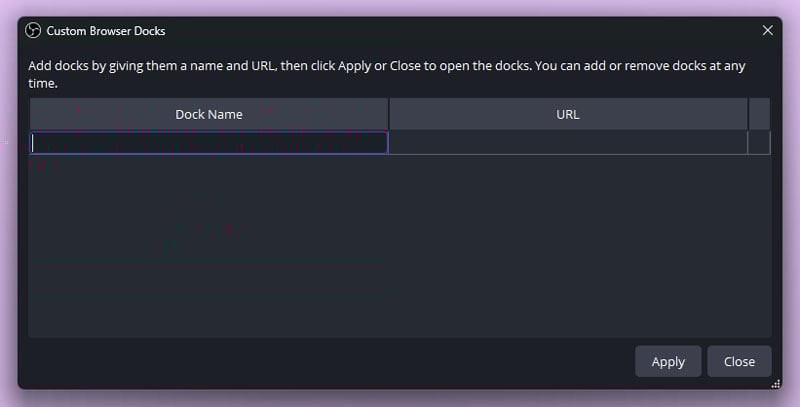
- In the dialog that opens, enter a name for your dock (something descriptive like "Chat" or "Score Controls") and paste the URL of the web tool you want to load.
- Click Apply. The dock will appear as a new panel in your OBS layout.
Once the dock is loaded, you can:
- Resize it by dragging the panel edges
- Move it by dragging the title bar to a different position in the OBS layout
- Detach it by dragging it out of the OBS window entirely (useful if you have a second monitor)
- Reattach it by dragging it back into the OBS layout
- Hide or show it from the Docks menu (each dock gets a toggle)
You can add multiple docks at once. The dialog lets you enter several name/URL pairs before hitting Apply.
What to dock: practical use cases
Not every web tool makes sense as a dock. The best candidates are tools you need to interact with during a stream but don't want viewers to see.
Chat and moderation
Dock your Twitch or YouTube chat popout URL so you can read and respond to chat without switching windows. Moderation tools like StreamElements dashboards work the same way.
Stream dashboards
Analytics dashboards, stream health monitors, or alert configuration pages. If you're checking them mid-stream, they belong in a dock, not a separate browser window.
Browser-based control panels
This is where docks really shine. Any browser-based tool that has a control interface — scorekeeping apps, overlay controllers, camera PTZ web panels, lighting controls — can be docked so you control it from inside OBS.
Custom web-based tools
If you've built (or use) a custom web app for your stream workflow, dock it. Anything that loads in a browser can load in a dock.
Using docks and browser sources together
The most powerful OBS setups combine docks and browser sources from the same tool. Here's the pattern:
- Dock the control panel — the URL where you interact with the tool (update scores, change settings, trigger events).
- Add the display output as a browser source — the URL that shows the result to viewers (the scoreboard overlay, the ticker, the graphic).
You control from the dock. Viewers see the output in the stream. One tool, two URLs, zero alt-tabbing.
This pattern works with any browser-based tool that separates its control interface from its display output. Scorekeeping tools, lower-third generators, and poll widgets all follow this model.
Example: scorekeeping inside OBS with Keepthescore
Let's make this concrete with a sports streaming workflow. Keepthescore is a browser-based scorekeeping tool, which makes it a natural fit for OBS docks.
Here's how the setup works:
- Create your scoreboard on Keepthescore and open the scorekeeper link — this is the URL where you update scores.
- Dock the scorekeeper link in OBS using the steps above. Name it something like "Score Controls."
- Copy the display URL (the separate link that shows the scoreboard to viewers) and add it as a browser source in your OBS scene.
Now you can update scores from the docked panel inside OBS while the scoreboard overlay appears in your stream. No second browser window, no alt-tabbing, no lost scene preview.
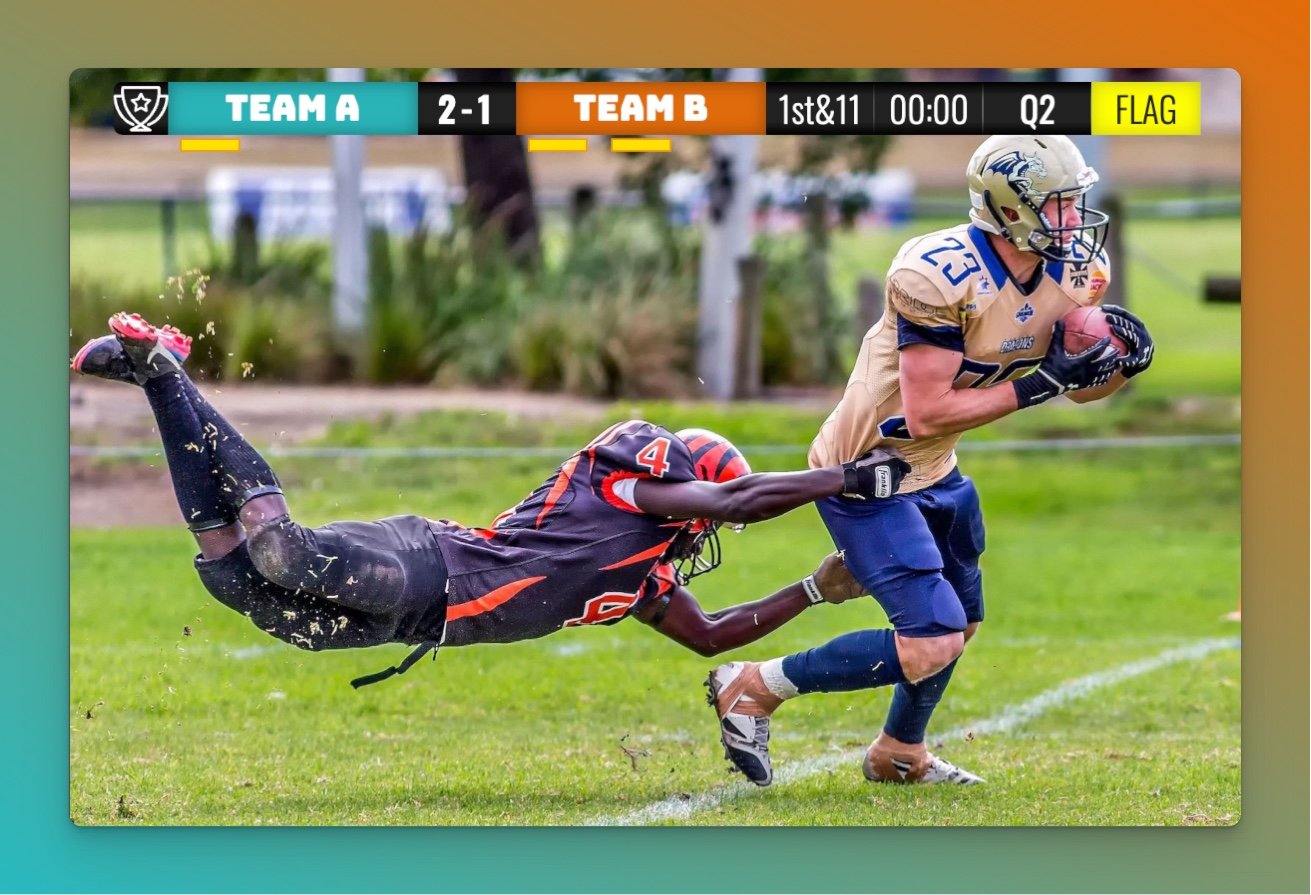
This same approach works for basketball streams, football streams, or any other sport. And the pattern isn't unique to Keepthescore — any browser-based tool with separate control and display URLs works the same way in OBS docks.
For a full walkthrough on adding the scoreboard overlay as a browser source, see our OBS scoreboard setup guide.
Limitations and troubleshooting
Browser docks work well for most web tools, but the embedded browser environment has some rough edges. Here's what to watch for.
The "Custom Browser Docks" option is missing
You need OBS with browser support enabled, which is included in official builds from obsproject.com. If you're running a third-party or stripped-down package, browser docks might not be available. On Linux, Wayland sessions are a known limitation — browser docks may not work until you switch to X11 or an OBS version that addresses Wayland browser support.
Login and cookie problems
OBS docks use their own embedded browser, separate from your regular browser. This means you'll need to log in again inside the dock, and session cookies don't carry over from Chrome or Firefox. Some tools with complex authentication flows (multi-factor auth, OAuth redirects to third-party providers) can be unreliable in this environment.
Workaround: For tools that support it, use a direct URL or API token instead of a login-based session. Keepthescore scorekeeper links, for instance, don't require login — the URL itself grants access.
Sites that don't load correctly
Heavy single-page apps, sites that aggressively block embedded browsers, and tools that require camera or microphone permissions may not work in OBS docks. The embedded browser doesn't handle permission dialogs the same way a standalone browser does.
If a site loads but looks broken, try right-clicking inside the dock panel and selecting Refresh (or closing and re-opening the dock). Some sites need a fresh load to render correctly in the embedded environment.
Interaction and refresh issues
Occasionally a dock becomes unresponsive or stops updating. Right-click the dock area and look for a refresh option. If that doesn't work, remove the dock and re-add it from the Custom Browser Docks dialog.
OBS doesn't aggressively cache docks the way it caches browser sources, but if you've changed a URL and the old content persists, a dock refresh usually clears it.
Try it in your next stream
If you're streaming with browser tabs scattered across your desktop, OBS custom browser docks are worth the 30-second setup. Dock your chat, your dashboards, and your control panels. Keep everything inside one window.
For sports broadcasters, docking a browser-based scorekeeping tool like Keepthescore alongside a scoreboard overlay is one of the cleanest streaming setups you can build — no extra apps, no switching windows, and your scores update in real time for viewers.
Common Questions
"What is a custom browser dock in OBS?"
A custom browser dock is a panel inside the OBS interface that loads a webpage. It lets you interact with browser-based tools — chat, dashboards, control panels — without leaving OBS. It doesn't appear in your stream output.
"What is the difference between an OBS browser dock and a browser source?"
A browser dock lives inside the OBS interface for your own use — viewers never see it. A browser source is added to a scene and appears in your stream or recording output.
"Can I use any website in an OBS custom browser dock?"
Many browser-based tools work well in OBS docks, but some sites may have issues with login flows, cookies, or permission requests (like camera or microphone access) because OBS uses an embedded browser environment.
"Why is the custom browser dock option missing in OBS?"
Custom browser docks require OBS browser support, which is included in official OBS builds. Make sure you're running an up-to-date version from obsproject.com. On Linux, Wayland sessions are a known limitation for browser docks.
"Can I use OBS browser docks with Keepthescore?"
Yes. You can dock the scorekeeper link inside OBS to control scores without switching windows, while using the display URL as a browser source for the on-stream scoreboard overlay. See our streaming setup guide for details.